


You open the vSphere Client and instead of the inventory, you get a blunt message:
No Healthy Upstream
Sometimes the symptom is more explicit. The login flow may fail with:
HTTP Status 400 – Bad Request
Signing certificate is not valid
Other times the vCenter Server Appliance looks partially alive from the outside, but core services will not come up after a reboot. In Broadcom KB316619, this pattern is tied to vCenter Server Appliance 7.x, 8.x, and 9.x symptoms where an expired STS certificate can prevent vmware-stsd from starting and disrupt internal token issuance.
That distinction matters. No Healthy Upstream is not the root cause. It is the browser-facing symptom of a service chain that is no longer healthy. If you treat it as a web proxy problem only, you can waste time restarting services that are failing for a deeper identity or trust reason.
This runbook starts with the symptom, then walks through service health, certificate validity, Lookup Service trust, snapshot safety, log locations, and recovery decision points.
Scenario
The most common operational scenario looks like this:
A vCenter Server Appliance is rebooted after maintenance, patching, a storage interruption, or an unplanned outage. After the appliance comes back online, the VAMI might respond, SSH might work, and DNS might resolve, but the vSphere Client fails with No Healthy Upstream, Signing certificate is not valid, or Single Sign-On connection errors.
In KB 316619, Broadcom lists login failures that include Cannot connect to vCenter Single Sign-On server, Signing certificate is not valid, 503 Service Unavailable, and No Healthy Upstream. The same KB also notes that vmware-stsd may be stopped and that Enhanced Linked Mode environments can become inaccessible across all vCenter Server instances.
The operational risk is not just “the UI is down.” If STS is broken, internal vCenter services and solution users may be unable to acquire valid tokens. Broadcom identifies the cause as an expired STS certificate or expired signing root certificate, which prevents services and solution users from functioning as expected.
What “No Healthy Upstream” Means in This Context
No Healthy Upstream generally means the front-end path cannot route the request to a healthy backend service. Broadcom’s broader No healthy upstream article describes it as an alternate message for HTTP 503, meaning the server is temporarily unable to handle the request.
It can be caused by several conditions, including VPXD not running, expired certificates, disk space issues, session exhaustion, memory pressure, maintenance, SSO service problems, /etc/hosts changes, or Lookup Service failures.
That means the first decision is not “replace certificates immediately.”
The first decision is:
Is this a general service-health problem, or does the evidence point to STS and certificate trust?
Triage Flow at a Glance
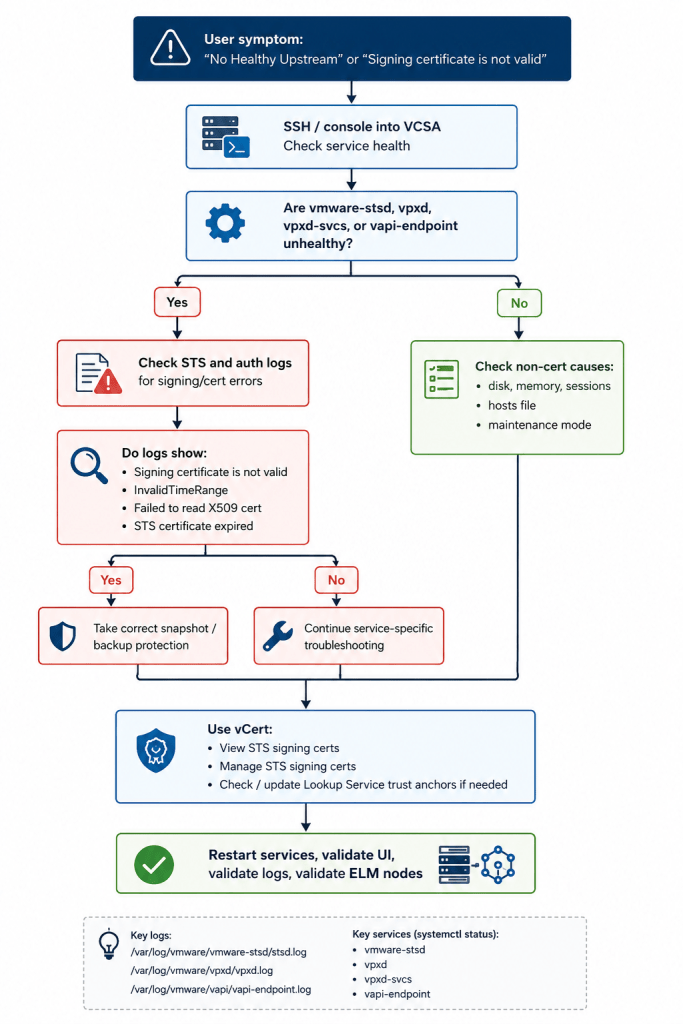
The diagram below is the operational decision path I would use before changing certificates. The important part is the branch point: prove whether this is a certificate or STS failure before moving into certificate replacement.

Use the diagram as a guardrail. It keeps the response disciplined: collect service and log evidence first, protect the appliance state second, then choose the smallest recovery action that matches the evidence.
Prerequisites and Safety Checks
Before you replace or refresh anything, establish a safe recovery point.
For a standalone vCenter Server, Broadcom’s KB 316619 says to take a snapshot without memory. For Enhanced Linked Mode, the same KB calls for powered-off snapshots of all vCenter Servers in the same SSO domain. The vCert article also warns that certificate changes can render the system inoperable and calls for a valid VAMI-based backup or offline snapshots of all vCenter/PSC nodes in the SSO domain before proceeding.
Do not treat this as a casual “restart services and try things” issue. Certificate and identity-state repairs can touch STS, VECS, VMware Directory, solution users, and Lookup Service registrations.
Minimum safety checklist:

A key caveat: Broadcom’s UI-based STS refresh guidance warns that using the refresh action can replace third-party or custom certificates with vCenter-issued certificates, which may take the environment out of compliance if custom certificates are required.
Stage 1: Check Service Health Before Touching Certificates
Start by validating what is actually unhealthy.
SSH or console into the appliance as root, then switch to the shell if needed:
shell
service-control --status --all
Look for services such as:
Broadcom’s Diagnostics for VMware Cloud Foundation service reference identifies sts, vpxd, vpxd-svcs, vapi-endpoint, vsphere-ui, and lookupsvc as key vCenter services and provides their associated log locations.
If the service list shows vmware-stsd stopped or repeatedly failing, move quickly into STS and certificate validation. If vmware-stsd is healthy but vpxd, vapi-endpoint, or lookupsvc is failing, keep the certificate path open but also check non-certificate causes.
Run these basic platform checks before certificate changes:
date
df -h
uptime
cat /etc/hosts
These are not the full recovery procedure. They are sanity checks. A full /storage/log, a broken /etc/hosts, or a time problem can create service failures that look like a certificate problem from the browser.
Stage 2: Look for STS and Signing Certificate Evidence
Now move from service state to evidence.
The fastest clue is usually in the logs. Search the STS, vCenter, and vpxd-svcs logs for signing and validity errors:
grep -iE "Signing certificate is not valid|InvalidTimeRange|Failed to read X509|STS Certificate|certificate has expired" \
/var/log/vmware/sso/vmware-identity-sts.log \
/var/log/vmware/vpxd-svcs/vpxd-svcs.log \
/var/log/vmware/vpxd/vpxd.log
Broadcom KB 316619 calls out several useful log indicators, including Failed to read X509 cert in /var/log/vmware/vpxd/vpxd.log, Signing certificate is not valid in /var/log/vmware/vpxd-svcs/vpxd-svcs.log, and STS-related InvalidTimeRangeException entries in /var/log/vmware/sso/vmware-identity-sts.log.
Use the log evidence to classify the incident:
The goal is not to grep your way into a blind fix. The goal is to decide whether KB 316619 is the right recovery path.
Stage 3: Check STS Certificate Validity the Current Way
Older runbooks often referenced checksts.py. Broadcom now states that checksts.py is deprecated and directs administrators to use the newer vCert certificate management tool for certificate management and replacement workflows.
If the vSphere Client is accessible, vCenter Server 7.0 Update 2 and later can show STS signing certificate information from the Certificate Management area, including the valid-until date and certificate status indicators.
If the UI is not accessible, use vCert from the appliance CLI. Broadcom’s vCert article describes vCert.py as a menu-driven tool for most certificate-related operations on vCenter Server 7.0 through 9.0.
The relevant vCert paths are:
Broadcom’s KB 316619 specifically points to vCert for certificate management and says to use option 8 under “View Certificate Info” to check STS signing certificates and option 8 under “Manage Certificates” to replace STS signing certificates.
Stage 4: Validate Lookup Service Trust Before Overcorrecting
STS is only one piece of the trust path. If services cannot discover each other correctly, or if Lookup Service registrations point at stale SSL trust anchors, you may still see startup and authentication failures after replacing a certificate.
This is where many runbooks get risky. Manually editing Lookup Service registrations or using older habits without understanding the trust chain can make the environment harder to recover.
vCert includes a Manage SSL Trust Anchors menu. Broadcom describes this function as checking unique certificates used as SSL trust anchors for Lookup Service registrations and current Machine SSL certificates for vCenter nodes in the SSO domain. It can also update SSL trust anchors for the selected vCenter Server.
Use this stage when:
vCert also includes a configuration check for STS server certificate and configuration, including checks around where STS is configured to use its certificate and how VMware Directory connection strings are configured in standalone versus Enhanced Linked Mode deployments.
Stage 5: Choose the Recovery Path
Use the smallest recovery action that matches the evidence.
The broad “reset all certificates” path should not be your first move. vCert can reset Machine SSL, Solution User, and STS signing certificates with VMCA-signed certificates, but that is a larger action than replacing only the STS signing certificate. Broadcom documents this as a vCert option, but the operational blast radius is larger than the targeted STS workflow.
Stage 6: Run vCert for the Targeted STS Workflow
After the snapshot and backup checks are complete, install and run vCert according to the current Broadcom article.
The high-level flow is:
# Example only. Use the current vCert package from the Broadcom KB.
cd /root
unzip -q vCert-*.zip
cd vCert-*
chmod +x vCert.py
./vCert.py
Broadcom’s vCert instructions show downloading the tool to the vCenter Server Appliance, unzipping it, making vCert.py executable, and running the script from that directory.
Then use this operational sequence:
- Run Check current certificate status.
- Run View Certificate Info → STS signing certificates.
- Confirm the STS certificate state.
- If expired or invalid, run Manage Certificates → STS signing certificates.
- If the issue involved Lookup Service trust or Machine SSL changes, run Manage SSL Trust Anchors checks.
- Restart services from vCert or with
service-controlafter the certificate workflow completes.
Avoid the deprecated Fixcerts workflow for new operational runbooks. Broadcom’s Fixcerts article now states that replacing certificates with that script is deprecated and directs administrators to use vCert for certificate management and replacement workflows.
Stage 7: Validate the Recovery
Do not stop at “the UI loaded once.” Validate services, logs, authentication, and any linked nodes.
Start with service state:
service-control --status --all
Then confirm the key services are running:
Check that the error patterns have stopped:
grep -iE "Signing certificate is not valid|InvalidTimeRange|Failed to read X509|certificate has expired" \
/var/log/vmware/sso/vmware-identity-sts.log \
/var/log/vmware/vpxd-svcs/vpxd-svcs.log \
/var/log/vmware/vpxd/vpxd.log
Then validate the user-facing and operational paths:

vCert can also generate a certificate report that includes VECS entries, CA certificates in VMware Directory, service principals, STS signing certificate entries, service certificates on the filesystem, identity source certificates, and SSL trust anchors for Lookup Service registrations.
Log Locations Worth Checking
For this incident pattern, these are the logs I would keep open.
Broadcom’s vCenter log reference states that VCSA logs are placed under /var/log/vmware/, and the VCF Diagnostics service table maps key services such as vpxd, vpxd-svcs, sts, lookupsvc, vapi-endpoint, and vsphere-ui to their log locations.
Rollback and Fallback Guidance
Rollback discipline matters more in ELM than in a standalone deployment.
For a standalone vCenter, rollback usually means reverting the pre-change snapshot if the targeted certificate workflow leaves the appliance in a worse state. For ELM, rollback must be treated as a coordinated SSO-domain action. Do not revert one linked vCenter and leave the others at a different certificate or directory state unless Broadcom Support explicitly directs that path.
Use these fallback decision points:
The wrong recovery path can turn a certificate expiration into a larger identity-domain recovery. The runbook should make it easy for the operator to stop before crossing that line.
Prevention: Add STS to Certificate Operations, Not Just Machine SSL
The lesson from KB 316619 is not simply “run vCert when vCenter breaks.” The better operational lesson is that STS certificate validity must be part of certificate lifecycle management.
Broadcom’s STS certificate article says VMware recommends replacing the STS certificate if it expires within six months, and it notes that checksts.py has been deprecated in favor of vCert. It also notes that in vCenter Server 7.0 U1, notifications begin 90 days before STS certificate expiration and become daily during the final week.
A practical prevention model:

Also remember that certificate status alarms and STS certificate status are not always the same thing. Broadcom notes that the certificate expiry alarm does not account for the STS certificate and that there is a separate STS certificate status path.
Conclusion
No Healthy Upstream is easy to misread because it looks like a web-tier problem. In vCenter, especially after a reboot or maintenance window, it can be the visible edge of an identity failure.
The safe operating pattern is straightforward:
Start with service health.
Validate STS and certificate evidence.
Protect the appliance state before making changes.
Use vCert for current certificate workflows.
Check Lookup Service trust when replacement alone does not restore authentication.
Validate every affected node, especially in Enhanced Linked Mode.
KB 316619 is not just a fix article. It is a reminder that vCenter availability depends on certificate trust, token issuance, service registration, and operational discipline all lining up at the same time.
