Close Menu

    Subscribe to Updates

    Get the latest news from tastytech.

    What's Hot

    How Widow’s Bay pulled off the best slasher since 2018’s Halloween

    June 8, 2026

    We Have to Talk About He-Man’s Dad in ‘Masters of the Universe’

    June 8, 2026

    Cadillac still plans to bring its quickest vehicle ever to Australia, plus updates for its debut model

    June 8, 2026
    Facebook X (Twitter) Instagram
    Facebook X (Twitter) Instagram
    tastytech.intastytech.in
    Subscribe
    • AI News & Trends
    • Tech News
    • AI Tools
    • Business & Startups
    • Guides & Tutorials
    • Tech Reviews
    • Automobiles
    • Gaming
    • movies
    tastytech.intastytech.in
    Home»AI Tools»Scheduling, Automating, and Best Practices for VMware Scripting
    Scheduling, Automating, and Best Practices for VMware Scripting
    AI Tools

    Scheduling, Automating, and Best Practices for VMware Scripting

    gvfx00@gmail.comBy gvfx00@gmail.comSeptember 30, 2025No Comments3 Mins Read
    Share
    Facebook Twitter LinkedIn Pinterest Email


    Table of Contents

    Toggle
      • Learning Objectives
    • My Personal Repository on GitHub
      • Prerequisites
    • 1. Why Schedule VMware Scripts?
    • 2. Using Windows Task Scheduler for Automation
      • Example: Schedule a PowerCLI Script
        • Step 1: Prepare Your Script
        • Step 2: Open Task Scheduler
        • Step 3: Create a New Task
        • Step 4: Set the Trigger
        • Step 5: Set the Action
        • Step 6: Save the Task
      • Example: Schedule a Python Script
    • 3. Diagram: Scheduling and Automation Workflow
    • 4. Best Practices for Safe and Reliable VMware Automation
    • 5. Troubleshooting Tips
    • 6. Further Reading
    • 7. Conclusion and Next Steps
      • Next Post
      • Like this:
      • Related posts:
    • What Modi’s big win in Indian state elections could mean for its democracy | Elections News
    • Agentic AI data activation is what separates AI pilots from AI that actually works
    • AI business reality – what enterprise leaders need to know

    Learning Objectives

    By the end of this article, you will:

    • Schedule PowerCLI and Python scripts for recurring automation.
    • Use Windows Task Scheduler to run scripts without manual intervention.
    • Apply best practices for reliability, security, and maintainability in VMware automation.

    My Personal Repository on GitHub

    VMware Repository on GitHub


    Prerequisites

    • Completed Articles 1–6.
    • PowerCLI, Python, and previous scripts tested and available on your automation host.
    • Access to Windows Task Scheduler or an equivalent scheduling tool.

    1. Why Schedule VMware Scripts?

    Routine tasks like VM snapshots, reporting, backups, and audits are time-consuming if performed manually.
    Scheduling scripts lets you automate these tasks consistently, freeing up time and reducing human error.


    2. Using Windows Task Scheduler for Automation

    Windows Task Scheduler is a built-in tool to run scripts on a schedule (daily, weekly, etc).

    Example: Schedule a PowerCLI Script

    Step 1: Prepare Your Script

    Make sure your PowerShell script (e.g., vm_report.ps1) is working and located at a path like C:\Automation\vm_report.ps1.

    Step 2: Open Task Scheduler

    • Press Win + R, type taskschd.msc, and hit Enter.

    Step 3: Create a New Task

    • Select “Create Task”.
    • Give it a descriptive name (e.g., “Daily VMware Report”).
    • Under “Security Options”, select “Run whether user is logged on or not”.

    Step 4: Set the Trigger

    • Go to the “Triggers” tab and set the schedule (e.g., daily at 6:00 AM).

    Step 5: Set the Action

    • Go to the “Actions” tab.
    • Click “New”.
    • Set “Program/script” to: powershell.exe
    • Set “Add arguments” to: -ExecutionPolicy Bypass -File "C:\Automation\vm_report.ps1"

    Step 6: Save the Task

    • Click OK, enter your credentials, and ensure the task is enabled.

    Example: Schedule a Python Script

    • Follow the same steps, but set “Program/script” to the path of your python.exe, and “Add arguments” to your script path: "C:\Path\To\python.exe" "C:\Automation\my_python_script.py"

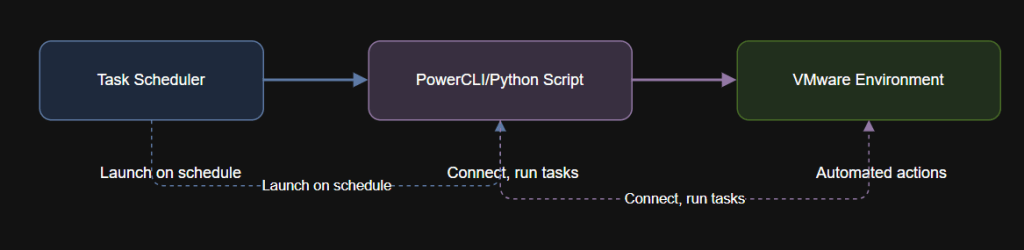
    3. Diagram: Scheduling and Automation Workflow


    4. Best Practices for Safe and Reliable VMware Automation

    • Credential Management:
      Use Windows Credential Manager or encrypted credential files instead of hardcoding passwords.
    • Script Logging:
      Ensure all scripts write logs for auditing and troubleshooting.
    • Testing:
      Always test in a lab or on non-critical systems before deploying to production.
    • Alerting:
      Set up email notifications for script failures using Task Scheduler’s “On failure” actions or via your scripts.
    • Idempotency:
      Scripts should be safe to re-run without unintended side effects (e.g., check for existing snapshots before creating new ones).
    • Documentation:
      Maintain comments and change logs in your scripts for future reference.

    5. Troubleshooting Tips

    • If scripts do not run as scheduled, check Task Scheduler history for error codes.
    • Make sure the task user account has permission to run PowerShell/Python and access network resources.
    • Use full paths for all files in your scripts to avoid “file not found” errors.
    • For scripts that hang, set a timeout in your Python subprocess.run() calls.

    6. Further Reading


    7. Conclusion and Next Steps

    You have learned how to schedule VMware automation scripts and apply best practices for reliability, security, and maintainability.
    This enables consistent, automated operations and helps you scale your infrastructure management.

    Next up: In Article 8, you will dive into advanced VM, NSX, and Aria Operations automation with practical PowerCLI and Python scripting examples.

    Next Post

    Advanced Automation with PowerCLI, Python, NSX, and Aria Operations

    Learning Objectives By the end of this article, you will: Automate advanced vSphere tasks involving NSX and Aria Operations. Use PowerCLI to manage NSX logical switches, firewall rules, and Aria…

    Like this:

    Like Loading…

    Related posts:

    Russian attack kills four in Ukraine’s Sloviansk as both sides claim gains | Russia-Ukraine war News

    Indian PM Modi meets Myanmar military gov’t leader in New Delhi | Narendra Modi News

    Why has signing the EU-Mercosur deal been delayed? | International Trade

    Share. Facebook Twitter Pinterest LinkedIn Tumblr Email
    Previous ArticleThe Algorithmic X-Men – KDnuggets
    Next Article Uncensored AI Generator With Video That Works
    gvfx00@gmail.com
    • Website

    Related Posts

    AI Tools

    How Mexican cartels turned South African farms into meth production hubs | News

    June 8, 2026
    AI Tools

    Iran fires missiles at Israel after Beirut attack ‘crossed all red lines’ | US-Israel war on Iran News

    June 7, 2026
    AI Tools

    Does Israel really think it can get rid of Hezbollah in Lebanon? | TV Shows

    June 7, 2026
    Add A Comment
    Leave A Reply Cancel Reply

    Top Posts

    Black Swans in Artificial Intelligence — Dan Rose AI

    October 2, 2025185 Views

    Every Clue That Tony Stark Was Always Doctor Doom

    October 20, 2025114 Views

    We let ChatGPT judge impossible superhero debates — here’s how it ruled

    December 31, 202592 Views
    Stay In Touch
    • Facebook
    • YouTube
    • TikTok
    • WhatsApp
    • Twitter
    • Instagram

    Subscribe to Updates

    Get the latest tech news from tastytech.

    About Us
    About Us

    TastyTech.in brings you the latest AI, tech news, cybersecurity tips, and gadget insights all in one place. Stay informed, stay secure, and stay ahead with us!

    Most Popular

    Black Swans in Artificial Intelligence — Dan Rose AI

    October 2, 2025185 Views

    Every Clue That Tony Stark Was Always Doctor Doom

    October 20, 2025114 Views

    We let ChatGPT judge impossible superhero debates — here’s how it ruled

    December 31, 202592 Views

    Subscribe to Updates

    Get the latest news from tastytech.

    Facebook X (Twitter) Instagram Pinterest
    • Homepage
    • About Us
    • Contact Us
    • Privacy Policy
    © 2026 TastyTech. Designed by TastyTech.

    Type above and press Enter to search. Press Esc to cancel.

    Ad Blocker Enabled!
    Ad Blocker Enabled!
    Our website is made possible by displaying online advertisements to our visitors. Please support us by disabling your Ad Blocker.