


Many of you have asked me for recommendations on a Wi-Fi router (or mesh system) with “excellent Parental Control.” This is tricky because I don’t use this feature—and I’m a dad of three.
If you pay attention, you’ll notice that even the best Parental Control feature isn’t as effective as you’d like. What you might not be aware of is that it may often do more harm than good.
I’ll explain what the Parental Control feature is in simple terms below, but right off the bat, you shouldn’t use it as a barometer for judging a home Wi-Fi router.

What is Parental Control, and how does it work?
In home networking, Parental Control is a feature that lets the admin user (the parent) of a router decide what a user (a child) on the network can or cannot do online.
How does this happen exactly?
The job of a home router is to let the network traffic pass through—among other things, that’s how we can access the Internet. As such, it can also have a certain level of in-depth traffic management. Specifically, it can scrutinize the information flow and manipulate certain types of data in specific ways.
The “Control” portion refers to programming the router’s firmware or third-party software to block or redirect certain types of traffic that meet pre-determined criteria. If you choose to apply the restriction to the criteria deemed to be “harmful” to your children, then that’s the “Parental” portion.
So, Parental Control is just the name for a specific type of action within the encompassing traffic management function. The term is used mainly for marketing purposes—it’s a “packaged” portion of a much larger router function, similar to the Guest Wi-Fi network, which is a small part of VLAN.
Many routers—all business- and enterprise-grade hardware, in fact—don’t use this term for their in-depth and advanced traffic management. The need to handle the traffic goes far beyond parenting. For example, in a network, keeping devices safe from online threats and directing traffic efficiently are essential, whether or not there are parents or children involved.
And that brings us to another term you often hear when getting a home router: Online Protection (or Online Security).
Online Protection vs. Parental Control and Your Privacy
While Online Protection and Parental Control sound like one, they are not, at least in what I mean within this post. But they do share the same root: both are part of traffic management.
To manage traffic, the router—or any party handling the function—needs to look closely at the information being moved, including but not limited to what it entails, where it comes from, who uses it, where it’s going, etc.
As a result, in a home router, turning on this type of traffic-related feature means you’ll likely need to surrender your privacy to a third party. We’ll talk more about privacy in a bit, but first, let’s see how Online Protection differs from Parental Control.
Router Online Protection: Keeping everyone safe
Online Protection generally applies when you want to keep everyone safe from apparent threats like phishing, ransomware, malware, hacking, misinformation, and so on.
It’s the type of security you want to apply to the entire network. It’s the web-filtering mechanism for all. Once turned on, everyone within the network can avoid or be barred from the content/parties in question.

This type of catch-all traffic control generally works well. The filtering and blocking uses the WAN IP address or the DNS server as the base and applies locally to your Internet gatekeeper—your router or firewall device. It also reduces privacy risks because the traffic is applied to an entire network, not a particular device (person).
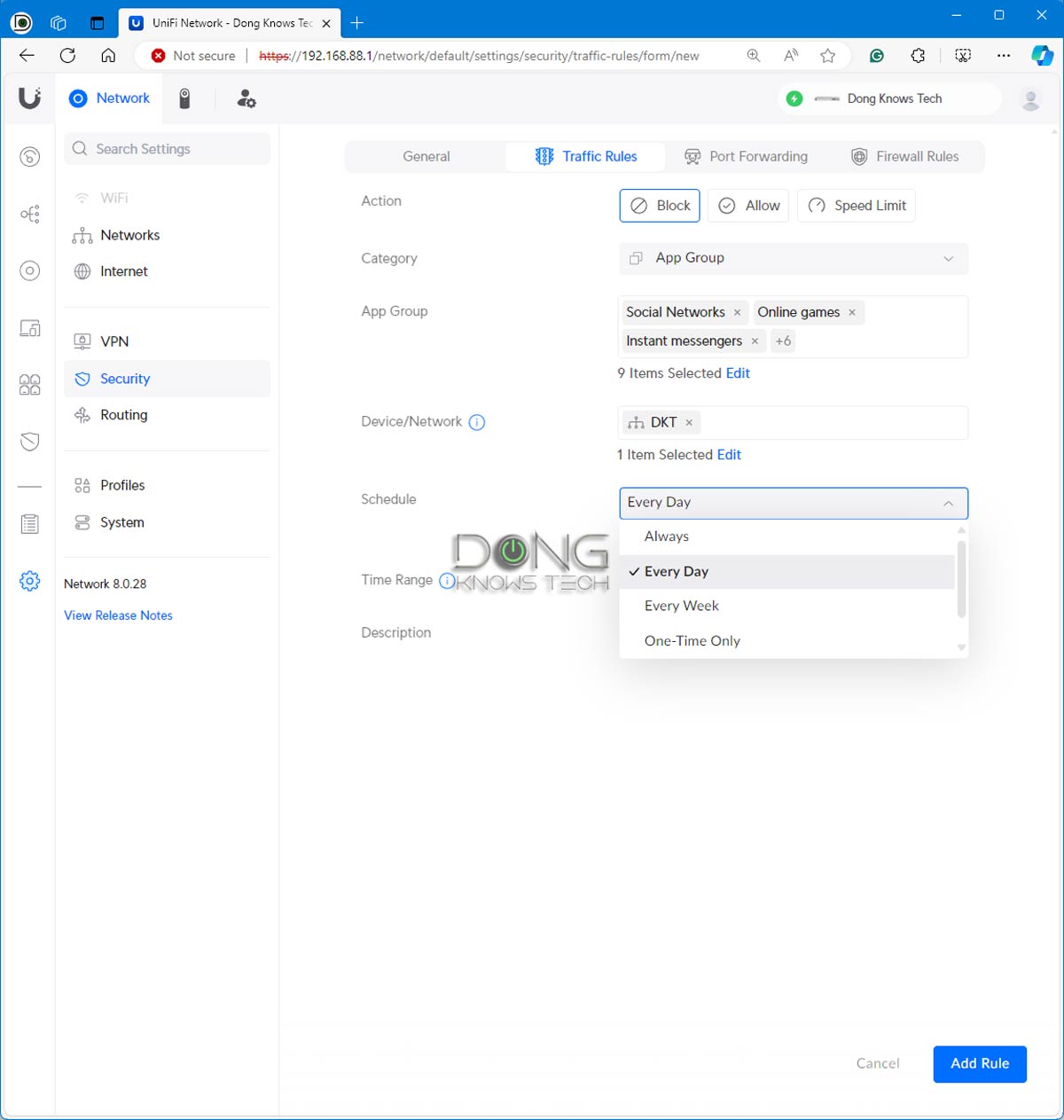
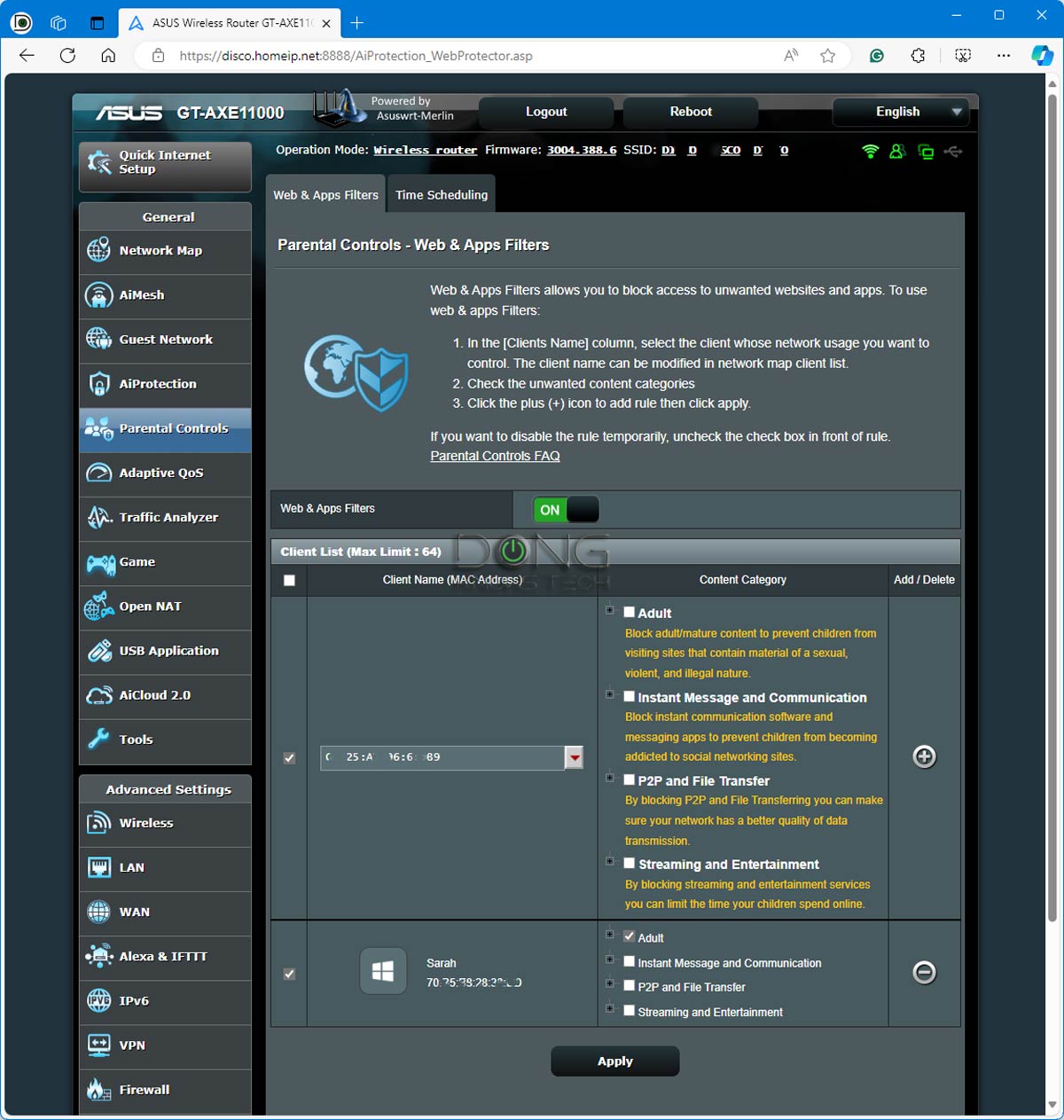
That said, you should generally use Online Protection if it’s available. Many routers come with this feature. A good example is the Network Protection of ASUS routers—it’s part of the free-for-life AiProtection suite. Ubiquiti and Synology also have similar features for free. Other vendors sell it as a premium add-on via a subscription.
The takeaway is that Online Protection is transparent, straightforward, and democratic. All network members are in it together, and therefore, all local network devices share the same treatment. It’s also more effective and less intrusive because there are no exceptions.
And that brings us to Parental Control.
Router Parental Controls: The hit-or-miss nature and the privacy risks
Parental Control is complicated. It basically means you want to let stuff in your home network but keep it away from select family members. It’s a do-what-I-say-but-not-what-I-do kind of deal.
Here’s the thing: Even if the moral high ground is justified, making it work can still be problematic.
For example, in real life, you know the difference between John and Jane as two individuals. However, your system doesn’t. It only knows the connected devices. So if you block Jane from certain online materials via her iPad, John is blocked too when he uses the device.
Things get very complicated when devices are shared within a family, which happens all the time. That’s if you can make the blocking work. In reality, it doesn’t always work, anyway.
That’s because, generally, the only thing unique about a particular device is its MAC address—similar to a car’s VIN. Your system uses that to distinguish one device from another. However, as I described in this post, the MAC address can be spoofed fairly easily.

To make matters worse, in recent years, for privacy reasons, virtually all handheld devices—smartphones and tablets—automatically use a random MAC address by default when connecting to a Wi-Fi network. You have to manually change the settings if you want them to use their actual MAC.
The gist is that you might be able to enforce Parental Control on Jane’s iPad for a day. The next time she restarts the device or reconnects it to the network, it’ll register with a new MAC address and appear as a new device entirely that’s not on the controlled list.
The serious privacy issues of “effective” Parental Control services
If you wonder why MAC spoofing is so prevalent and commonly practiced by hardware vendors, again, it has a lot to do with privacy. If you give somebody your device’s MAC address, they can track and even spy on you.
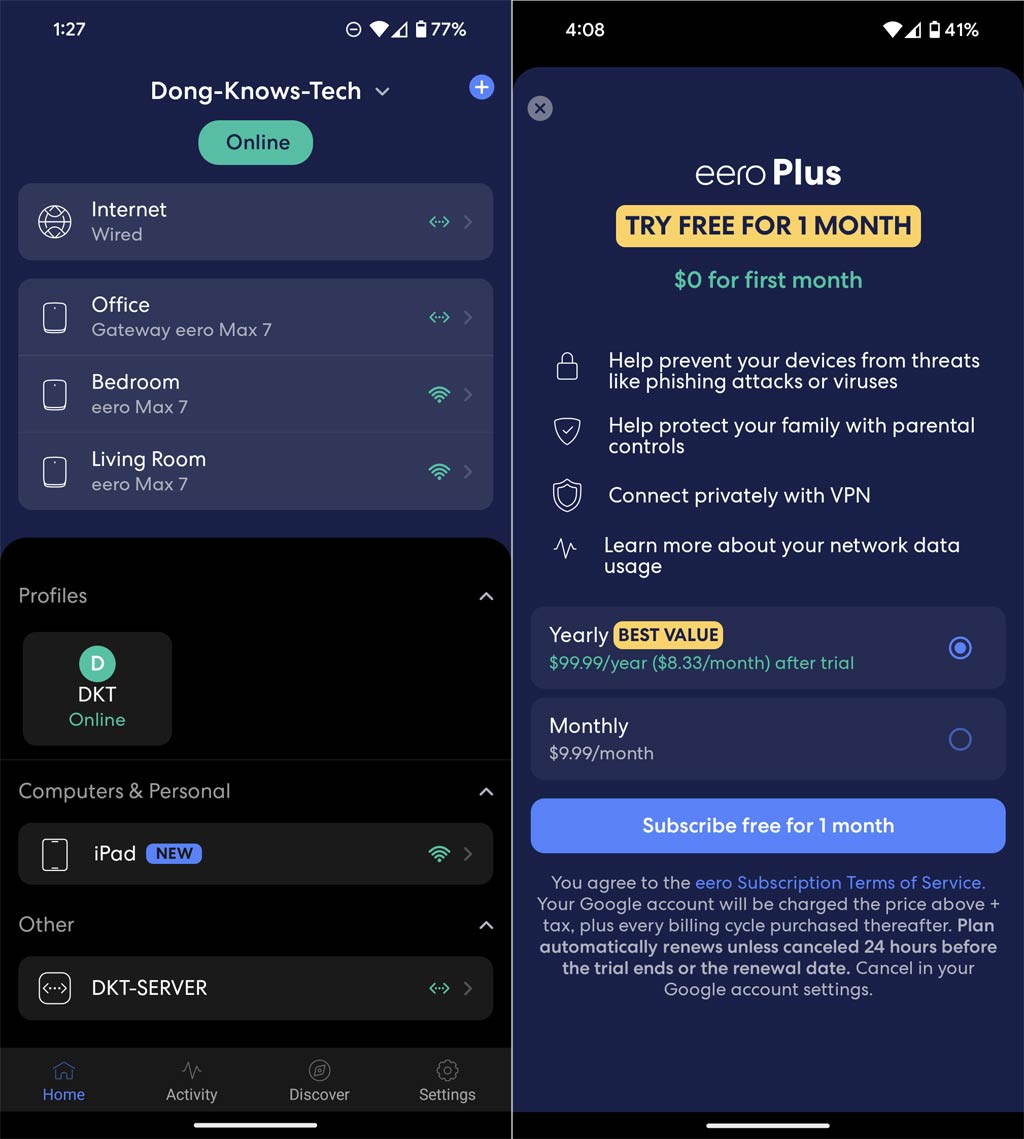
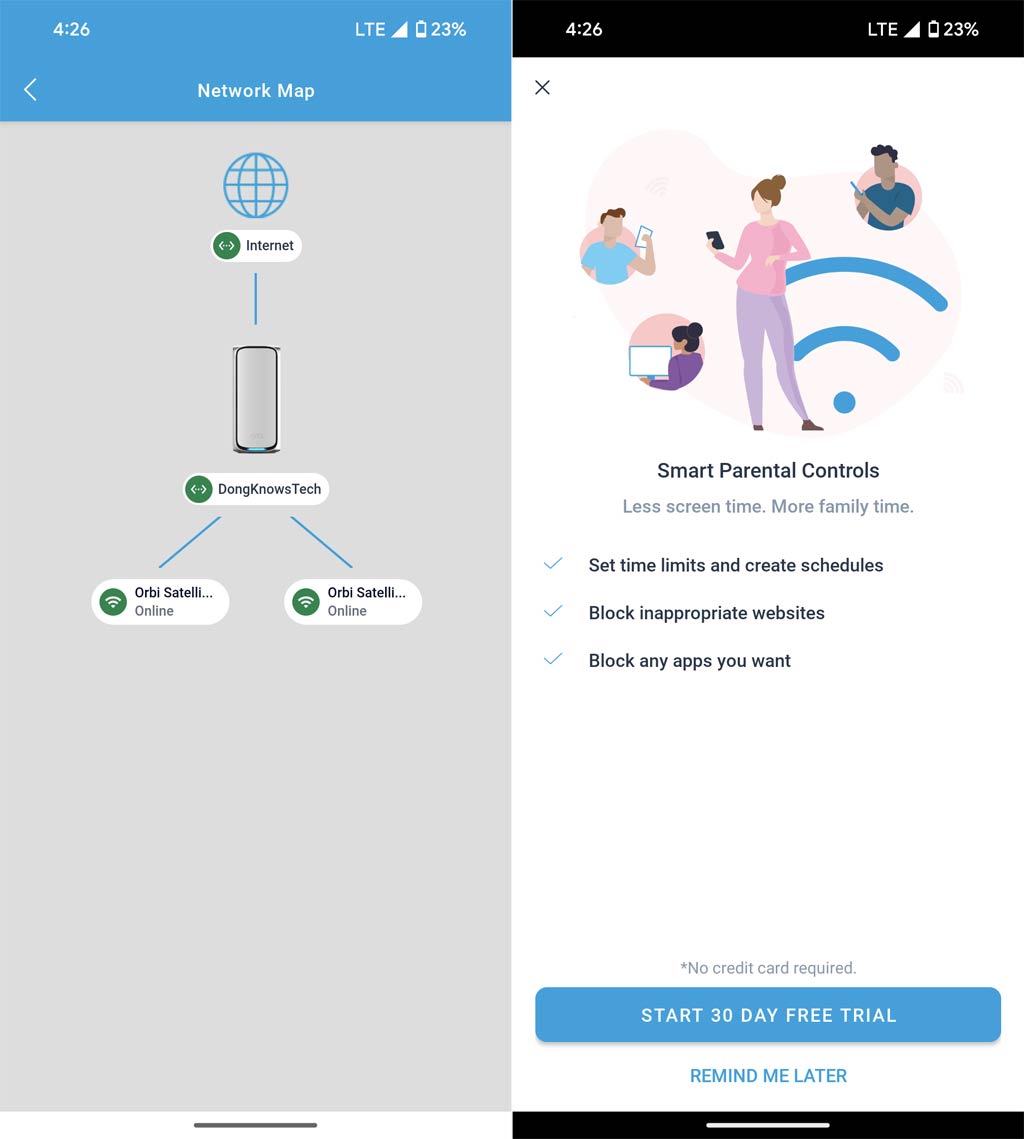
Your router gets all the MAC addresses of all connected devices at home, and they generally stay there. However, when you turn on a third-party Parental Control feature—like add-on subscriptions offered in many home mesh systems, such as Amazon eero, NETGEAR Orbi, or TP-Link Deco—you literally give your children’s data to that party.
To fight against the virtual MAC address, this type of app-operated Parental Control needs to be installed on your child’s device to be effective. As a result, while they let you keep tabs on what your child can see or do online, the third party that provides the service can do the same thing, possibly more. It’s like having some creep stalking your child’s every move via their real-world GPS-based whereabouts. The whole thing is a terrible trade.
The market for the Parental Control feature and the data it mines is so lucrative that more and more networking vendors offer it as a premium add-on. In this case, you’ll pay a third party to mine your child’s data. Think about it!
Parental Controls: The alternative approach
Generally, the current state of Parental Control in home networking falls into two scenarios or somewhere in between:
- It’s ineffective: This is the case of the built-in Parent Control feature on a router. Pre-teen and older kids can probably figure out how to bypass web filtering after a few Google searches. All it takes is one geeky friend. Younger kids who don’t know how to use a search engine yet won’t do anything crazy online anyway. Or
- Privacy risks: This is the case when you use an app to handle Parental Control. Those who can’t figure out how to bypass the system or disable the app face markedly higher risks of having their general activities monitored and data-mined by a third party.
That said, it’s generally not a good idea to use any packaged Parental Control solution. The effectiveness varies, and the privacy risk is always there to some degree. Strictly from the tech point of view, here are my recommendations on this front:
- Set up Parental Control at the device level. This option is generally available on each device, such as a computer, media streamer, phone, etc. It’s a bit more work but much more effective. And it generally doesn’t require a third party.
- Use the Online Protection feature on your router, if available, and block stuff that’s bad for everyone. A router’s built-in and free Parental Control feature is worth a try if you don’t count on its effectiveness.
- Avoid online Parental Control services that require a mobile app and a login account. You’ll pay a lot more for it than the monthly subscription, and chances are you can’t really count on it, either.
Additionally, in terms of real-life parenting:
- Set up a family time when no one uses any device. Take your kids out for a hike or a bike ride regularly.
- Set up a mutually agreed-upon reasonable schedule for your kids to use the devices, then encourage and reward them for self-policing. It takes time, but it works much better.
- Be a friend and a role model for your children. Remember that they are intelligent creatures, and they learn fast. Hypocrisy only breeds resentment.
The takeaway
Online Protection, Parental Control, and parenting are all about nuance and degree. You can use a mix of what you think is most effective for your situation without going overboard, but remember your kid is another human you’re dealing with, not another device.
Think about your childhood. If you can’t learn from the way your parents raised you, at least learn from your experience as a child. Don’t do to your children stuff you wish had not been done to you. That’s a good start. Be a friend and spend time with your children instead of your own screen. That will help even more.
Making a child is a matter of biology. Being a parent is a lifestyle choice. It’s not supposed to be easy. There’s no app for it. And it never ends.
All the while, don’t use Parental Control as a criterion in picking a router. You might end up with a Wi-Fi machine designed primarily to profit from you and your child’s privacy. In return, it gives you the illusion of being in control or the fake feeling of being a “good” parent you’re a couple of apps and a few screens away from.
Dong’s note: I first published this post on February 21, 2021, and last updated it on February 8, 2024, to add up-to-date information.
