



TL;DR
A newer VMware Kubernetes Service version may be missing from the vCenter upgrade interface even when the environment is functioning correctly.
VKS versions bundled with the installed vCenter build appear automatically. Newer asynchronous VKS releases must first be downloaded from the Broadcom Support Portal and registered by uploading the release’s package.yaml file.
Registration does not upgrade a Supervisor. It only makes the VKS version known to vCenter. The version must then be activated on the appropriate Supervisor after its compatibility, workload-cluster impact, content-library readiness, and upgrade path have been validated.
The correct workflow is:
- Inventory the current vCenter, Supervisor, VKS, VKR, and ClusterClass versions.
- Validate the target VKS release and supported upgrade path.
- Download the correct
package.yaml. - Register the version through the Kubernetes Service tile.
- Activate it on a selected Supervisor.
- Confirm that the service reconciles and the expected Kubernetes releases become Ready and Compatible.
Introduction
The VKS upgrade interface can create a misleading assumption.
An administrator opens the Kubernetes Service tile in vCenter, selects the upgrade action, and expects the latest VMware Kubernetes Service release to be listed. Instead, the interface shows only an older embedded version.
That often looks like a failed synchronization, a stale vCenter inventory, or a content-library problem.
In the scenario covered by Broadcom KB 439327, it is expected behavior.
VMware Kubernetes Service supports asynchronous releases that are delivered independently of a particular vCenter build. Because these releases are not embedded in the installed vCenter version, vCenter cannot offer them as upgrade targets until an administrator manually registers the corresponding service package.
The registration procedure is simple. The lifecycle decisions around it are not.
Before uploading the package, operators need to understand which layer they are changing, which Supervisors will consume the new version, which Kubernetes releases it introduces or deprecates, and whether existing workload clusters remain compatible.
Scenario: The Newer VKS Version Is Missing
The common symptoms are straightforward:
- The Kubernetes Service upgrade interface lists older VKS versions.
- A newer release is available through Broadcom, but it is absent from the dropdown.
- The VKS service is otherwise healthy.
- Synchronizing the workload-cluster content library does not add the missing service version.
- No obvious vCenter or Supervisor alarm explains the difference.
The key diagnostic question is:
Is the missing version an embedded release or an asynchronous release?
An embedded release is distributed with a particular vCenter and Supervisor lifecycle combination. An asynchronous release is distributed separately and requires manual registration.
That distinction should be checked before troubleshooting the content library, restarting services, or opening a support case.
VKS Has Several Independent Lifecycle Layers
The term “Kubernetes upgrade” is too broad for this environment.
A vSphere Kubernetes platform contains several related but separately managed layers:
| Layer | What It Controls | Typical Lifecycle Action |
|---|---|---|
| vCenter Server | vSphere management and Supervisor integration | Patch or upgrade vCenter |
| Supervisor | Kubernetes control plane used to provide platform services | Upgrade the Supervisor release |
| VKS Supervisor Service | Controllers, supported Kubernetes releases, and ClusterClass capabilities | Register and activate a VKS version |
| VKR or TKR | Kubernetes and operating-system release used by workload clusters | Upgrade an individual workload cluster |
| ClusterClass | Cluster API topology and configurable cluster capabilities | Rebase or update the cluster topology |
| Content library or image source | Virtual machine images used to build cluster nodes | Synchronize and validate image availability |
A new VKS release appearing in vCenter does not mean the Supervisor has been upgraded.
Registering that VKS release does not mean workload clusters have been upgraded.
Activating the VKS service does not guarantee that every new Kubernetes release is usable by every existing cluster.
Each action moves a different layer.
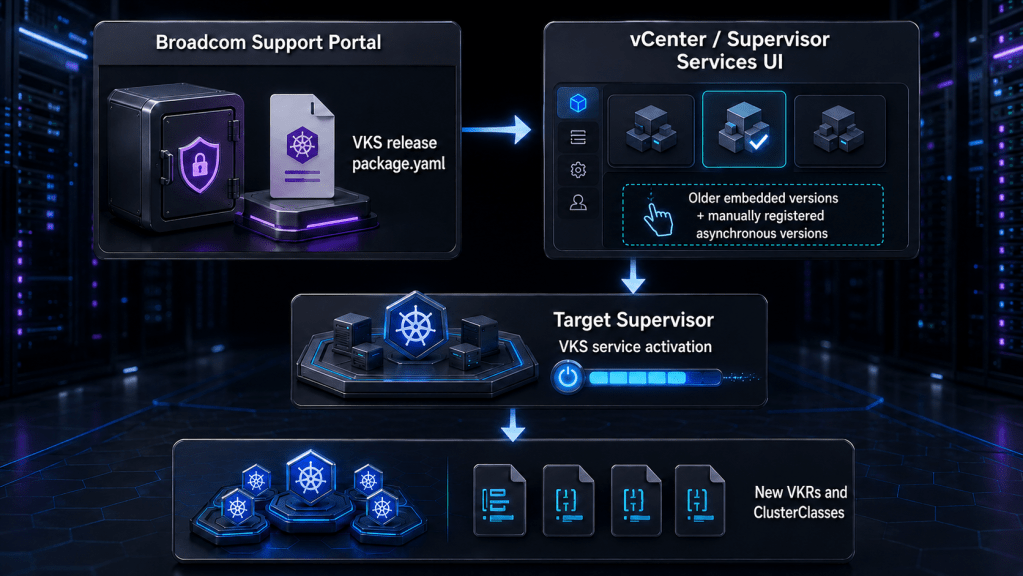
The following lifecycle flow shows where package.yaml registration belongs.
What to notice in this diagram: service registration is only the catalog step. The production change begins when the newly registered service version is activated on a Supervisor.
Capture the Current Platform State
Do not begin with the download.
Begin with an inventory of the environment that the package will affect.
At minimum, record:
| Item | Evidence to Capture |
|---|---|
| vCenter version and build | vCenter appliance summary |
| Supervisor version | Supervisor summary and Kubernetes version |
| Current VKS service version | Kubernetes Service tile and package status |
| Workload clusters | Namespace, cluster name, current Kubernetes release, and health |
| Available VKRs or TKRs | Release name, Ready status, and Compatible status |
| ClusterClasses | Current class used by each cluster |
| Content source | Associated content library or image source and synchronization state |
| Multiple Supervisors | Which Supervisors are registered with the vCenter |
| Backup state | Current file-based vCenter backup and workload backup evidence |
| Target version | Exact VKS package and intended Kubernetes releases |
From the Supervisor context, useful discovery commands include:
kubectl get cluster -A
kubectl get pkgi -A
kubectl get pods -A
kubectl get clusterclass -A
For environments using newer VKS releases, inspect Kubernetes releases with:
kubectl get kr
Older environments may still expose Tanzu Kubernetes Releases through:
kubectl get tkr
Use the resource type supported by the installed VKS generation. Do not assume an empty tkr result means that no Kubernetes releases exist when the environment has moved to the newer kr object.
The Ready and Compatible fields matter more than whether a release name merely appears.
Find the Correct VKS Release Package
The release package should be obtained from the Broadcom Support Portal.
A typical discovery path is:
- Sign in to the Broadcom Support Portal.
- Open the software download area.
- Search for vSphere Supervisor Services.
- Locate VMware Kubernetes Service or the equivalent Kubernetes Service entry.
- Select the required VKS version.
- Review the release notes and available artifacts.
- Download the service’s
package.yamlfile.
The artifact expected by KB 439327 is the VKS package.yaml.
Do not substitute:
- a workload-cluster OVA
- a Kubernetes release image
values.yaml- a release-notes document
- a package from a different VKS version
- a file renamed locally without confirming its contents
Preserve the downloaded filename, checksum information when available, release version, download date, and portal source in the change record.
The package should be treated as a controlled software artifact, not an incidental YAML file copied from another environment.
Validate the Upgrade Before Registration
Uploading package.yaml is not the risky part. Activating an incompatible service version is.
Use a pre-registration review to make the intended change explicit.
Validate the Direct Upgrade Path
Confirm that the current VKS version can upgrade directly to the target release.
A newer package may require:
- a minimum VKS version
- a minimum Supervisor version
- a specific vCenter patch level
- a supported Kubernetes release range
- migration away from an older ClusterClass
- removal or upgrade of Kubernetes releases that are no longer supported
Do not infer a supported path from version numbering alone.
A service upgrade from one major release family to another may require an intermediate VKS version even when both packages are available in the portal.
Validate Existing Workload Clusters
Inventory every workload cluster managed by the target Supervisor.
For each cluster, determine:
- current VKR or TKR
- Kubernetes minor version
- ClusterClass
- API version
- control-plane health
- worker health
- installed system packages
- backup status
- maintenance constraints
A target VKS release can change the Kubernetes releases and ClusterClasses considered compatible. Existing clusters may remain running, but their future upgrade options can change.
The right question is not only:
“Can the VKS service be upgraded?”
It is also:
“After the service upgrade, does every managed workload cluster still have a supported path forward?”
Validate the Content Source
The VKS service package and the workload-cluster images solve different problems.
The package.yaml registers the service version. The image source supplies the virtual machine images required by Kubernetes releases.
Confirm that:
- the content library or image source is accessible
- synchronization has completed
- expected operating-system images are available
- no failed or partially downloaded library items remain
- the target VKR has a matching and compatible OS image
- storage capacity is available for image synchronization
A successful VKS service upgrade can still leave a Kubernetes release unusable when its required image is missing.
Validate Supervisor Health
Before activating the service version, confirm that the Supervisor is healthy.
Useful checks include:
kubectl get nodes
kubectl get pods -A
kubectl get deployment,daemonset -A
kubectl get pkgi -A
kubectl get --raw '/healthz?verbose'
Investigate:
- nodes that are not Ready
- PackageInstall resources in a failed state
- deployments with unavailable replicas
- system pods repeatedly restarting
- certificate warnings
- content-library failures
- DNS or NTP problems
- an existing Supervisor upgrade in progress
Do not combine a VKS service upgrade with an unresolved Supervisor health problem unless Broadcom Support has provided a specific recovery sequence.
Register the New VKS Version in vCenter
Once the target package and compatibility path have been validated, register the service version.
The interface naming depends on the vSphere generation.
vSphere 9 or Newer Supervisor Management Interface
- Sign in to the vSphere Client.
- Navigate to Supervisor Management.
- Open Services.
- Locate the Kubernetes Service tile.
- Select Actions.
- Select Add New Version.
- Upload the downloaded
package.yaml. - Review the detected service name and version.
- Complete the registration wizard.
vSphere 8 Workload Management Interface
- Sign in to the vSphere Client.
- Navigate to Workload Management.
- Open Services.
- Locate the Tanzu Kubernetes Grid Service or Kubernetes Service tile.
- Select Actions.
- Select Add New Version.
- Upload the downloaded
package.yaml. - Review the detected version.
- Complete the wizard.
At this point, the VKS version has been added to the service catalog.
It has not necessarily been installed on a Supervisor.
This is a useful control point. Confirm that the registered version exactly matches the approved change record before proceeding.
Activate the VKS Version on the Target Supervisor
After registration, return to the Kubernetes Service tile and select the service-management or upgrade action exposed by the installed vCenter version.
Depending on the interface, this may appear as:
- Actions > Upgrade
- Actions > Manage
- Manage Service
- Install Version
Select:
- The target Supervisor.
- The newly registered VKS version.
- Any release-specific configuration requested by the wizard.
- The final installation or upgrade confirmation.
When one vCenter manages multiple Supervisors, do not assume that registration should be followed by immediate activation everywhere.
Treat each Supervisor as a separate rollout target.
A sensible rollout order is:
- Non-production or test Supervisor.
- Production pilot Supervisor.
- Remaining production Supervisors in controlled waves.
That creates a validation boundary between making the package available and changing every Supervisor that can consume it.
Validate the Service Upgrade
The task is not complete when the vCenter progress indicator reaches 100 percent.
Validation should confirm four different outcomes:
- the service package reconciled
- the Supervisor remained healthy
- the expected Kubernetes releases appeared
- the expected ClusterClasses became available
Check the Service in vCenter
Confirm that:
- the target Supervisor shows the intended VKS version
- no service installation or compatibility alarm remains
- the Kubernetes Service tile reports a healthy state
- the previous task completed without warnings
- the intended Supervisor, not another Supervisor, received the change
Check Package Reconciliation
From the Supervisor context, run:
kubectl get pkgi -A
Identify the VKS service package and confirm that its reconciliation has succeeded.
For more detail:
kubectl describe pkgi -n
Look for:
- successful reconciliation
- the intended package version
- no fetch or image errors
- no downgrade protection error
- no unresolved dependency
- no repeated reconciliation failure
Check Supervisor Workloads
Run:
kubectl get pods -A
kubectl get deployment,daemonset -A
Confirm that:
- required controller pods are Running
- deployments have their expected available replicas
- daemon sets are scheduled successfully
- no system component is repeatedly restarting
- existing workload-cluster reconciliation remains healthy
A brief period of pod replacement may be expected while the service controllers update. Persistent failures are not.
Check Kubernetes Releases
For newer VKS versions:
kubectl get kr
For older service generations:
kubectl get tkr
Confirm that the Kubernetes releases expected from the new VKS version are listed with appropriate status.
A release that exists but reports Ready=False or Compatible=False is not ready for workload-cluster use.
Check ClusterClasses
Run:
kubectl get clusterclass -A
Confirm that the ClusterClass delivered by the target VKS version is present.
Before planning a cluster upgrade, verify that the current ClusterClass supports the target Kubernetes release. A Ready Kubernetes release does not override ClusterClass version constraints.
Troubleshooting the Missing-Version Workflow
The following decision path separates the most common failure domains.
The Package Upload Is Rejected
Check:
- whether the file is the correct
package.yaml - whether the package belongs to the intended VKS release
- whether the download completed successfully
- whether the file was modified by an editor or transfer process
- whether the account has permission to manage Supervisor Services
- whether the service version has already been registered
- whether the vCenter build supports that service package
Do not edit version metadata inside the YAML to force acceptance.
The Version Is Registered but Cannot Be Activated
This usually points to a compatibility or prerequisite failure rather than a registration failure.
Check:
- current Supervisor release
- current VKS version
- direct VKS upgrade path
- target release minimum requirements
- existing workload-cluster compatibility
- ClusterClass compatibility
- vCenter and Supervisor sequencing
- upgrade precheck messages
An embedded VKS package can also appear before the associated Supervisor image or compatibility state is ready. In some vCenter 8.0 Update 3 workflows, the intended sequence is:
Trying to activate the embedded VKS service before completing the required Supervisor step can result in an incompatibility message.
VKS Upgraded but the Expected VKR Is Missing
Check the content-library or image-source state.
A VKS version may support a Kubernetes release while the environment lacks the image needed to make that release Ready.
Validate:
kubectl get kr
kubectl get contentsource -A
kubectl get cvmi
Depending on the platform version, resource names may differ.
Confirm that:
- the image source synchronized
- the expected cluster VM image exists
- the image is associated with the correct Supervisor
- no content-library item was deleted or detached
- the Kubernetes release reports Ready and Compatible
The VKR Is Ready but a Cluster Upgrade Is Blocked
Inspect the workload cluster’s ClusterClass and API version.
A cluster may be prevented from using a newer Kubernetes release when:
- its ClusterClass does not support the target minor version
- a deprecated ClusterClass must be replaced
- the cluster must be rebased onto a newer built-in class
- a custom ClusterClass was based on an older class
- the required Cluster API object version has changed
- the supported upgrade path does not permit skipping a Kubernetes minor version
- a compatible OS image is unavailable
Do not force the desired Kubernetes version into the cluster manifest without validating the complete compatibility chain.
The Service Upgrade Fails During Reconciliation
Capture evidence before making another change:
kubectl get pkgi -A kubectl describe pkgi -nkubectl get pods -A kubectl get events -A --sort-by=.metadata.creationTimestamp
Record:
- the failed PackageInstall condition
- image-fetch errors
- compatibility messages
- affected namespaces
- pod restart counts
- relevant recent events
- vCenter task details
- the exact package version
- the exact Supervisor version
Avoid deleting healthy controller pods or package resources as an initial response. A partially completed service rollout can contain both old healthy replicas and new failed replicas. Removing the healthy components may turn a recoverable upgrade failure into an outage.
Rollback and Recovery Boundaries
Do not assume that activating an older VKS service version is a normal rollback operation.
Supervisor service downgrades are intentionally restricted because a downgrade can leave managed resources incompatible or orphaned. Broadcom has support procedures for specific failed-upgrade scenarios, but those procedures should not be treated as a general-purpose downgrade method.
Use these recovery boundaries:
Before Service Activation
If the package was registered but not installed on a Supervisor:
- stop the change
- verify the downloaded artifact
- correct the compatibility review
- do not activate the version
- document that the catalog contains an unused version
Registration alone is not the same as changing the running Supervisor service.
During a Failed Service Upgrade
If the new version fails to reconcile:
- preserve the existing healthy pods
- collect PackageInstall and event evidence
- avoid repeated upgrade attempts
- do not annotate package resources to permit a downgrade unless directed by a validated procedure
- engage Broadcom Support when the service cannot reconcile cleanly
After a Successful Service Upgrade
If the service is healthy but a workload cluster cannot upgrade:
- do not attempt to roll back VKS as the first response
- troubleshoot the VKR, ClusterClass, image, or workload-cluster compatibility issue
- leave existing workload clusters unchanged until a supported path is confirmed
- separate service recovery from workload-cluster recovery
A workload-cluster upgrade is its own rolling lifecycle operation. It requires a separate backup, validation, failure, and recovery plan.
Turn the Process into an Operating Standard
Asynchronous VKS releases provide faster access to Kubernetes versions and service capabilities, but they also move more lifecycle responsibility to the platform team.
A repeatable operating standard should maintain:
- approved vCenter and Supervisor baselines
- registered VKS versions
- active VKS version per Supervisor
- supported VKR range
- ClusterClass versions
- workload-cluster version inventory
- content-source synchronization evidence
- direct upgrade-path documentation
- pilot and production rollout status
- exceptions and blocked clusters
- rollback and support-case criteria
The release inventory can be represented as:
| Supervisor | Supervisor Version | Active VKS | Supported VKRs | Current Clusters | Upgrade Status |
|---|---|---|---|---|---|
| Supervisor-A | Recorded baseline | Recorded version | Approved range | Cluster inventory | Pilot |
| Supervisor-B | Recorded baseline | Recorded version | Approved range | Cluster inventory | Pending |
| Supervisor-C | Recorded baseline | Recorded version | Approved range | Cluster inventory | Blocked |
This prevents the platform team from treating the vCenter dropdown as the authoritative release catalogue.
The interface only shows what vCenter currently knows and what it can offer in the current context. It does not replace release discovery, compatibility analysis, or lifecycle governance.
Conclusion
KB 439327 explains a behavior that can look like a product failure but is actually part of the VKS release model.
Versions embedded with a vCenter build appear automatically. Newer asynchronous VKS releases must be introduced to vCenter by registering their package.yaml files.
The important operational lesson is that registration, Supervisor service activation, and workload-cluster upgrades are different actions.
Register the package only after confirming the source and version. Activate it only after validating the Supervisor, current VKS service, Kubernetes releases, ClusterClasses, workload clusters, and image source. Then verify the service through both the vCenter interface and the Supervisor’s Kubernetes resources before planning any workload-cluster changes.
The upload takes minutes.
The compatibility chain determines whether the upgrade is safe.
