


One of the most notable ways AI is changing the world is through software coding: vast swathes of code are now written by AI, and while there’s still a debate over just how beneficial this shift is, there’s no doubt it’s happening at a large scale.
Besides giving professional software developers a new tool to work with, ‘vibe coding’ also means anyone can put together their own programs, with no coding experience required. While you can’t exactly knock together a Word clone in an afternoon, you can create simple tools and apps relatively easily.
And that’s what I’ve been doing with the help of Claude: I’ve created a couple of small Chrome extensions that customize the browser in a way that wasn’t really offered by any existing utilities I could find. Here’s how it’s done, and how you can do it too.
Latest Videos FromTechRadar
How it works

If you’re completely new to coding in an AI chatbot, it’s not difficult to get started. All of the major players offer dedicated tools for coders, but if you’re just creating a few simple projects, then you can work right inside the conversation window — describing what you want and seeing the results in your browser.
I’ve been using Claude for these personal extensions, though you can just as easily use something like ChatGPT, Gemini, or Copilot. As usual, you’ll get access to better models and higher usage rights if you’re on a paid plan, but it’s not essential for coding.
You can get started with a prompt as straightforward as “I’d like to build a Chrome extension to…” and then describe what you want. The AI will ask for the details and clarifications it needs, tell you about any limitations or potential issues, and get busy putting together the extension. You can use follow-up prompts to make tweaks and customizations as needed
For installing the extension on your computer, your AI of choice will advise you on this as well. You need to head to “chrome://extensions” in a new tab, enable the Developer mode toggle switch in the top right corner, then choose Load unpacked to pick your extension files. Extensions can be refreshed and removed from the same page as needed.
Project 1: A new tab page
There are many different ways you can customize the new tab page in Chrome (that shows on a blank type), and a multitude of options in the Chrome Web Store to pick from. However, I wanted something completely bespoke, with exactly what I wanted—I spend a lot of time looking at this page after all.
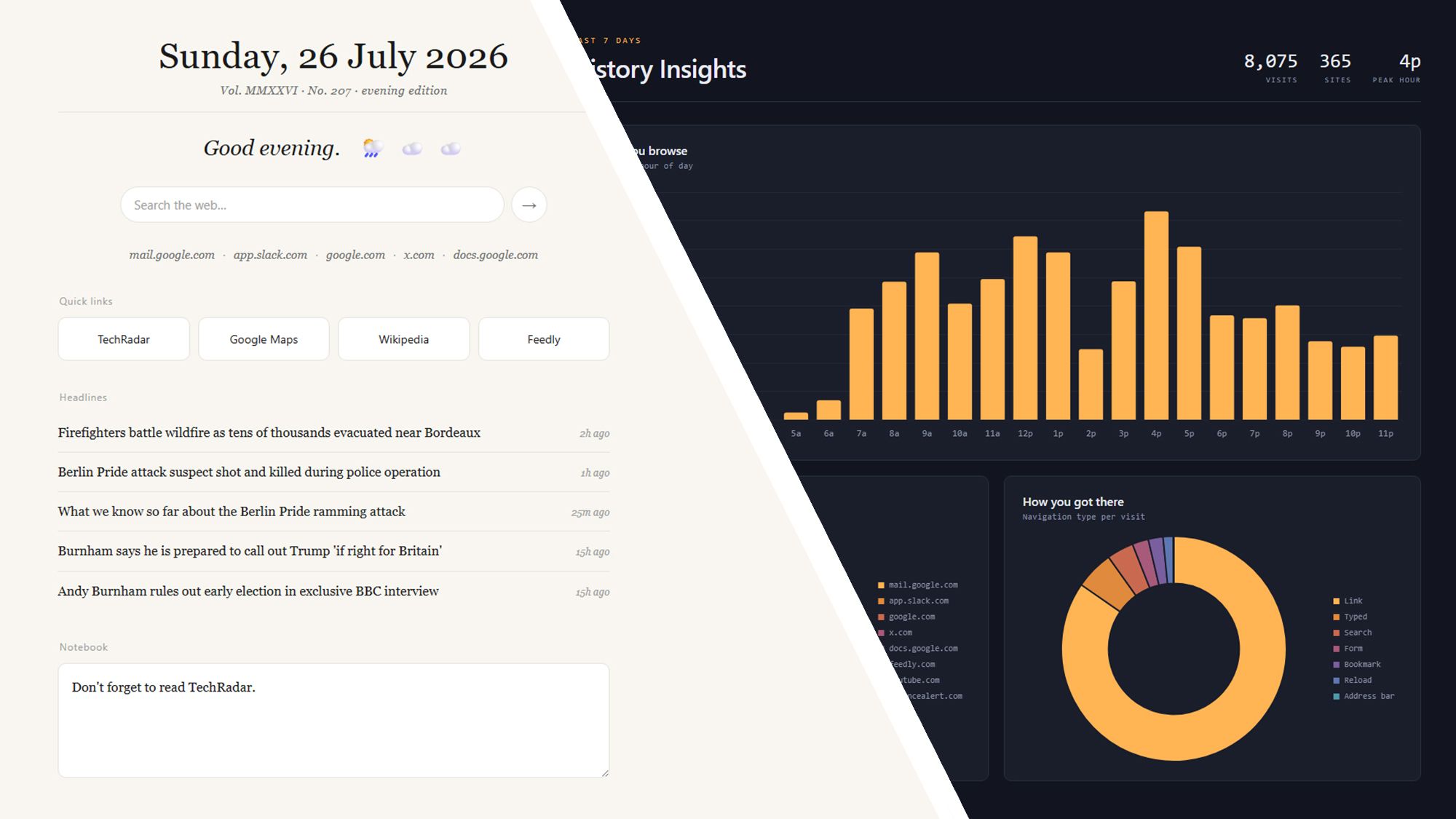
Not only was Claude able to code me a page, it answered all my questions: about how to pull in BBC headlines, the weather forecast, and all the other elements that I wanted on the page. Without the help of the AI, this would’ve taken me hours of research and coding, but it was done in minutes. I also added a scratchpad for taking notes, and a continually updated list of the five sites I’ve visited the most in the past week.
The weather forecast is a good example of how personalized you can make these extensions. I’ve got the weather for now, the weather in two hours’ time, and the weather in four hours’ time, all represented as simple icons that offer an at-a-glance update. I know instantly what the weather’s going to do in the short term.
I was also able to take full control over the look and feel of the new tab page as well. So many of the options I’ve seen online try to pack too much in and are overly showy — my custom version is easy on the eye and minimalist. And any time I want to add a new feature or take one away, all it takes is a few lines in a Claude conversation.
Project 2: A history analyzer
Something else I’ve been wanting for a long time in Chrome is to get a bit more out of the history page (it’s “chrome://history” in a new tab). By default, it’s just a standard list of websites in reverse chronological order, but I wondered if an extension could analyze this and produce a few insights: like most visited sites and browsing patterns, for example.
I’d like to create a Chrome extension just for myself that does a bit more with the Chrome history page. I’d like to include a pie chart showing the sites I’ve visited most in the last week. What other insights could we glean from this history page? What about average time between one link and the next?
Sample Claude starter prompt
I was able to get started on this extension in Claude without knowing exactly what I was after. I asked what was possible and the kind of queries that could be tried, and together with the AI formulated a plan to show the sites I visited the most often, the hours of the day I open most new pages, and most common ways I tend to visit sites (by loading bookmarks, typing URLs, following links, or whatever).
That last panel in the dashboard wouldn’t have been there without Claude: the AI told me that Chrome’s history page made this data available, and that it could be tapped into, otherwise I wouldn’t have known. It also had ideas for more panels as well, and I’m going to keep tweaking it as well. It’s now a much more useful screen of information than the long list of links that Chrome serves up as standard.
Both of these extensions were coded in minutes rather than hours, and show just how capable AI now is — for small-scale personal projects at least. If there’s a browser feature you’ve always wanted but haven’t been able to find a way to implement, there’s a good chance you’ll be able to get an AI chatbot to build it for you, to your exact specifications.
Follow TechRadar on Google News and add us as a preferred source to get our expert news, reviews, and opinion in your feeds.
The best laptops for all budgets
