


vCenter certificate problems rarely arrive as clean, isolated maintenance tasks. They usually show up as failed logins, services that refuse to start, upgrade prechecks that suddenly block progress, or downstream trust failures in NSX, SDDC Manager, backup tools, monitoring platforms, or automation. By the time an operator is searching for “Fixcerts,” the environment is often already under pressure. That is exactly why this topic needs a deprecation-aware runbook. The older Fixcerts guidance still appears in search results because KB 322249 still documents what the script could do and even shows legacy command examples. But the important part is at the top of the KB: Broadcom now states that replacing certificates with the script attached to that article is deprecated and that operators should use the newer vCert tool for certificate management and replacement workflows. This article is not a “run Fixcerts” tutorial. It is a safer operational path for vCenter and VCF environments: assess the certificate state, protect the environment first, account for Enhanced Linked Mode, use vCert where appropriate, and validate trust after remediation instead of assuming the green checkmark in one interface tells the whole story.
Scenario
You are operating a vCenter Server Appliance in a vSphere or VMware Cloud Foundation environment and one of the following has happened: vCenter login fails, vCenter services fail to start, certificate alarms are active in the vSphere Client, an upgrade or precheck flags expired certificates, NSX reports that the vCenter compute manager certificate chain is invalid, SDDC Manager or VCF workflows report certificate validation errors, or search results point you toward the older Fixcerts script. The operational question is not simply: which script do I run? The better question is: what certificate state am I actually in, what systems depend on that trust chain, and how do I recover without making replication, trust, or rollback worse?
Why Fixcerts Still Shows Up
Fixcerts still appears in searches because KB322249 documents a script that historically covered a wide set of vCenter certificate replacement tasks. The KB lists certificate types such as VMCA Root, Machine SSL, STS, Solution User certificates, LookupService or STS internal SSL certificates, data-encipherment, SMS, TRUSTED_ROOTS cleanup, and vCenter extension thumbprint updates. That breadth is exactly why administrators remember it. It was a “break glass” looking tool for certificate messes. The problem is that search visibility does not equal current operational guidance. The same KB now says the Fixcerts replacement path is deprecated and points to vCert instead. It also warns that Fixcerts can replace custom certificates with VCSA self-signed certificates and is not a replacement for the vCenter Server Certificate Management UI or CLI. That distinction matters in production. A script that resets a certificate may restore one service path while damaging another trust relationship. In a standalone lab, that may be recoverable. In a VCF environment with SDDC Manager, NSX, external identity sources, backup integrations, and possibly Enhanced Linked Mode, certificate recovery is a trust-chain operation, not just a local vCenter repair.
The Safer Operating Model
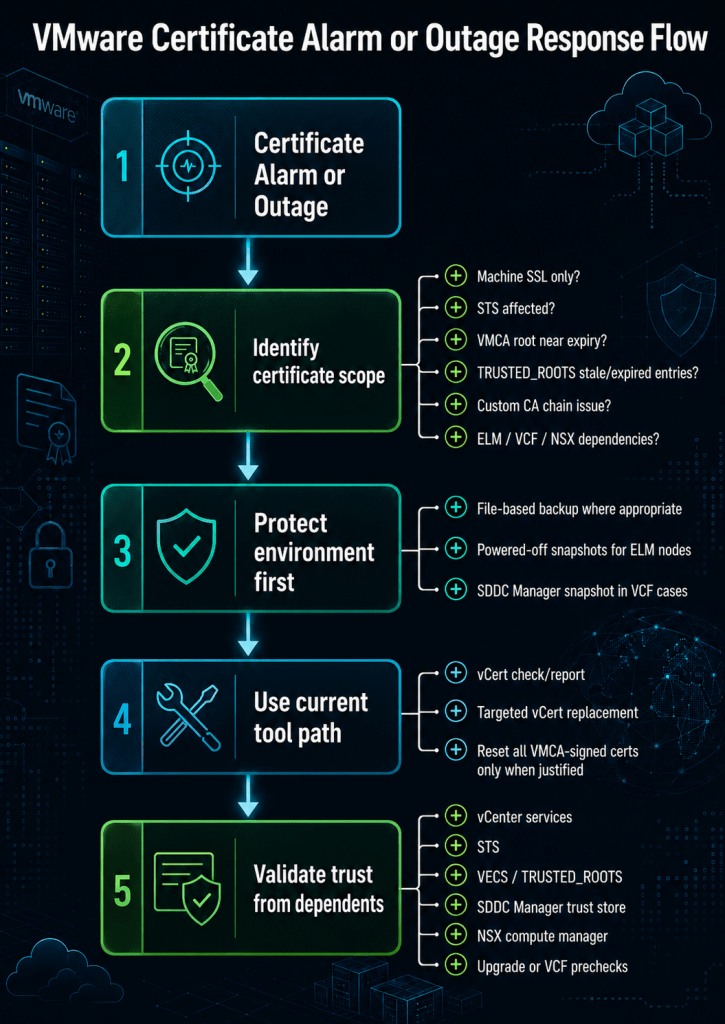
Use this mental model before touching anything. The important shift is to move from “expired certificate, run a script” to “classify, protect, remediate, validate.”

The diagram shows the main operational shift: do not jump directly from “expired certificate” to “replace everything.” First classify the certificate problem, then protect the control plane, then remediate with the current tool path, and finally validate from the perspective of every dependent system.
Symptoms and Risk
vCenter certificate failures can look different depending on which certificate is affected. An expired Machine SSL certificate may present as browser warnings, failed integrations, or trust failures from external systems. An expired STS certificate is more disruptive because STS participates in authentication and token issuance. Broadcom’s STS guidance specifically calls out checking STS expiration separately and notes that older checksts.py guidance has been deprecated in favor of vCert.

Prerequisites and Safety Checks
Before replacing certificates, slow down enough to protect the environment. For standalone vCenter, confirm that a valid backup and recovery path exists. Broadcom’s vCenter upgrade guidance explicitly calls out backing up vCenter and important vSphere data before major operations and warns not to proceed without a valid VAMI backup in upgrade scenarios where restore may be needed. For Enhanced Linked Mode, snapshots require more discipline. Broadcom recommends offline snapshots of all nodes in the same SSO domain before changes that include certificate replacement. Snapshot best practices also warn that reverting only one vCenter in an ELM group can disrupt VMware Directory replication state because ELM depends on synchronized vmdir replication across the SSO domain. For VCF, include SDDC Manager in the blast-radius analysis. Broadcom notes that in VCF environments, vCenter and SDDC Manager maintain independent trust stores, with no automatic synchronization between them.

Runbook Stage 1: Freeze the Situation and Classify the Failure
Start by classifying the issue. You are trying to determine whether this is an expired certificate, a stale trust root, a chain problem, a VMCA root problem, or an identity/token issue. From the vCenter Server Appliance shell, Broadcom provides a VECS command pattern to list aliases and expiration dates across stores:
The goal is not to blindly parse output. The goal is to answer three questions: which certificate or store is expired, whether the expired item is still active or only stale, and whether the signing chain is healthy. Broadcom also recommends using vCert Option 1 to check current certificate status and identify expired certificates.
Runbook Stage 2: Check STS Separately
Do not assume the standard certificate alarm tells you everything about STS. Broadcom’s STS guidance states that the certificate expiry alarm does not account for the STS certificate and that STS should be checked by the documented STS process or vCert. It also notes that STS information can be viewed in the vSphere Client in supported versions and that vCert should be used when the vSphere Client is not accessible. In vCert, use the certificate information view for STS signing certificates before selecting a replacement path. The vCert documentation lists STS signing certificates as one of the viewable certificate categories and also includes STS signing certificates under the Manage Certificates menu. Operational caution: replacing the STS signing certificate may invalidate authentication tokens stored for user-defined scheduled tasks, requiring those tasks to be deleted and recreated. That may not sound like a certificate issue at first. It becomes one when a scheduled operation fails after a successful certificate recovery.
Runbook Stage 3: Install and Run vCert from the Current KB
Do not reuse a copy of vCert from an old incident folder. Download the current package from the Broadcom vCert KB and run it on the vCenter Server Appliance. Broadcom describes vCert as a menu-driven tool for most certificate-related operations on vCenter Server versions 7.0, 8.0, and 9.0. A typical launch flow looks like this:
The exact package name will change over time, so do not hard-code a version in your internal runbook unless you also include a maintenance step to review the current KB before each use. Start with the non-destructive views.
After discovery, pick the smallest safe remediation path.
Option A: Replace Only the Affected Certificate
If only one certificate type is affected, use vCert’s Manage Certificates menu and select the specific certificate category. The vCert menu includes Machine SSL, Solution User certificates, CA certificates in VMware Directory, CA certificates in VECS, SMS, data-encipherment, vCenter extension thumbprints, STS signing certificates, VMCA certificate, smart card CA certificates, LDAPS identity source certificates, and cleanup options. This is usually safer than “replace everything” because it reduces change scope.
Option B: Reset All VMCA-Signed Certificates
If multiple core certificates are expired and the environment uses VMCA-signed certificates, vCert includes an option to reset all certificates with VMCA-signed certificates. Broadcom documents that this resets Machine SSL, Solution User, and STS signing certificates. Use this carefully. Before selecting a reset path, check the VMCA root. If the VMCA root is near expiration, a broad reset may simply regenerate certificates that inherit the same short validity window.
Option C: Replace or Repair the VMCA Certificate
If the VMCA root is the underlying problem, address that directly. vCert includes a VMCA certificate management option that can replace the VMCA certificate and reissue Machine SSL, Solution User, and STS signing certificates. This is a higher-impact path. Treat it as a control-plane maintenance operation, not a quick repair.
Option D: Repair a Custom CA Chain
If the environment uses custom CA-signed certificates, validate the full chain. NSX and VCF workflows are particularly sensitive to incomplete or misordered chains. Broadcom documents NSX compute manager failures where the root cause is an invalid or incorrect vCenter Machine SSL certificate chain. The expected chain is server/leaf certificate, intermediate certificate, and root certificate. In VCF 9.x deployment and import scenarios, Broadcom also documents failures where NSX cannot trust the vCenter Machine SSL certificate because the chain is incomplete, typically missing one or more intermediate certificates. A quick chain capture from a client perspective can help:
Do not stop at “the certificate imports successfully.” Validate that dependent systems can build the chain.
Runbook Stage 5: Clean Up Stale Trust Roots Carefully
Not every expired certificate in a trust store means an active certificate is broken. Broadcom documents a scenario where expired CA certificates remain in the VECS TRUSTED_ROOTS store after a prior renewal or replacement. These remnants may not affect day-to-day operations, but they can create persistent alarms and cause validation failures during future certificate operations, upgrades, or VCF workflows. In VCF environments, this gets more interesting because vCenter and SDDC Manager have independent trust stores. The same Broadcom guidance says that after removing expired certificates from vCenter, you should verify whether the same expired certificates exist in the SDDC Manager trust store. The operational rule is simple: clean trust stores intentionally. Do not delete certificate entries just because they look old. Validate whether the certificate is stale, expired, still referenced, or part of a chain used by a dependent system.
Runbook Stage 6: Restart Services Deliberately
Some certificate operations require service restarts before the new certificate state is fully active. vCert includes a restart services menu with options to restart all VMware services or specific services. A full restart pattern may look like this:
Use this deliberately. In a production environment, service restart is a control-plane interruption. In ELM, consider whether all linked nodes need coordinated restarts after shared certificate operations such as STS replacement.
Certificate replacement is not done when the script exits cleanly. Validate from multiple perspectives.
Rollback and Fallback Guidance
Rollback needs to be planned before remediation, not invented after a failed replacement. For standalone vCenter, a file-based backup and a recent powered-off snapshot may both be relevant, but they serve different purposes. The file-based backup supports appliance recovery, while a pre-change snapshot can provide a short-term rollback point for the VM state. For ELM, the rule is stricter: snapshot all linked vCenters together while powered off, and if rollback is required, revert all linked vCenters to the same point in time. Broadcom warns that reverting only one ELM node can disrupt vmdir state because ELM relies on synchronized replication across the SSO domain. For VCF, include SDDC Manager in the fallback plan when trust store or workload domain workflows are involved. Broadcom’s TRUSTED_ROOTS guidance calls out taking a powered-off snapshot of the SDDC Manager appliance for VCF environments before trust-store remediation. Escalate to Broadcom Support when STS is expired and vCenter services will not start, ELM replication is unhealthy before remediation, certificate-manager or vCert output indicates directory or VECS permission problems, VMCA root replacement is required in a production VCF environment, VCF lifecycle workflows are blocked after certificate replacement, NSX remains disconnected after chain repair and thumbprint refresh, or you cannot confirm a clean rollback path. The worst time to discover that rollback is unsafe is after replacing identity-plane certificates.
What Not to Do with Fixcerts
Fixcerts should not be the first operational answer just because it is still searchable.

Prevention: Turn the Incident into a Lifecycle Control
After recovery, build a certificate lifecycle check into operations. At minimum, schedule recurring vCert reports, track STS expiration separately, monitor VMCA root validity, validate custom CA chain completeness before replacement windows, keep SDDC Manager and vCenter trust stores aligned in VCF environments, include NSX compute manager validation after Machine SSL changes, keep a documented ELM snapshot and rollback procedure, and test file-based restore assumptions before relying on them during an outage. This is also a good place to standardize ownership. Certificate lifecycle is not just a vCenter administrator task. In VCF environments, it crosses platform operations, security, identity, NSX, and lifecycle management.
Conclusion
KB 322249 still matters, but not because it should be your default recovery path. It matters because it represents a transition point. Older Fixcerts guidance still appears in search results, but the current Broadcom guidance points operators toward vCert. That shift is important because certificate recovery in modern vCenter and VCF environments is not just about replacing an expired file. It is about preserving trust across STS, VMCA, VECS, SDDC Manager, NSX, ELM replication, and external integrations. The safer runbook is straightforward: classify first, protect the environment, use vCert from the current KB, fix the smallest safe scope, validate trust from every dependent system, and document the lifecycle control that prevents the next outage. That is the difference between getting vCenter back online and leaving the management plane one reboot, precheck, or certificate alarm away from the next incident.
