


This post will help you install Windows 11 on an Intel-based Mac.
If you have a Mac powered by Apple’s M-series chip, you can’t install Windows on it without using an emulator, a virtual machine, which is not ideal. That said, in this case, you can forget about Windows altogether, which is why you wanted to use a Mac in the first place.
On the other hand, if you have a Mac powered by an Intel CPU, you can use the Boot Camp Assistant (BCA) app to install Windows 10 natively as a dual-boot option alongside macOS. All you need is a Windows 10 ISO file, and BCA will take care of the rest.
However, if you use a Windows 11 ISO file, BCA will encounter an error and not continue. That’s generally the case on the last Intel-based models, such as the 2019 MacBook Pro.
And that’s where this post comes into play.
Dong’s note: I first published this post on December 29, 2024, and updated it on October 19, 2025, to add support for Windows 11 25H2.

How to install Windows 11 on an Intel-based Mac
You need a special ISO file to install Windows 11 on these Macs successfully. Here are the steps.
1. Obtain ISO
How to create a customized ISO to install Windows 11 on a Mac: Use a Windows 10 ISO and replace the file that contains the actual operating system with the Windows 11 ISO. As a result, you have a Windows 10 installer that will actually install Windows 11.
Below are the ISO files I created for my own use. To summarize, these files can be used to perform:
- a clean install on a Mac computer that does not yet have Windows via Bootcamp. Or
- an in-place upgrade on any computer running Windows 10 64-bit, including Bootcamp Macs.
They can not be used on a computer that already runs any version of Windows 11 unless you don’t want to keep the existing program and data. On a Mac (or any computer) already running Windows 11, use this guide on unsupported hardware instead.
This ISO will install Windows 11 23H2 on an Intel-based Mac computer, such as the 2019 MacBook Pro, via Boot Camp Assistant or an in-place upgrade from Windows 10:
- Public access (1): Go here!
- Fast access via Ko-fi page (for those with a monthly recurring donation plan) (2)
- Fast access for subscribers:
to view the download link!
This ISO will install Windows 11 24H2 on an Intel-based Mac computer, such as the 2019 MacBook Pro, via Boot Camp Assistant or an in-place upgrade from Windows 10:
- Public access (1): Go here!
- Fast access via Ko-fi page (for those with a monthly recurring donation plan) (2)
- Fast access for subscribers:
to view the download link!
This ISO will install Windows 11 25H2 on an Intel-based Mac computer, such as the 2019 MacBook Pro, via Boot Camp Assistant or an in-place upgrade from Windows 10:
- Public access: (Currently unavailable, check back soon!)
- Fast access via Ko-fi page (for those with a monthly recurring donation plan) (2)
- Fast access for subscribers:
to view the download link!
Once the ISO is ready, you can use it to do a clean install (2a) or an upgrade from Windows 10 (2b).
2a. Steps to perform a clean installation of Windows 11 on an Intel-based Mac
The process of installing Windows 11 on an Intel-based Mac is the same as when you want to install Windows 10 on the machine. The only difference is the ISO you use.
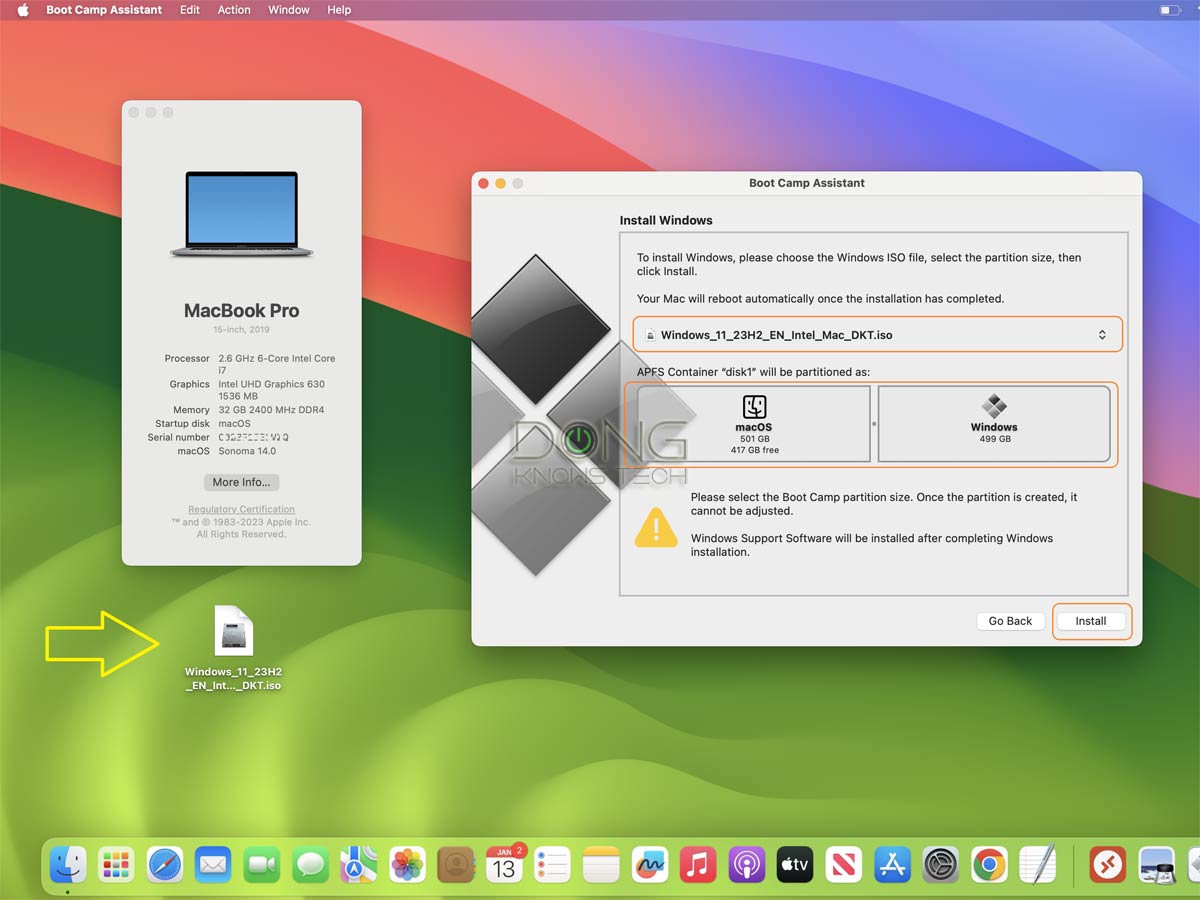
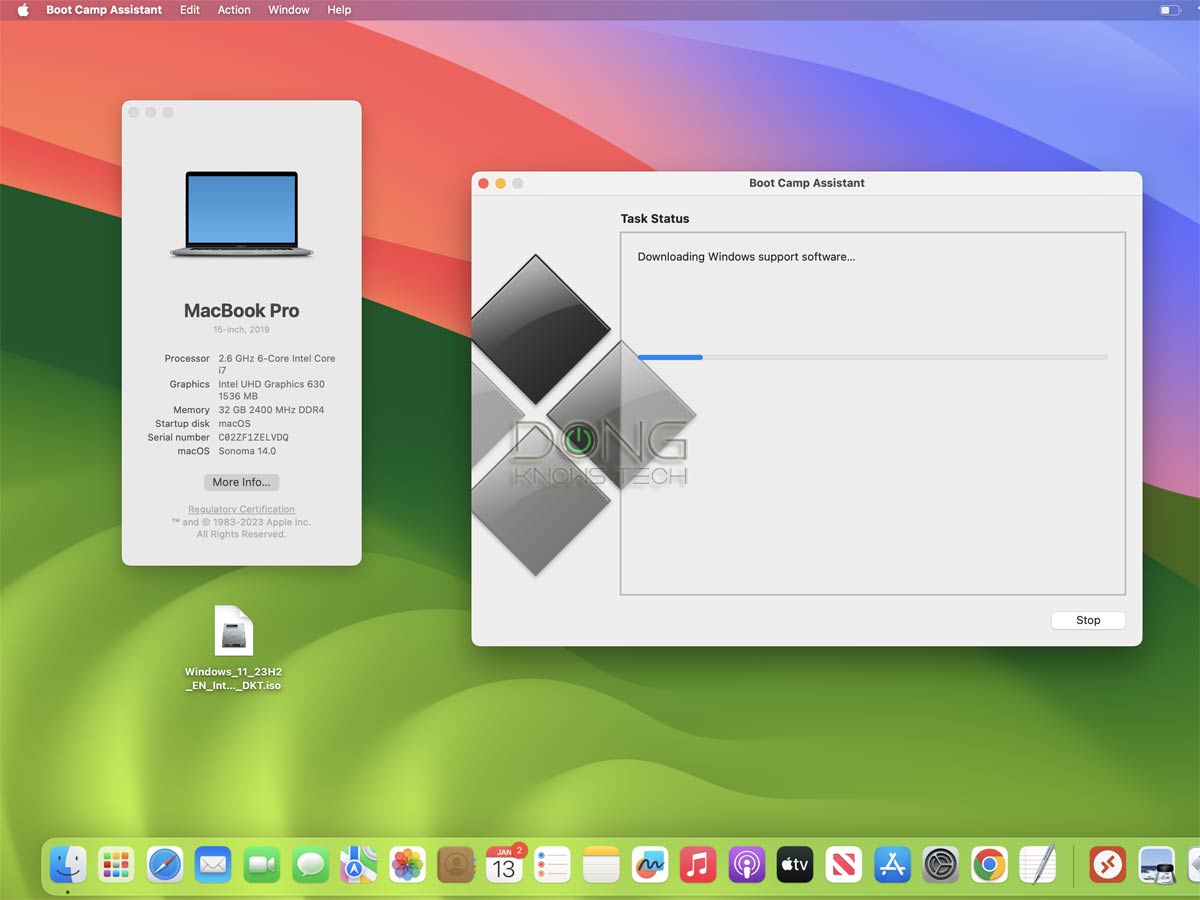
Here are the steps:
- Run Boot Camp Assistant. If you don’t know where it is, use Spotlight to search for it.
- Select the customized Windows 11 ISO file. If it’s the only ISO file you leave on the desktop area, chances are BCA will automatically pick it for you.
- Use the slider to pick the size of the partition you want to use for Windows. Hint: If you want to use the machine mainly as a Windows computer, pick the largest possible size for the Windows partition.
- Click “Install,” and the rest is self-explanatory: The Boot Camp Assistant tool will download the necessary drivers and restart the computer to start the installation. You’ll be prompted to pick the Windows 11 edition (Home, Pro, etc.) and other parameters. And then you’ll just need to wait until the process is done.
Tip
The Windows setup process will ask you for the CD key of the Windows version you want to install on your Mac, but you can continue without one by choosing “I don’t have a serial key right now.” If you’ve activated Windows 10 on your Mac before, the machine will automatically be activated with Windows 11 (of the same edition, such as Home or Professional) once connected to the Internet.
After the installation, the first time you log in, BootCamp will install all the software and drivers necessary for the machine to work as intended.
2b. Steps to do an in-place upgrade from Windows 10 to Windows 11 on an Intel-based Mac
On a Mac that’s already running Windows 10, the in-place upgrade process to Windows 11 is the same as when you upgrade Windows on unsupported hardware. Specifically:
- Right-click on the customized ISO file and choose “Mount” or “Open with Windows Explorer”. Important: The file must be open using Windows Explorer for the process to work.
- Double-click the Setup file to start the upgrade process. Note: The first few Setup screens show that you’re installing Windows 10, but you’re actually installing Windows 11.
- Important: Click on “Change how Setup downloads updates” and choose “Not right now” to defer the updates til after the upgrade process is finished.
- Proceed with the upgrade.
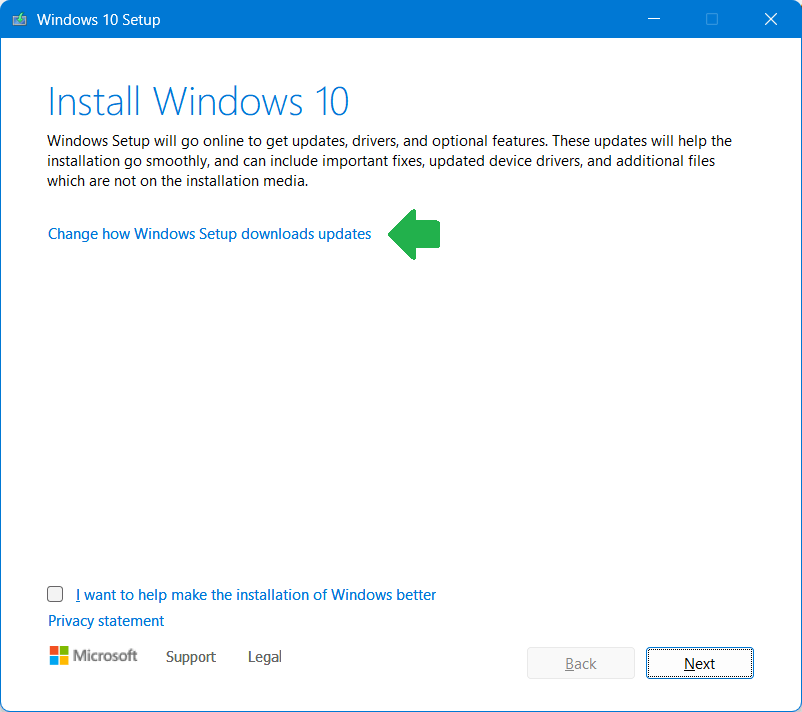
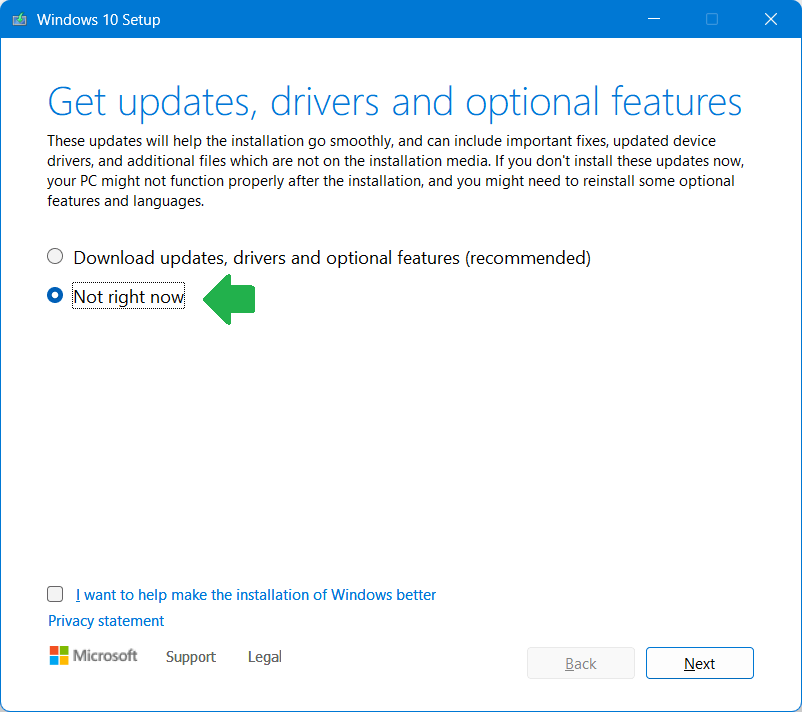
And that’s it. Now wait for the upgrade process to finish, which will take about 30 minutes.
3. Set your Mac to boot into Windows automatically
On a dual-boot Mac, you can press and hold the Option key on he keyboard as soon as you turn on the computer to select between macOS and Windows.
If you want the machine to boot into either OS automatically, here’s how:
- On your Mac running macOS: Choose Apple menu (by clicking on the Apple icon at the top left corner of the screen), then pick System Settings, then click General in the sidebar, then click Startup Disk on the right, then choose the drive that contains Windows.
- On your Mac running Windows: Right-click on the BootCamp icon (lower-right corner of the screen), pick “BootCamp Control Panel”, and choose the Startup Disk to be the one that contains Windows.
That said, from then on, the machine will automatically boot into Windows. It’s now genuinely no longer a Mac. You can always change the Startup disk via the step above, or use the Option key to select between the two during the boot process.
Windows 11 on an Intel-based Mac: Keep your Mac longer
With a dual-boot Mac, you can choose to start the computer between macOS and Windows by holding down the Option key on the keyboard right after turning it on. So, it’s about having options.
Most importantly, in my experience, Windows 11 runs very well on any Intel-based Mac computer, especially on older machines that are no longer supported by the latest macOS. In this case, putting Windows on it, even as the only or the main OS, means you can keep using it for much longer than Apple would like you to.
