
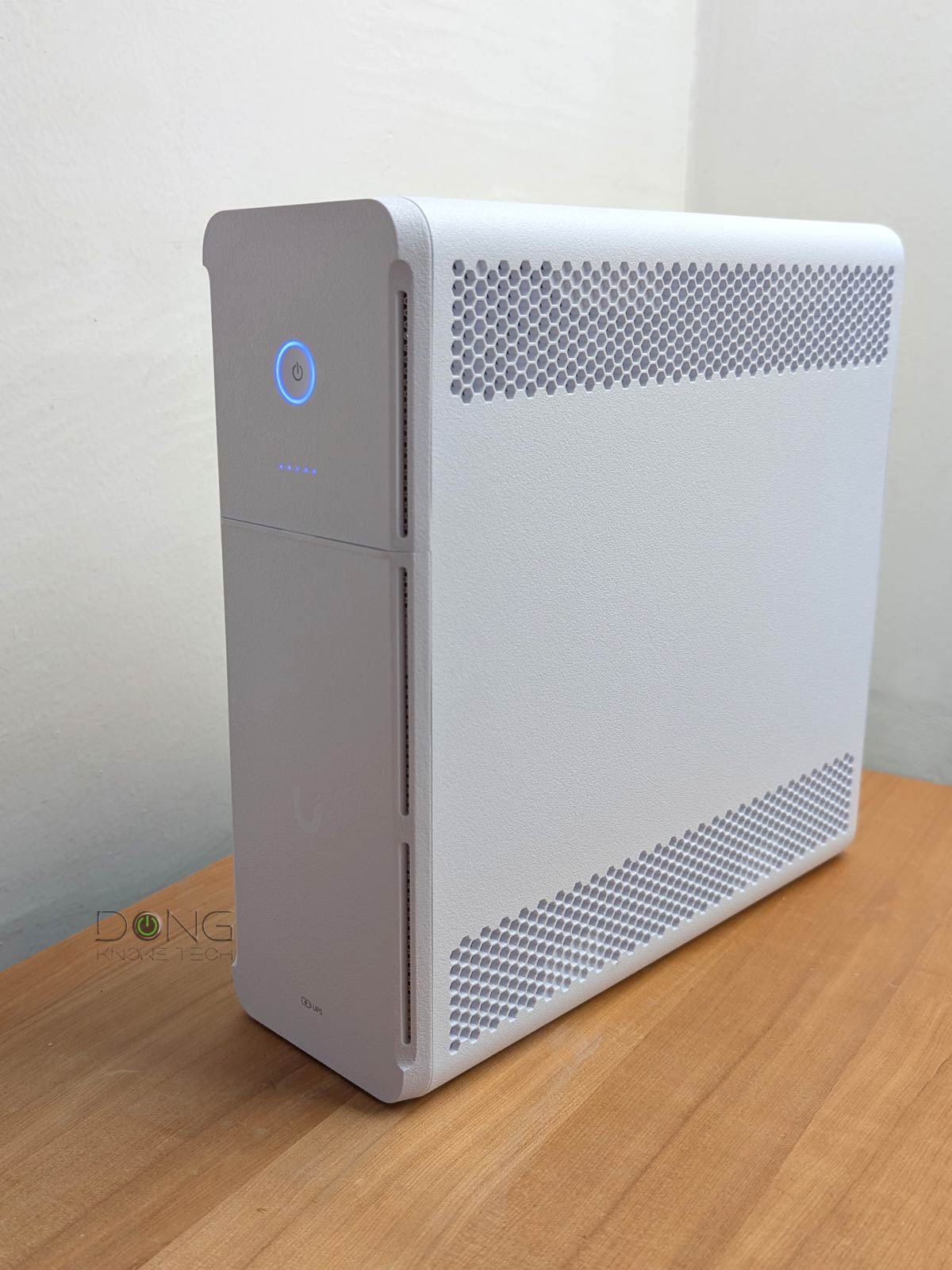

Ubiquiti today announces its latest addition to the UniFi ecosystem, the UniFi Uninterruptible Power Supply, which includes two hardware units, the UniFi UPS-2U and UniFi UPS Tower.
The former is a rackmount unit designed for a business network, and the latter is a desktop unit made for the home.
This brief review is based on my week-long experience with the UPS Tower, which is now available. If you opt for the UPS-2U, slated to be available later this month, expect a similar experience. Besides their form factors and power capacities, the two are practically the same.
Here’s the bottom line: The UPS Tower is an excellent battery backup, worth its $159 price tag for anyone needing those extra precious minutes for the system to shut down properly in the event of a power outage. For those with a UniFi network in need of such a solution, it’s a must-have.

Ubiquiti UniFi UPS Tower: An Ethernet-managed smart UPS
Out of the box, the UPS Tower looks like a typical UPS. As the name suggests, it’s a, well, tower device with two arrays of ten three-prong (technically, NEMA 5-15R) electrical outlets on the back. All of them feature power surge protection, and five are also linked to an internal battery to deliver backup power when needed.
What makes the Tower different from many other UPSes is that it comes with a network port, allowing it to be managed via a network connection, rather than a USB port like most others.
Connect this port to the network, and you can manage it as a network device, allowing its power status to be accessible to multiple devices within the same network. That’s the key point that differentiates the UniFi UPS Tower from USB-based UPSes, of which the power status (battery vs. Online) is known to only a single USB-connected device.
The UPS Tower features a built-in Network UPS Tools (NUT) server, allowing it to work seamlessly with any NUT-enabled third-party device, such as a NAS server or computer. Additionally, when used in a UniFi network, it’ll work as a UniFi device, similar to a UniFi switch or a UniFi camera, eliminating the need for its NUT server.
As mentioned, the UPS Tower and UPS-2U serve the same purpose: like all UPSes, they provide extra time for connected devices to power down correctly during a power outage. How much time, you might wonder? That depends on the number of connected devices, but when used at full capacity, you can expect at least a couple of minutes.
The table below shows the differences between the UPS Tower and the UPS-2U.
Ubiquiti UPS Tower vs. UPS-2U: Hardware specifications
 |
|
|
|---|---|---|
| UPS Tower | UPS-2U | |
| Dimensions | 288 x 99 x 280.5 mm (11.3 x 3.9 x 11″) |
442.4 x 300 x 87.4 mm (17.4 x 11.8 x 3.4″) |
| Weight | 8.17 kg (18 lb) | 14 kg (30.9 lb) |
| Enclosure Material | Polycarbonate and acrylonitrile butadiene styrene blend | Galvanized steel |
| Form Factor | Desktop | Rack mount (2U) |
| Weatherproofing | IP20 | |
| Management | Ethernet | |
| Networking Interface | 1x 100/10MbE port for network connection 2x GbE ports for surge in/out |
|
| Power | 1x OVC II AC in: NEMA 5-15P, 5x Battery backup/surge protection: NEMA 5-15R, 5x Surge protection: NEMA 5-15R |
1x OVC II AC in: NEMA 5-15P, 4x Battery backup/surge protection: NEMA 5-15R, 4x Surge protection: NEMA 5-15R |
| Capacity | 1,000VA/600W | 1,440VA/1,000W |
| Type | Line interactive | |
| Input Voltage Range | 89—145V AC | |
| Power Method | 1x TN system, 120V AC, 12A Max., 50/60 Hz | |
| Nominal Input Voltage | 120V AC | |
| Output Voltage | 120V AC | |
| Frequency Range | AC mode: 50/60 Hz ±5 Hz (Auto sensing) Battery mode: 60 Hz ±1 Hz | |
| AC Voltage Regulation | ±10% (Battery mode) | |
| Transfer Time | 6 ms typical; 10 ms max. (Battery mode) | |
| Wave Form | Simulated sine wave (Battery mode) | |
| Battery Type | 1x Lead Acid 12V, 9Ah | 2x Lead Acid 12V, 9Ah |
| Runtime | Full load: 2 min Half load: 7 min |
Full load: 2.3 min Half load: 8 m |
| Battery Charging Time | 6-8 hours recovery to 90% capacity | |
| Overload (Online Mode) | 110% 5 min go to fault 120% go to fault immediately | |
| Overload (Battery Mode) | 110% shutdown in 5 sec, 120% shutdown immediately | |
| Short Circuit Protection (Online Mode) | Breaker, 250V AC, 15A | |
| Output Short-Circuit Current | Ipeak 334.8A Irms 68.2A | Ipeak 348.0A Irms 115.1A |
| Ambient Operating Temperature and Humidity | 0 to 40° C (32 to 104° F) 0 to 95% noncondensing |
|
| Operating Altitude | 3,000 m (1.9 mi) | |
| Status LED | Off: device not turned on Flashing white: initializing / factory default, Steady white: waiting for adoption, Steady blue: device adoption and working, Flashing blue: battery mode, Alternating white/blue: firmware upgrading, Rapid flashing blue: locate, Steady red: warning, Flashing red: low battery |
|
| Battery Indicator LED | All off: 0% (1) Steady blue: battery 1—19%, (2) Steady blue: battery 20—39%, (3) Steady blue: battery 40—59%, (4) Steady blue: battery 60—79%, (5) Steady blue: battery 80—100% |
None |
| Release Date | October 7, 2025 | October 2025 |
| US Launch Price (Buy now!) |
$159 | $279 |
UniFi UPS Tower: Simple setup
You can use the UPS tower in the same way you would any UPS unit. Specifically, plug it into the power source, then plug the devices you want to protect against electrical surges into the five outlets (numbers 6-10) on the right. Plug the devices you want to have battery backup into the outlet on the left (1-5), and that’s it.

As long as the plugged devices don’t use more than their max output capacity, which is 600W in the case of the UniFi UPS Tower, everything will work as intended. When a power outage occurs, the UPS will beep to notify you, allowing you to turn off battery-backed-up devices in an orderly manner.
However, if you don’t want to have to attend to these devices manually, the Ethernet-managed notion of the UPS comes into play.
First, connect the Tower to the network via its network port. After that, in a non-UniFi network, set up a connected device with the NUT server—a process not covered by this review—and it will automatically shut down itself when a power outage occurs.
If you use the UPS Tower with a network hosted by a UniFi console, which is its intended usage, things are much more intuitive.
For one, the Tower is recognized by the UniFi Network application of the UniFi console, just like any UniFi device. After that, you can “adopt” it via a single click.
After that, you can manage the Tower via the web user interface of the UniFi Network app or the UniFi mobile app. Additionally, connected UniFi devices that require battery backup automatically “know” what to do in the event of a power outage, giving you peace of mind.
Ubiquiti UniFi UPS Tower: Reliable performance, runs hot
For this review, I’ve used a UPS Tower for over a week with a UniFi network hosted by a UCG-Fiber with a few UniFi PoE switches, and a UNAS 2. I was happy with it.
In my experience with PoE switches, I’ve found that many generic UPS devices are incompatible due to the nature of PoE. For example, I encountered an issue using the Enterprise 8 PoE with a few off-the-shelf UPSes—the switch would randomly shut down or restart.
For testing, I used the same switch and three others—Pro XG 8 PoE, 8-Port Flex 2.5G PoE, and Zyxel XS1930-12HP—simultaneously with the UniFi UPS Tower, and all have been problem-free for over a week. It appears that this UPS can handle PoE power senders (PSE), which tend to draw power at varying rates, more effectively than others.


The nature of UPS is that you hope you’d never need to resort to its battery backup or surge protection functions—it’s like an insurance policy—and during my trial, there were indeed no surges or power outages. However, when I unplugged it from the power source, all protected devices behaved accordingly. And that’s all that matters.
On the downside, it’s worth noting that the UniFi UPS Tower became warm, if not hot, quickly after being plugged into power and remained that way. It wasn’t burning hot, but it was enough for me to ensure it wasn’t too close to other devices.
Heat is never a good thing, nor is it new when it comes to Ubiquiti’s equipment. We’ll have to wait and see how it pans out in the long term, and I do intend to keep using the Tower for the foreseeable future. I’ll update this review if anything noteworthy comes to light. In the meantime, judging from other UniFi hot-running devices, such as the UDM or the U7 Pro Max, I’d say this is not a significant concern.
Pros
Ethernet-managed, with simple adoption and intuitive interface/options, via UniFi network
Ten protected outlets with reliable performance
Conclusion
The Ubiquiti UniFi UPS Tower (as well as the UniFi UPS-2U) is not a must-have piece of hardware. However, if you live in an area with unstable power and have mission-critical hardware, especially those of the UniFi family, it’s an excellent power backup option, providing you with the much-needed peace of mind. Consider it today!
