

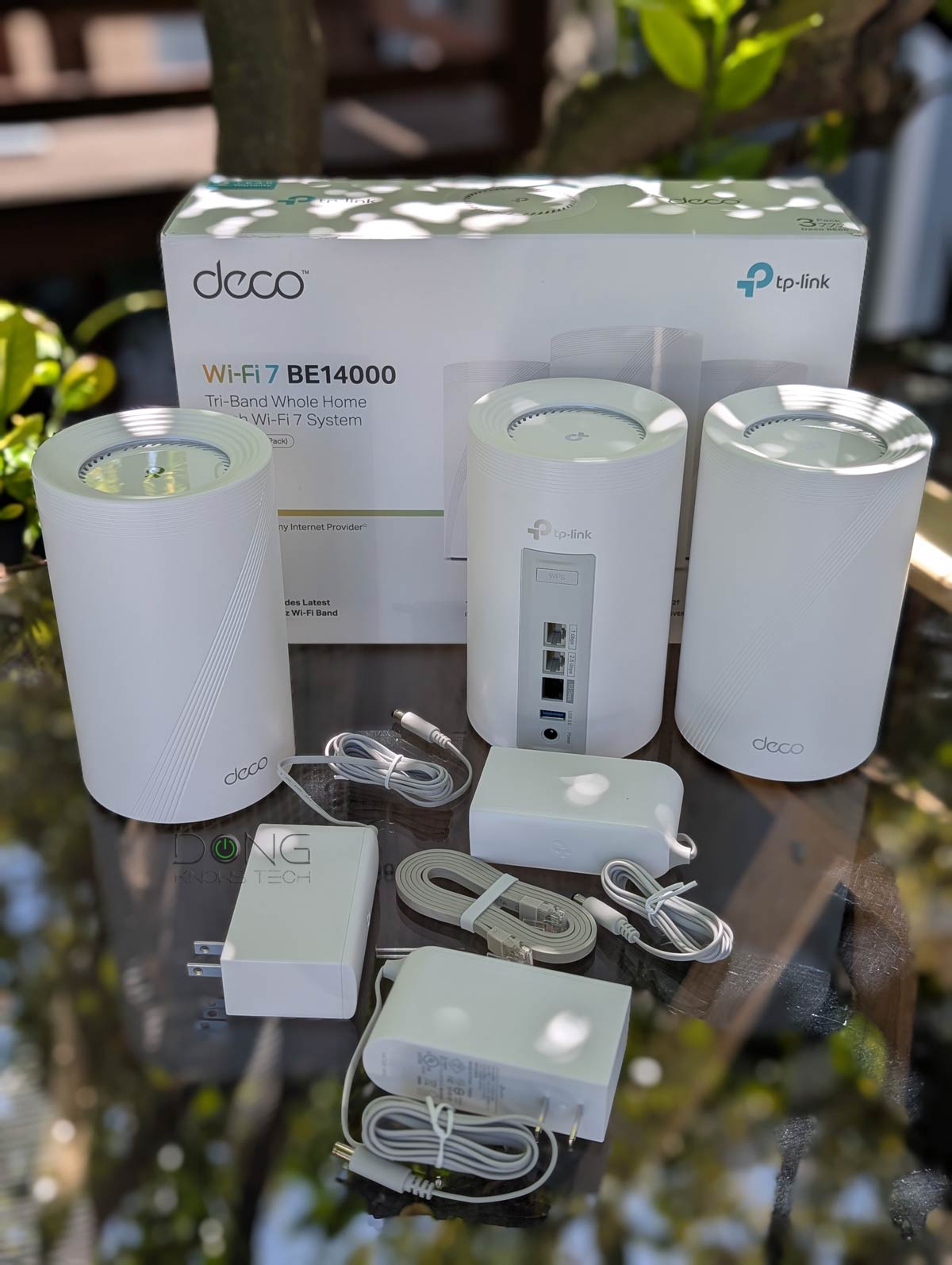

Like most Wi-Fi hardware from TP-Link, the Deco 7 Pro BE14000 Tri-Band Wi-Fi 7 Whole Home Mesh System is available in multiple model names. You’ll learn more about that in the hardware specification table below, but right off the bat, keep the following in mind:
- On Amazon, the Deco 7 Pro BE14000 is listed as the Deco BE67 model.
- At Best Buy, the Deco 7 Pro BE14000 is shown as the Deco BE68.
The two are identical, and in either case, you’ll find a 3-pack for around $600 (before discounts), with a 2-pack and a single router costing accordingly less.
Additionally, there’s a variant called Deco 7 Pro BE13000 available exclusively at Costco as the least expensive option, costing just $399.99 for a 3-pack, but it trades the hardware’s single 10GbE port for a 5GbE port.
Here’s the bottom line: No matter which variant you choose, the Deco 7 Pro BE14000 (or BE13000) will prove to be a sweet-spot Wi-Fi 7 mesh system, capable of delivering reliable Gig+ wireless bandwidth without digging a hole in your wallet. If you don’t mind that it’s part of TP-Link’s app-operated Deco ecosystem, get one today!
Pros
Tri-band Wi-Fi 7 with fast and reliable performance at affordable pricing
Simple to set up and easy to use, with a generous set of Wi-Fi settings and network features
Fanless, relatively compact design
Cons
Single 10GbE port, mid-tier 5GHz specs, range could be better
Available in confusing variants
Vendor-connected mobile app required, advanced features cost extra

TP-Link Deco 7 Pro BE14000: Overcoming the single 10Gbps port
Like a Deco set, the Deco 7 Pro BE14000 consists of multiple identical mesh routers, each being the mini version of the Deco 7 Elite BE85 (formerly Deco BE85). While retaining the tube design, it’s about half the size and has fewer network ports.
And these networks are where its biggest drawback lies: There’s only one 10GbE port, one 2.5Gbps port, and one Gigabit port. As a result, there’s no way to get a meaningful 10Gbps wired connection from the hardware, and no chance of hosting 10Gbps broadband while having 10Gbps wired backhaul in a fully wired setup.
The point is that the Deco 7 Pro BE14000 is more suitable for a fully wireless (mesh) setup in which, with proper hardware placements, the MLO backhaul link will be faster than 2.5Gbps. And in this case, this mesh set is practically the same as the much more expensive Deco 7 Elite BE85.
The table below shows the hardware specs of the two, with the Deco BE63 as the reference.


Hardware specifications: TP-Link Deco 7 Pro BE14000 (Deco BE67/BE68) vs. Deco BE63 vs. Deco BE85:
 |
|
|
|
| Full Name | TP-Link Deco 7 Pro BE63 BE10000 Tri-Band Mesh Router | TP-Link Deco 7 Pro BE14000 Tri-Band Wi-Fi 7 Mesh Router | TP-Link Deco 7 Elite BE85 BE22000 Tri-Band Mesh Router |
| Model (and variants) |
Deco 7 Pro BE63, Deco 7 Pro BE11000, Deco B63, Deco BE65 Pro |
Deco 7 Pro BE14000, Deco BE67, Deco BE68, Deco 7 Pro BE13000 (Costco version) |
Deco BE85, Deco 7 Elite BE85 |
| Mesh Availability | 3-pack, 2-pack, or single router | ||
| Dimensions (each unit) |
4.23 × 4.23 × 6.93 in (107.5 × 107.5 × 176 mm) |
5.04 × 5.04 × 9.29 in (128 × 128 × 236 mm) |
|
| Processor | Undisclosed | ||
| Wi-Fi Bandwidth (total of all bands) |
Tri-band BE10000 | Tri-band BE14000 or Tri-band BE13000 (Costco version) |
Tri-Band BE22000 |
| 2.4GHz Band specs (channel width) |
2×2 AX: Up to 574Mbps (20/40MHz) |
2×2 BE: Up to 688Mbps (20/40MHz) |
4×4 BE: Up to 1376 Mbps (20/40MHz) |
| 5GHz Band Specs (channel width) |
2×2 BE: Up to 4324 Mbps (20/40/160/240MHz) |
2×2 BE: Up to 4324 Mbps (20/40/160/240MHz) or 2×2 BE (Costco version): Up to 3981 Mbps (20/40/160/240MHz) |
4×4 BE: Up to 8640 Mbps (20/40/160/240MHz) |
| 6GHz Band Specs (channel width) |
2×2 BE: Up to 5188 Mbps (20/40/160/320MHz) |
3×3 BE: Up to 8647 Mbps (20/40/160/320MHz) |
4×4 BE: Up to 11520 Mbps (20/40/160/320MHz) |
| Backward Compatibility | 802.11a/b/g/n/ac/ax Wi-Fi | ||
| Multi-Link Operation (MLO) |
Yes | ||
| Automated Frequency Coordination (AFC) |
No | ||
| Wireless Security | WPA2, WPA3 | ||
| Mobile App | TP-Link Deco | ||
| Web User Interface | Limited (mobile app required to be functional) |
||
| Bridge Mode | No | ||
| AP Mode | Yes (as a mesh or a single unit) |
||
| USB Port | 1x USB 3.0 | ||
| Internal Fan | No | Yes | |
| Gigabit Port (WAN/LAN auto-sensing) |
None | One | None |
| Multi-Gig Port (WAN/LAN auto-sensing) |
4x 2.5GbE (Deco BE63 / Deco Pro BE63) or 3x 2.5GbE (Deco BE65 Pro) |
1x 2.5GbE, 1x 10GbE or 1x 5GbE (Costco version) |
2x 2.5Gbps, 1x 10Gbps, 1x 10Gbps / SFP+ Combo |
| Link Aggregation | None | ||
| Firmware Version (at review) |
Not yet tested | 1.0.14 Build 20231124 Rel. 32537 | |
| Power Input | 110-240V | ||
| Real-world Power Consumption (per 24 hours) |
Not measured | ≈ 345 Wh (router unit) ≈ 200 Wh (satellite unit) |
≈ 485 Wh (router unit) |
| US Launch Price (check street price) |
$599.99 (3-pack) $349.99 (2-pack) $199.99 (single unit) $299.99 (outdoor unit) |
$699.99 (3-pack) $499.99 (2-pack) $299.99 (single unit) |
$1199.99 (3-pack) $799.99 (2-pack) $499.99 (single unit) |
A Typical Wi-Fi 7 Deco variant
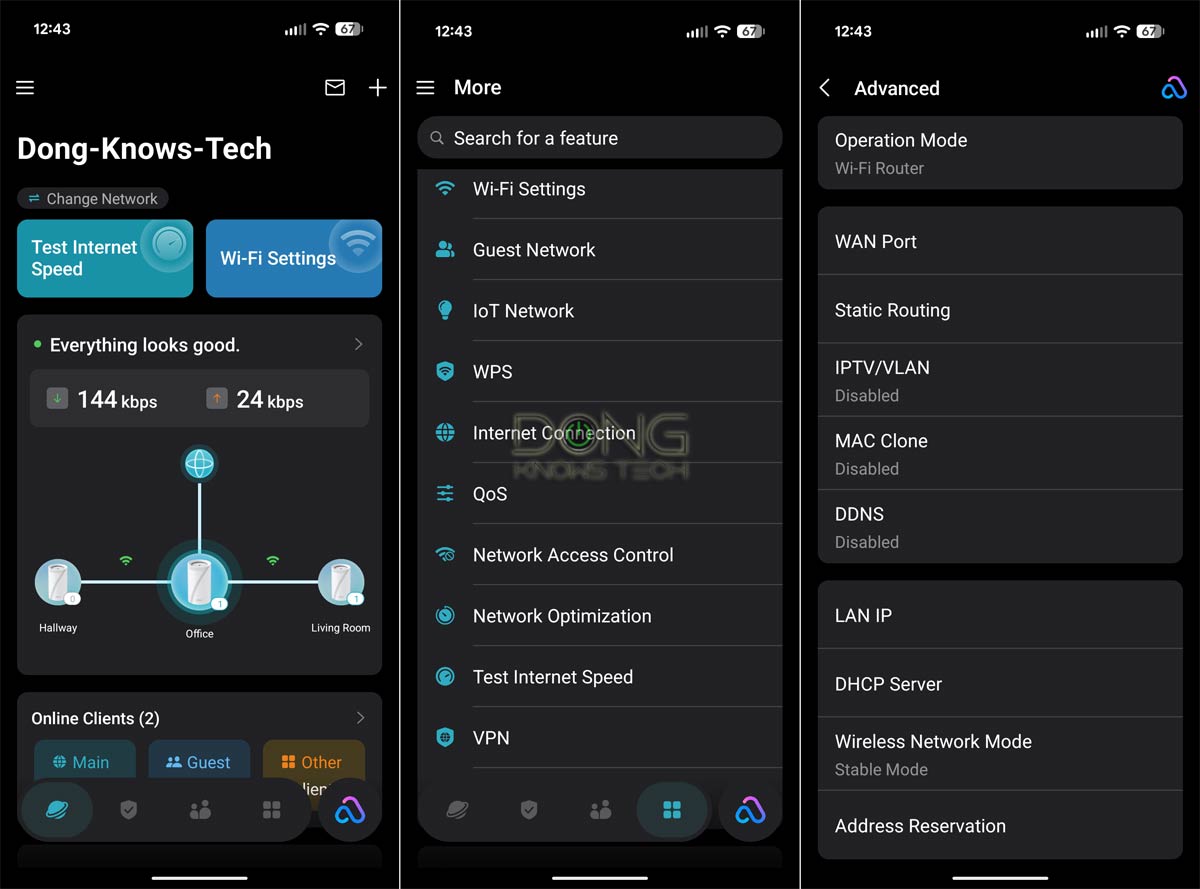
Aside from the hardware specs, the Deco 7 Pro BE14000 is a typical variant of the Deco family. It shares the same feature set and management app as other Wi-Fi 7 Deco sets.
That said, you’ll need to use the Deco mobile app and sign in with a TP-Link ID account before you can set up and use the hardware. As a result, a live Internet connection is required for the setup process and ongoing management. Additionally, managing your home router via a vendor-connected account increases inherent privacy risk. That’s the case of virtually all app-operated, vendor-assisted Wi-Fi systems.
TP-Link and your privacy
Signing in with a vendor-linked online account generally means your hardware connects to the vendor at all times, which translates into inherent privacy risks.
On this matter, the China-origin company, among other things, insists that it’s a “global multinational group” and offers this assurance:
“TP-Link takes privacy seriously and complies with U.S. policies to protect consumers.”
TP-Link’s Privacy Policy page.
Managing your home network via a third party is never a good idea. Privacy is a matter of degree. Data collection and handling vary vendor by vendor and region by region.
Still, among app-based mesh systems, Deco generally offers the most in settings and features, almost as good as Asus’s ZenWiFi, which has a full web-based user interface.
Specifically, in terms of Wi-Fi, a couple of things to note:
- SSID (network name) options:
- One primary SSID for all three bands (2.4GHz, 5GHz, and 6GHz). There’s no option to create a separate primary SSID for each band.
- An optional MLO SSID that uses all three bands or the combo of 5GHz and 6GHz bands.
- An optional Guest SSID using any or all of the three bands.
- An optional IoT SSID using 2.4GHz and/or 5GHz.
- In-depth SSID customization:
- You can choose to keep any of the primary or MLO SSIDs hidden or shown (default).
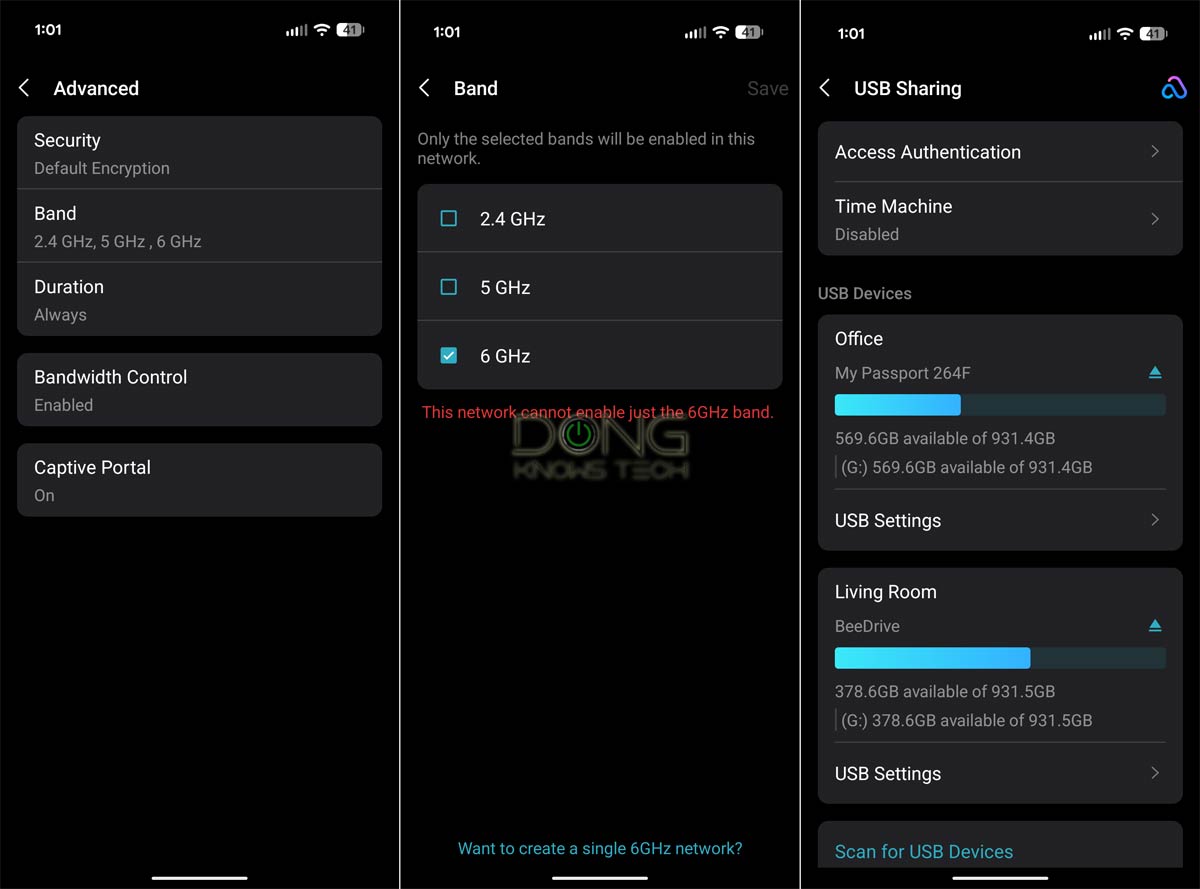
- You can pick one or more available bands for each, but there’s no option to use only the 6GHz band for any SSID.
- Channel customization (channel, channelwidth) is only available for the primary SSID and will automatically apply to the MLO, IoT, and Guest SSIDs.
- Security options (WPA2, WPA3, or Enhanced Open) are available to each SSID and can be applied to individual bands.
- The Guest SSIDs come with bandwdith limit and captive portal options.
Other than that, like other Decos, the Deco 7 Pro BE14000 has a standard set of networking settings, including Dynamic DNS (with a free domain from TP-Link), port forwarding, VPN (server or client), IPTV VLAN tagging (required by certain Internet providers), and the ability to work in the access point mode mode (as a single router or a mesh system).
Pre-synced hardware with flexible backhaul
As with any Deco set, if you get a 2- or 3-pack of the Deco 7 Pro BE14000, the units in the set are pre-synced—you can pick any of them as the primary unit (the router), and the rest will work as satellites when plugged in.
After that, you can easily add more units to an existing setup via a few app-based steps, including units of different Deco variants. Keep in mind, though, that if you want to use the MLO feature in the mesh backhaul link, you need to use the same model throughout.
Speaking of backhaul, the Deco 7 Pro BE14000 supports both wired and wireless uplinks—you can use a network cable to connect a satellite unit back to the primary router—and can switch between the two on the fly. In the former case, the 10Gbps uplink is available only when you don’t need to use the sole 10Gbps port for the Internet connection, and is available only between two units in a daisy-chain setup (without a 10Gbps switch).
New to the idea of backhaul? Click here!
When you use multiple Wi-Fi access points—in a mesh Wi-Fi system or a combination of a Wi-Fi router and an extender—there are two types of connectivity: fronthaul and backhaul.
Fronthaul (or downlink) is the Wi-Fi signals broadcast outward to clients or to local area network (LAN) ports for wired devices. It’s what we generally expect from a Wi-Fi broadcaster.
Backhaul (a.k.a. backbone) or uplink, on the other hand, is the link between a Wi-Fi satellite unit and the network’s primary router, or between satellite units.
This link works behind the scenes to keep the hardware units together as a system. It also determines the ceiling bandwidth (and speed) of all devices connected to the particular Wi-Fi satellite unit.
- Hardware of Wi-Fi 6e, Wi-Fi 6, or Wi-Fi 5 standards uses one or more of its bands (2.4GHz, 5GHz, or 6GHz) for the uplink. In this case:
- When a Wi-Fi band handles backhaul and fronthaul simultaneously, only half its bandwidth is available to either end.
- When a Wi-Fi band is used solely for backhauling, often available in tri-band hardware, the link is called a dedicated backhaul.
- In specific cases, Wi-Fi 7 satellite units can combine multiple bands into a single powerful backhaul link thanks to the MLO feature.
For the best performance and reliability, network cables are recommended for uplink or wired backhaul, which is an advantage of mesh Wi-Fi hardware with network ports. In this case, a Wi-Fi satellite unit can use its entire Wi-Fi bandwidth for the fronthaul.
Overall, the Deco 7 Pro BE14000 offers the same user experience as other Wi-Fi 7 Deco sets. What sets it apart is the real-world performance.
TP-Link Deco 7 Pro BE14000: Fast and reliable performance
For this review, I tested and used a 3-pack of the Deco BE68 variant of the Deco 7 Pro BE14000 for over a week and was generally happy with it.
As you will note from the chart, the hardware delivered impressive real-world throughput at short range at the router unit, especially on the 6GHz band. Over a 10Gbps uplink (via my 10Gbps fiber-optic broadband or connected to a file server), it easily broke the 3Gbps mark. The performance on the 5GHz band, which has a more modest 2×2 spec, was less impressive but still in the Gig+ realms.
Tip
Gig+, or Gig Plus, denotes a speed grade between 1Gbps and 2Gbps. So, it’s 1.5Gbps, give or take a couple of hundred megabits per second, and it’s not speedy enough to qualify as Multi-Gig Ethernet or multi-Gigabit. Intel coined the term to describe its Wi-Fi 6E client chips, the AX210 and AX211, in terms of their real-world speeds.
Gig+ primarily applies to sustained Wi-Fi 6 or Wi-Fi 7 speeds via a 2×2 at 160MHz connection, or to broadband internet speeds.
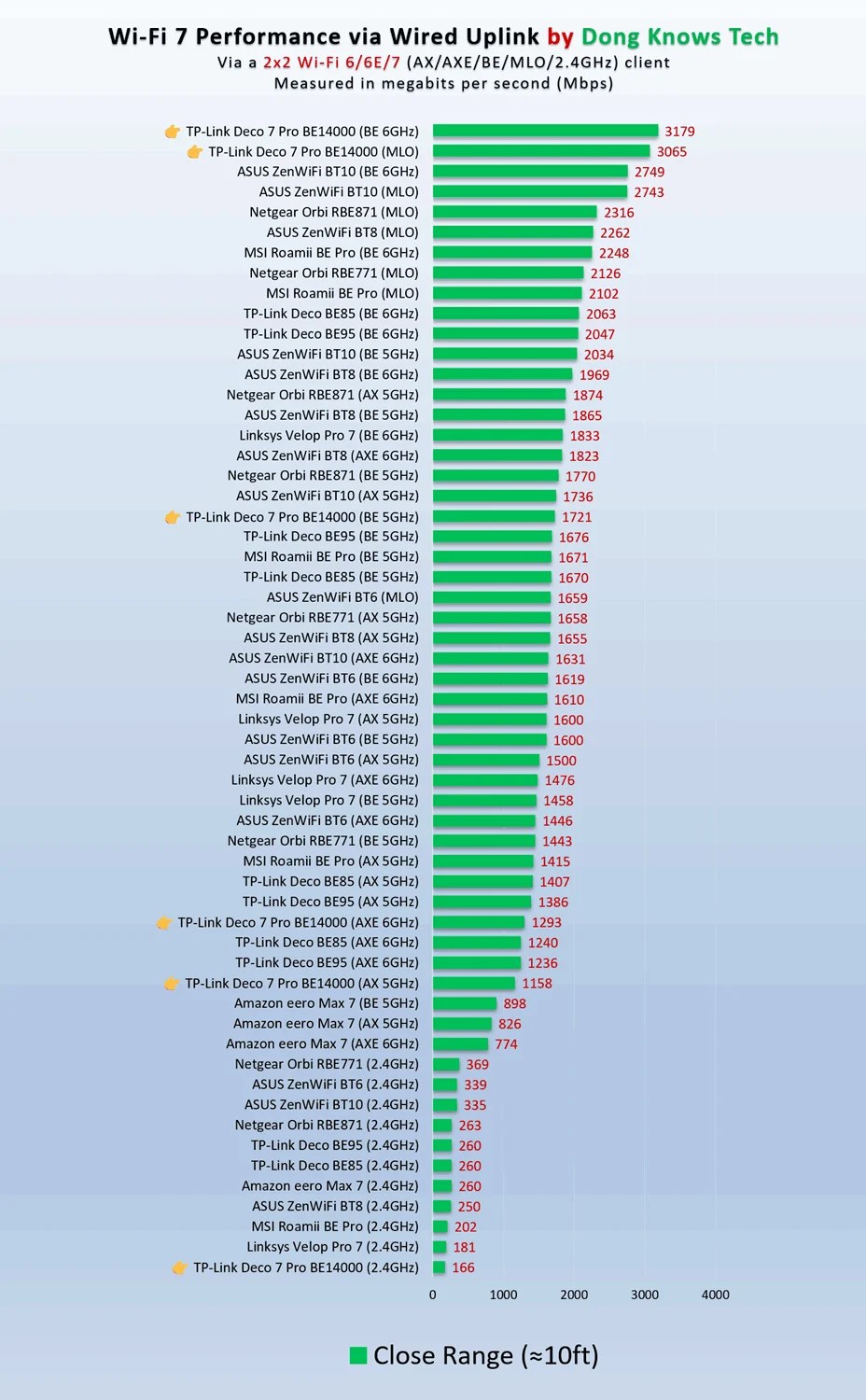
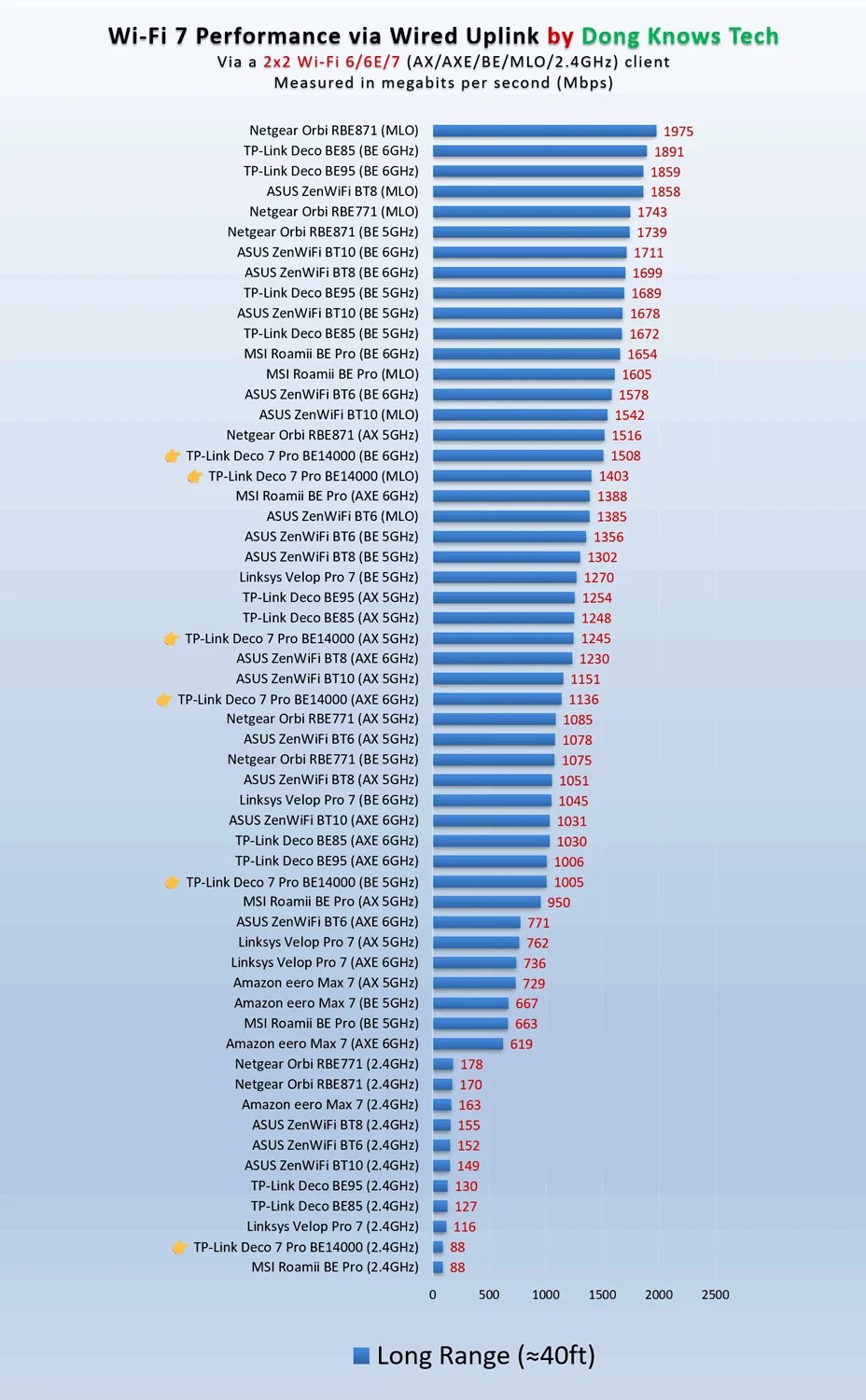
However, farther out, starting at about 40 feet (13 meters), the real-world rates dropped significantly, to about half of the close-range values. Despite that, thanks to MLO, the satellite unit managed to have quite a formidable wireless backhaul (WB) rate, which sustained at over 3.5Gbps.

In a fully wireless setup, the satellite unit’s performance was noticeably lower than that of the router unit. That’s generally the normal case of all mesh systems. Still, compared with competitors and even the previous Wi-Fi 7 Deco set, the Deco 7 Pro BE14000 was impressive, delivering sustained Gig+ rates in most cases.


In terms of range, the TP-Link Deco 7 Pro BE14000 was comparable to the ASUS ZenWiFi BT10. It’s always hard to put Wi-Fi coverage in numbers, and your mileage will vary.
That said, I estimate that the Deco 7 Pro BE14000 router unit can cover about 2000 ft2 (186 m2) of space, with each additional unit adding about 1700 ft2 (158 m2) extra, depending on the arrangement. The rule is that the further apart you place them, the more extensive the coverage, but the slower the real-world speeds become.
It’s worth noting that each hardware unit can host an external drive to serve as a mini NAS via its USB 3.0 port. On this front, I tested the router, and its performance was quite good. It wasn’t the fastest, but it was enough to handle basic file sharing and even some media streaming.

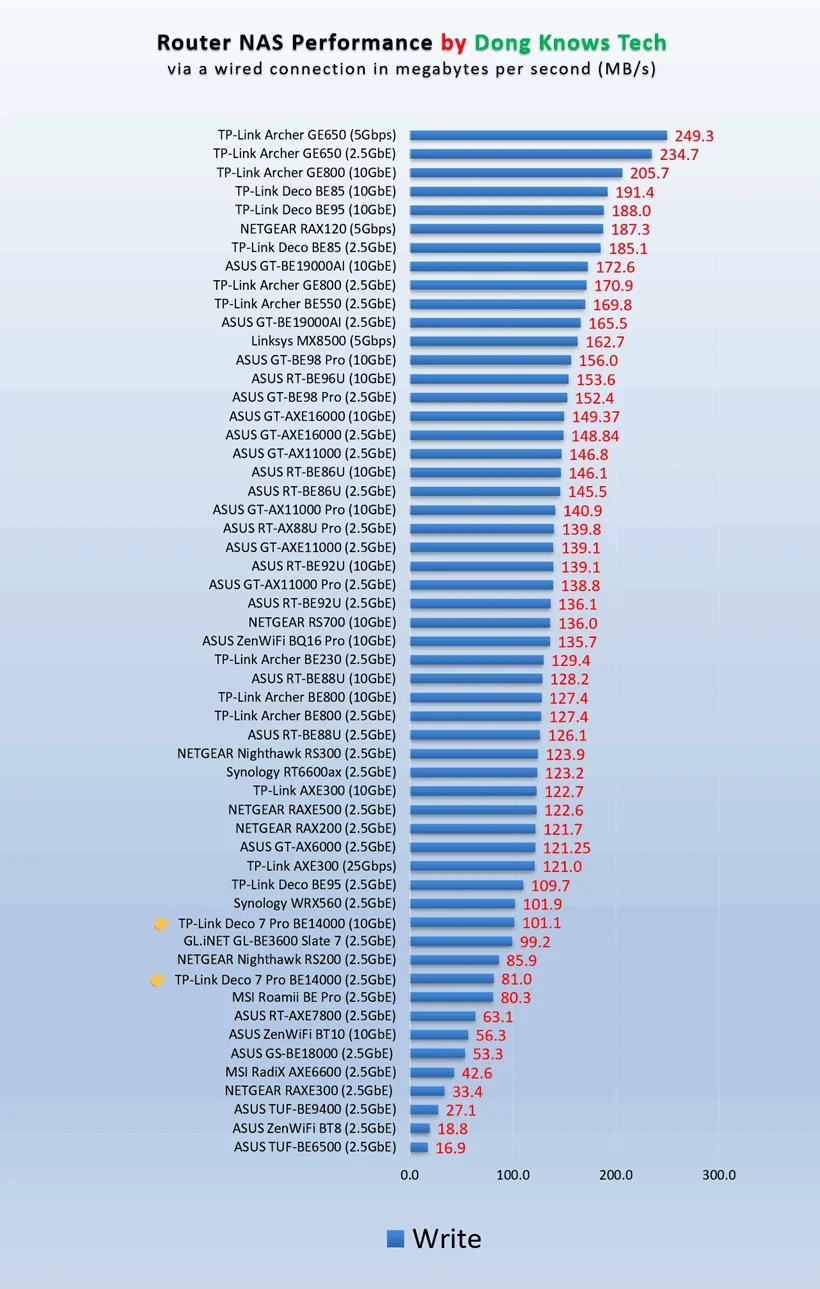
Other than that, the Deco 7 Pro BE14000 passed my three-day stress test without disconnection. It was completely silent during operation and became just slightly warm to the touch. All that is reassuring about its longevity, considering my loud and hot Deco BE85 has lasted for years without issues.
Conclusion
The TP-Link Deco 7 Pro BE14000 (a.k.a. Deco BE67 or Deco BE68, or the Deco BE13000 variant) has everything to deliver excellent performance in a large home with Gig+ or low multi-Gigabit bandwdith needs. In fact, given the affordable price tags, it’s an excellent deal for those who love app-controlled hardware. Get one today!
