Close Menu

    Subscribe to Updates

    Get the latest news from tastytech.

    What's Hot

    Chinese hyperscalers and industry-specific agentic AI

    February 10, 2026

    A Developer-First Platform for Orchestrating AI Agents

    February 10, 2026

    Framework Desktop Review: Small and Mighty, but Shy of Upgrade Greatness

    February 10, 2026
    Facebook X (Twitter) Instagram
    Facebook X (Twitter) Instagram
    tastytech.intastytech.in
    Subscribe
    • AI News & Trends
    • Tech News
    • AI Tools
    • Business & Startups
    • Guides & Tutorials
    • Tech Reviews
    • Automobiles
    • Gaming
    • movies
    tastytech.intastytech.in
    Home»AI Tools»Exporting and Visualizing VMware Reports with PowerCLI and Python
    Exporting and Visualizing VMware Reports with PowerCLI and Python
    AI Tools

    Exporting and Visualizing VMware Reports with PowerCLI and Python

    gvfx00@gmail.comBy gvfx00@gmail.comSeptember 30, 2025No Comments3 Mins Read
    Share
    Facebook Twitter LinkedIn Pinterest Email


    Table of Contents

    Toggle
      • Learning Objectives
    • My Personal Repository on GitHub
      • Prerequisites
    • 1. Exporting VM Inventory with PowerCLI
    • 2. Reading and Visualizing the CSV with Python
    • 3. Diagram: Reporting and Visualization Flow
    • 4. Advanced: Exporting Directly to Excel
    • 5. Troubleshooting Tips
    • 6. Further Reading
    • 7. Conclusion and Next Steps
      • Next Post
      • Related posts:
    • Japan gov’t greenlights record $58bn defence budget amid regional tension | Politics News
    • Chinese AI Models Power 175,000 Unprotected Systems as Western Labs Pull Back
    • Israeli forces take over homes, impose curfew on West Bank’s Qabatiya | Occupied West Bank News

    Learning Objectives

    By the end of this article, you will:

    • Automate export of VMware inventory and reports to CSV/Excel using PowerCLI.
    • Use Python to parse, filter, and visualize VMware report data.
    • Build a basic VM inventory dashboard in Python.
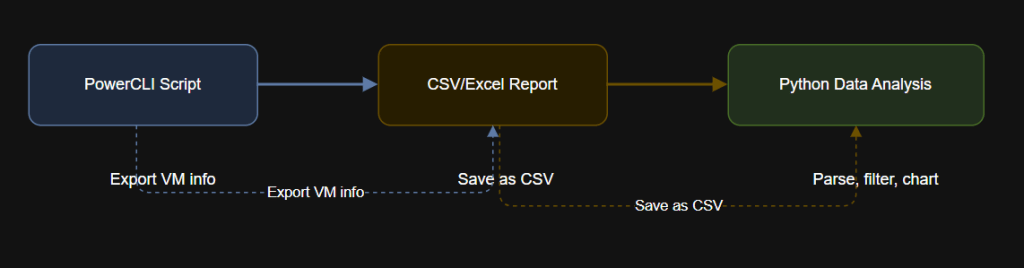
    • Understand workflow visualization with an diagram.

    My Personal Repository on GitHub

    VMware Repository on GitHub


    Prerequisites

    • Completed Articles 1–4.
    • PowerCLI, Python, and the Python modules pandas and matplotlib are installed: pip install pandas matplotlib
    • VMware vCenter or ESXi access.

    1. Exporting VM Inventory with PowerCLI

    Let’s create a PowerShell script that exports VM info (Name, PowerState, Guest OS, IP, CPU, Memory) to CSV.

    Save as export_vm_inventory.ps1:

    # Import PowerCLI
    Import-Module VMware.PowerCLI

    # Connect to vCenter (update details)
    Connect-VIServer -Server -User -Password

    # Export VM data
    Get-VM | Select-Object Name, PowerState, @{N="GuestOS";E={$_.Guest.OSFullName}}, @{N="IPAddress";E={$_.Guest.IPAddress -join ', '}}, NumCpu, MemoryGB |
    Export-Csv -Path C:\Temp\vm_inventory.csv -NoTypeInformation

    Disconnect-VIServer -Server * -Confirm:$false


    2. Reading and Visualizing the CSV with Python

    The following Python script reads your exported CSV and visualizes basic VM stats.

    import pandas as pd
    import matplotlib.pyplot as plt

    # Load the CSV file
    df = pd.read_csv(r"C:\Temp\vm_inventory.csv")

    # Print the first few rows
    print(df.head())

    # Count VMs by PowerState
    state_counts = df['PowerState'].value_counts()

    # Plot PowerState distribution
    plt.figure(figsize=(6,4))
    state_counts.plot(kind='bar')
    plt.title('VM Power State Distribution')
    plt.xlabel('Power State')
    plt.ylabel('Number of VMs')
    plt.tight_layout()
    plt.show()

    # Group by GuestOS
    os_counts = df['GuestOS'].value_counts().head(10)
    plt.figure(figsize=(8,4))
    os_counts.plot(kind='barh')
    plt.title('Top 10 Guest OS Types')
    plt.xlabel('Number of VMs')
    plt.tight_layout()
    plt.show()


    3. Diagram: Reporting and Visualization Flow


    4. Advanced: Exporting Directly to Excel

    You can also use PowerCLI to export reports in Excel format with Export-Excel from the ImportExcel PowerShell module.

    # Install the module (run once)
    Install-Module -Name ImportExcel -Scope CurrentUser

    # Export to Excel
    Get-VM | Select-Object Name, PowerState, NumCpu, MemoryGB |
    Export-Excel -Path C:\Temp\vm_inventory.xlsx -AutoSize

    Now, your Python scripts can also read .xlsx files using pandas.read_excel().


    5. Troubleshooting Tips

    • If you see file permission errors, confirm you have write access to the target folder.
    • For Python plotting errors, ensure you installed matplotlib and pandas.
    • Large vCenters may export thousands of rows; filter in PowerCLI or Python for smaller data sets.

    6. Further Reading


    7. Conclusion and Next Steps

    You have learned to export VMware inventory to CSV/Excel and create basic data visualizations with Python.
    This capability is a foundation for dashboards, audit reports, and capacity analysis for your virtual infrastructure.

    Next up: In Article 6, you will add error handling and logging to your scripts, with practical examples including integration with Aria for Logs.

    Next Post

    Handling Errors and Adding Logging for VMware Automation (PowerCLI & Python)

    Learning Objectives By the end of this article, you will: Implement error handling in both PowerCLI and Python scripts. Add log file creation for task auditing and troubleshooting. Integrate VMware…

    Like this:

    Like Loading…

    Related posts:

    Bangladesh’s Khaleda Zia hospitalised in ‘very critical’ condition | News

    Decart uses AWS Trainium3 for real-time video generation

    McKinsey tests AI chatbot in early stages of graduate recruitment

    Share. Facebook Twitter Pinterest LinkedIn Tumblr Email
    Previous Article3 Days At The World’s Most Luxurious Race Track
    Next Article Responding to the climate impact of generative AI | MIT News
    gvfx00@gmail.com
    • Website

    Related Posts

    AI Tools

    Chinese hyperscalers and industry-specific agentic AI

    February 10, 2026
    AI Tools

    How does the cutoff of Starlink terminals affect Russia’s moves in Ukraine? | Russia-Ukraine war News

    February 10, 2026
    AI Tools

    Chinese AI Models Power 175,000 Unprotected Systems as Western Labs Pull Back

    February 10, 2026
    Add A Comment
    Leave A Reply Cancel Reply

    Top Posts

    BMW Will Put eFuel In Cars Made In Germany From 2028

    October 14, 202511 Views

    Best Sonic Lego Deals – Dr. Eggman’s Drillster Gets Big Price Cut

    December 16, 20259 Views

    What is Fine-Tuning? Your Ultimate Guide to Tailoring AI Models in 2025

    October 14, 20259 Views
    Stay In Touch
    • Facebook
    • YouTube
    • TikTok
    • WhatsApp
    • Twitter
    • Instagram

    Subscribe to Updates

    Get the latest tech news from tastytech.

    About Us
    About Us

    TastyTech.in brings you the latest AI, tech news, cybersecurity tips, and gadget insights all in one place. Stay informed, stay secure, and stay ahead with us!

    Most Popular

    BMW Will Put eFuel In Cars Made In Germany From 2028

    October 14, 202511 Views

    Best Sonic Lego Deals – Dr. Eggman’s Drillster Gets Big Price Cut

    December 16, 20259 Views

    What is Fine-Tuning? Your Ultimate Guide to Tailoring AI Models in 2025

    October 14, 20259 Views

    Subscribe to Updates

    Get the latest news from tastytech.

    Facebook X (Twitter) Instagram Pinterest
    • Homepage
    • About Us
    • Contact Us
    • Privacy Policy
    © 2026 TastyTech. Designed by TastyTech.

    Type above and press Enter to search. Press Esc to cancel.

    Ad Blocker Enabled!
    Ad Blocker Enabled!
    Our website is made possible by displaying online advertisements to our visitors. Please support us by disabling your Ad Blocker.