


vCenter certificate failures tend to show up at the worst possible time: during an upgrade precheck, after a maintenance window has already started, when services will not start cleanly, or when a certificate alarm has been ignored long enough to become someone else’s emergency.
The mistake is treating certificate recovery as a button-click exercise.
The better approach is to treat it like a controlled recovery workflow: define the scope, protect the rollback point, understand the SSO domain, identify which certificate object is actually broken, and only then use vCert to make the smallest safe change.
Broadcom KB385107 (KB 385107) describes vCert.py as a menu-driven tool for most certificate-related operations on vCenter Server versions 7.0 through 9.0. The same KB also makes the operational risk clear: the tool is intended to be used at the direction of Broadcom Global Support, and certificate changes can render the system inoperable without a valid backup or offline snapshots of all vCenter/PSC nodes in the SSO domain.
This runbook is not a replacement for Broadcom Support. It is a practical operator flow for using vCert without guesswork.
Scenario
You have a vCenter Server or VCF-managed vCenter with one or more certificate-related symptoms:
- The vSphere Client shows certificate expiration alarms.
- vCenter services fail to start cleanly.
- The UI reports an error while fetching machine certificates.
- An upgrade, lifecycle workflow, or VCF task fails during certificate validation.
- Enhanced Linked Mode behaves inconsistently after a certificate event.
- SDDC Manager looks healthy, but vCenter still reports a certificate alarm.
- vCenter was repaired manually, but SDDC Manager now has trust errors.
The goal is not “replace everything.” The goal is to answer four questions before making changes:
- Which certificate or trust object is actually expired, stale, mismatched, or untrusted?
- Is this a standalone vCenter, an Enhanced Linked Mode SSO domain, or a VCF-managed vCenter?
- Do you have a rollback point that matches the topology?
- Is vCert the right tool for the specific problem, or is this a stop-and-escalate condition?
Why This Matters Operationally
Certificates in vCenter are not isolated browser artifacts. They touch service startup, Lookup Service trust anchors, Solution Users, STS signing, VECS stores, VMCA, ESXi trust, SDDC Manager trust, and lifecycle tooling.
That is why a certificate issue can look like a UI problem but behave like an identity, service registration, or management-plane trust problem.
Broadcom’s vCert menu reflects that scope. The tool can check current certificate status, view certificate information, manage certificates, manage SSL trust anchors, check configurations, reset certificates with VMCA-signed certificates, perform ESXi certificate operations, restart services, and generate a certificate report.
In VCF, the blast radius can be wider because vCenter and SDDC Manager maintain separate trust stores. Broadcom notes that an expired certificate may exist in one trust store but not the other, which explains why SDDC Manager can show no certificate issue while vCenter still reports an alarm.
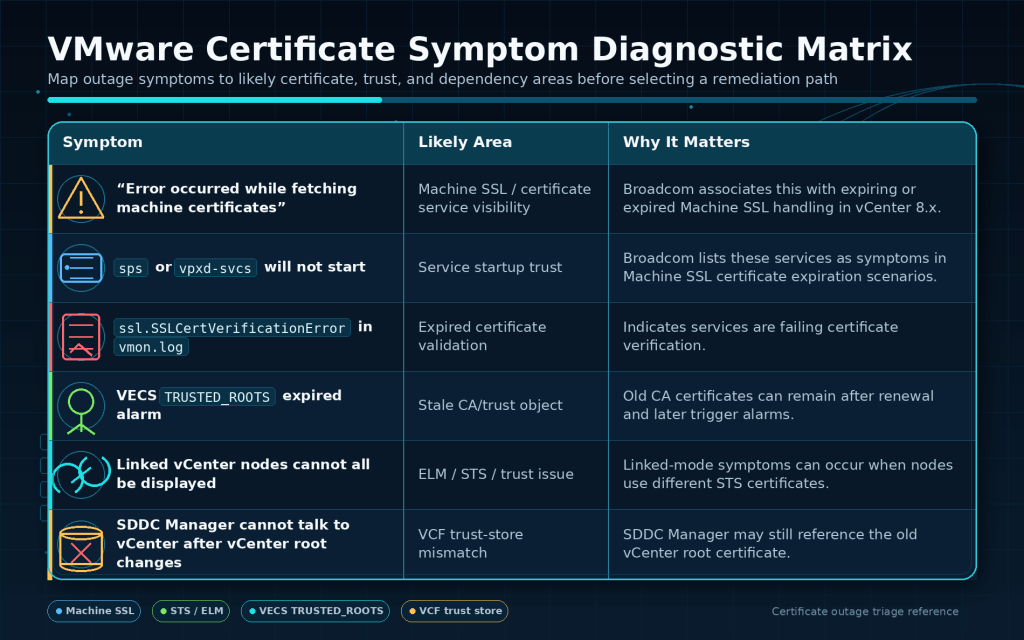
Symptoms and Risk Signals
Start by classifying the symptom before choosing a vCert path.

The important pattern is this: similar symptoms can have different fixes. An expired Machine SSL certificate is not the same operational problem as an expired VMCA root, a stale TRUSTED_ROOTS entry, an STS mismatch, or an SDDC Manager trust-store gap.
vCert Recovery Flow at a Glance
Use the diagram below as the decision path. The key point is that remediation does not begin at vCert menu option 3. It begins with topology, recovery point, and read-only discovery.

This is the operational difference between using vCert as a recovery tool and using it as a roulette wheel.
Prerequisites and Safety Checks
1. Confirm vCenter and vCert compatibility
At draft time, Broadcom KB 385107 identifies vCert.py as a certificate-management tool for vCenter Server 7.0, 8.0, and 9.0. It also lists the current attachment as vCert-6.1.1-20260401.zip with published hashes in the KB.
Do not reuse an old copy sitting in someone’s tools folder. Download the current attachment from the KB and validate the hash when possible.
Also note the compatibility warning: Broadcom says not to use vCert 6.1.1 to fix VECS permissions mismatches for vCenter versions 8.0U1a through 8.0U1d.
That does not mean vCert is unusable in every 8.0U1a–8.0U1d scenario. It means you should not use that version of vCert for that specific VECS permissions mismatch repair path.
2. Establish the rollback point before running remediation
For standalone vCenter, take a valid powered-off snapshot or a current file-based backup that matches your recovery policy.
For Enhanced Linked Mode, the bar is higher. Broadcom warns that taking snapshots of running VCSAs in the same SSO domain can create domain corruption risk, and strongly recommends offline snapshots of all VCSAs in the SSO domain at the same time. If reverting, all ELM nodes should be restored to the same offline-consistent snapshot state.
That is not a paperwork step. It is the rollback design.
3. Identify the SSO domain and ELM membership
Before you run a certificate replacement, determine whether the vCenter is standalone or part of a shared SSO domain.
In ELM, identity and certificate problems can cross node boundaries. Broadcom documents that linked vCenter nodes in the same SSO domain share the STS certificate, and services on each vCenter node need to be restarted after replacing the STS certificate on one node.
Useful read-only checks include:
/usr/lib/vmware-vmafd/bin/dir-cli state get

/usr/lib/vmware-vmdir/bin/vdcrepadmin -f showservers -h localhost -u administrator

/usr/lib/vmware-vmdir/bin/vdcrepadmin -f showpartners -h localhost -u administrator

/usr/lib/vmware-vmdir/bin/vdcrepadmin -f showpartnerstatus -h localhost -u administrator
These commands help confirm whether the node is healthy from a directory and replication standpoint before you make a certificate change.
4. Add VCF-specific snapshot discipline
For VMware Cloud Foundation, include SDDC Manager in the risk model.
If the issue involves stale trust, vCenter root CA replacement, custom CA changes, or out-of-band certificate replacement, take a powered-off snapshot of the SDDC Manager appliance before touching the SDDC Manager trust store.
5. Capture current state before changing anything

A simple VECS expiration check is:
for i in $(/usr/lib/vmware-vmafd/bin/vecs-cli store list); do
  echo STORE $i
  sudo /usr/lib/vmware-vmafd/bin/vecs-cli entry list --store $i --text | egrep "Alias|Not After"
done
Runbook Stage 1: Install and Start vCert Cleanly
After downloading the current vCert package from KB 385107, upload it to the vCenter Server Appliance and prepare it from an SSH session:
unzip -q vCert-6.1.1-20260401.zip
cd vCert-6.1.1-20260401
chmod +x vCert.py
./vCert.py
When vCert starts, it displays the risk acknowledgement and the main menu. Do not click past the warning casually. The warning is there because certificate operations can impact service trust, identity, and the availability of the management plane.
vCert writes logs to /var/log/vmware/vCert/vCert.log and creates a working directory under /root/vCert-master using a YYYYMMDD format for staging and backup data.
That log path should be part of your change record and support bundle collection.
Runbook Stage 2: Use vCert for Discovery First
Start with read-only options.
Recommended first actions:
The health check covers more than expiration. Broadcom lists checks for expired certificates, certificates expiring within 30 days, PNID presence in the Machine SSL SAN, supported Key Usage values, missing CA certificates, invalid aliases, unsupported signature algorithms, certificate-chain path length restrictions, and Solution User mismatches between VECS and VMware Directory.
That breadth matters. If the tool tells you the issue is unsupported signature algorithm, missing CA chain, or Solution User mismatch, replacing the Machine SSL certificate may not solve the real problem.
Once you have discovery output, map the symptom to the target. Avoid “reset all certificates” as a reflex.
Path A: Machine SSL certificate expired or expiring
Use this path when the Machine SSL certificate is the specific issue and the VMCA root is still valid.
In vCert, use:
Option 3: Manage certificates
Option 1: Machine SSL certificate
Broadcom’s vCenter 8.x Machine SSL KB lists this vCert path for manual replacement and includes a service restart and certificate verification step afterward.
For vCenter 8.0 Update 3h and later, Broadcom documents native auto-renewal for Machine SSL certificates when the environment is upgraded appropriately and vpxd.certmgmt.mode is set to vmca; the certificate renews five days before expiration without service interruption.
That does not help you recover a broken older environment today, but it should influence future lifecycle planning.
Path B: STS signing certificate problem
Use this path when STS is the target, especially in linked-mode symptoms where token validation or linked vCenter visibility is affected.
In vCert, use:
Option 3: Manage certificates
Option 8: STS signing certificates
In Enhanced Linked Mode, be deliberate. Broadcom documents a scenario where linked vCenter nodes had distinct STS certificates and the UI could not connect to one or more linked vCenter systems. The guidance includes replacing the STS certificate on one node with vCert and restarting services on all vCenter nodes.
Do not replace STS independently on each node unless Broadcom Support has directed that exact action.
Path C: VMCA root expired or certificate dates did not change
Use this path when the VMCA root is expired, invalid, or unable to issue certificates with the required validity.
A common trap is running a replacement and seeing “success,” but the certificate dates do not update. Broadcom documents that a certificate’s validity period cannot exceed the CA that issued it, and if the VMCA root has expired, VMCA cannot sign trustworthy new certificates with a longer lifetime. The resolution is to use vCert Option 3 and then Option 9 to replace VMCA and regenerate certificates.
In vCert, this path is:
Option 3: Manage certificates
Option 9: VMCA certificate
Broadcom notes that this option replaces the VMCA certificate and reissues Machine SSL, Solution User, and STS signing certificates.
This is a higher-impact path. Treat it as a broader trust event, not a simple web certificate renewal.
Path D: Stale TRUSTED_ROOTS or expired CA remnants
Use this path when the vSphere Client reports:
Certificate(s) in VECS TRUSTED_ROOTS store has expired KB 385107
Broadcom explains that old CA certificates can remain in the TRUSTED_ROOTS store after a renewal or replacement. They may not affect day-to-day operations, but they can generate persistent alarms and cause validation failures during future certificate operations, upgrades, or VCF workflows.
Broadcom’s vCert-based removal path is:
Option 3: Manage Certificates
CA certificates in VMware Directory
Review expired certificates by end date
Remove the selected expired certificate entries
Follow the KB exactly. Do not delete every certificate that looks unfamiliar. Trust stores often contain multiple legitimate CA objects, especially in environments with custom CA chains, LDAPS identity sources, smart card auth, or previous certificate transitions.
For VCF environments, verify SDDC Manager separately after vCenter cleanup because vCenter and SDDC Manager trust stores are independent.
Path E: Custom CA-signed Machine SSL or Solution User certificates
Use this path when the environment uses enterprise PKI rather than VMCA-signed certificates.
vCert can work with custom CA-signed certificates for Machine SSL and Solution User operations, but Broadcom notes that if the presented CA-signed certificate does not include a complete CA chain, the script prompts for a file containing the complete chain.
Before the change window, confirm:
Certificate recovery is not the place to discover that your enterprise CA team only sent the leaf certificate.
Path F: Reset all certificates with VMCA-signed certificates
Use this path only when the decision is intentional and documented.
vCert includes an option to reset all certificates with VMCA-signed certificates. Broadcom describes this as resetting Machine SSL, Solution Users, and STS signing certificates.
In vCert, this is:
Option 6: Reset all certificates with VMCA-signed certificates
This can be the right recovery move in a VMCA-managed environment with widespread certificate damage. It can also be the wrong move in an enterprise custom certificate model if it breaks policy, monitoring expectations, or trust with adjacent systems.
Use it when the scope and consequences are understood.
Runbook Stage 4: VCF Trust Checks After vCenter Certificate Work
VCF adds one operational layer that standalone vCenter does not have: SDDC Manager must trust the components it manages.
If the vCenter root certificate changes out-of-band and SDDC Manager is still referencing the old root certificate, Broadcom documents errors such as inability to see utilization details, commission hosts, add hosts into clusters, log in to the SDDC UI, or obtain Security Token Service from SSO.
For SDDC Manager trust-store operations, Broadcom’s guidance includes taking a valid SDDC Manager snapshot, importing the trusted certificate into the SDDC Manager trust store, importing into the Java trust store where required, verifying the certificate exists, and restarting SDDC Manager services.
For VCF 4.1 and later, Broadcom notes that the public API can be used to add or delete trusted certificates in the SDDC Manager trust store, and for VCF 4.5.1 and later, the trusted certificate can also be added through the SDDC Manager UI.
The practical rule: if vCenter trust changed, do not declare the change complete until VCF management workflows are validated.
Command and Menu Reference
Validation Steps
Do not validate only by logging into the UI.
A good validation pass includes multiple layers.
Certificate validation
Run the VECS expiration command again:
for i in $(/usr/lib/vmware-vmafd/bin/vecs-cli store list); do
  echo STORE $i
  sudo /usr/lib/vmware-vmafd/bin/vecs-cli entry list --store $i --text | egrep "Alias|Not After"
done
Confirm that the target certificate dates changed as expected.
If dates did not change, check whether the issuing VMCA root is expired.
vCert report validation
Generate a new vCert report and archive it with the change record.
The report includes entries from VECS, CA certificates in VMware Directory, Solution User service principals, STS signing certificate entries, service certificates on the filesystem, LDAPS identity source CA certificates, and SSL trust anchors for Lookup Service registrations.
Service validation
Check service state:
service-control --status --all
If services fail to start, review:
/var/log/vmware/vmon/vmon.log
/var/log/vmware/vCert/vCert.log
For Machine SSL expiration scenarios, ssl.SSLCertVerificationError in vmon.log is a strong signal that services are failing certificate verification.
If SDDC Manager still references an old vCenter root certificate, management workflows can fail even when vCenter itself looks healthy.
Rollback and Fallback Guidance
Rollback is topology-dependent.
Standalone vCenter
If the remediation fails and you have a clean powered-off snapshot or backup, follow your normal restore process. Confirm DNS, NTP, service health, and certificate state after restore.
Enhanced Linked Mode
Do not roll back one node independently.
If a change must be reverted, restore all nodes in the ELM deployment to the same offline-consistent snapshot state, and only power restored nodes back on after all have been restored. Otherwise, local VM Directory instances can become inconsistent and fail replication.
VCF-managed vCenter
If vCenter certificate state is rolled back, review SDDC Manager trust state as part of rollback. If SDDC Manager trust was changed after the snapshot point, the rollback may reintroduce trust mismatch.
When fallback means escalation
Escalate before making more changes when:
This is where a support-directed tool should become a support-directed workflow.
Practical Operator Checklist
Use this before the change window.

When Not to Keep Clicking
vCert is useful because it brings many vCenter certificate operations into one tool. That is also why it deserves discipline.
Stop when the next step is not obvious.
Stop when the symptom does not match the certificate you are about to replace.
Stop when the environment is linked and you have not scoped every node.
Stop when VCF trust is involved and SDDC Manager has not been included in the plan.
Stop when the only rollback option is hope.
A certificate recovery runbook should reduce uncertainty, not hide it behind a menu.
Conclusion
vCert can be a strong recovery tool when it is used as part of a controlled operational flow. It can check certificate health, expose certificate metadata, manage vCenter certificate objects, update trust anchors, reset VMCA-signed certificates, and generate useful reports. But the tool does not remove the need for snapshot discipline, SSO-domain awareness, VCF trust validation, or a clear stop-and-escalate boundary.
The safest pattern is simple:
Scope first.
Snapshot correctly.
Check before changing.
Target the smallest valid remediation.
Validate across vCenter, ELM, and VCF.
Escalate when the evidence does not support the next action.
That is how you use vCert without guesswork.
