


# Introduction
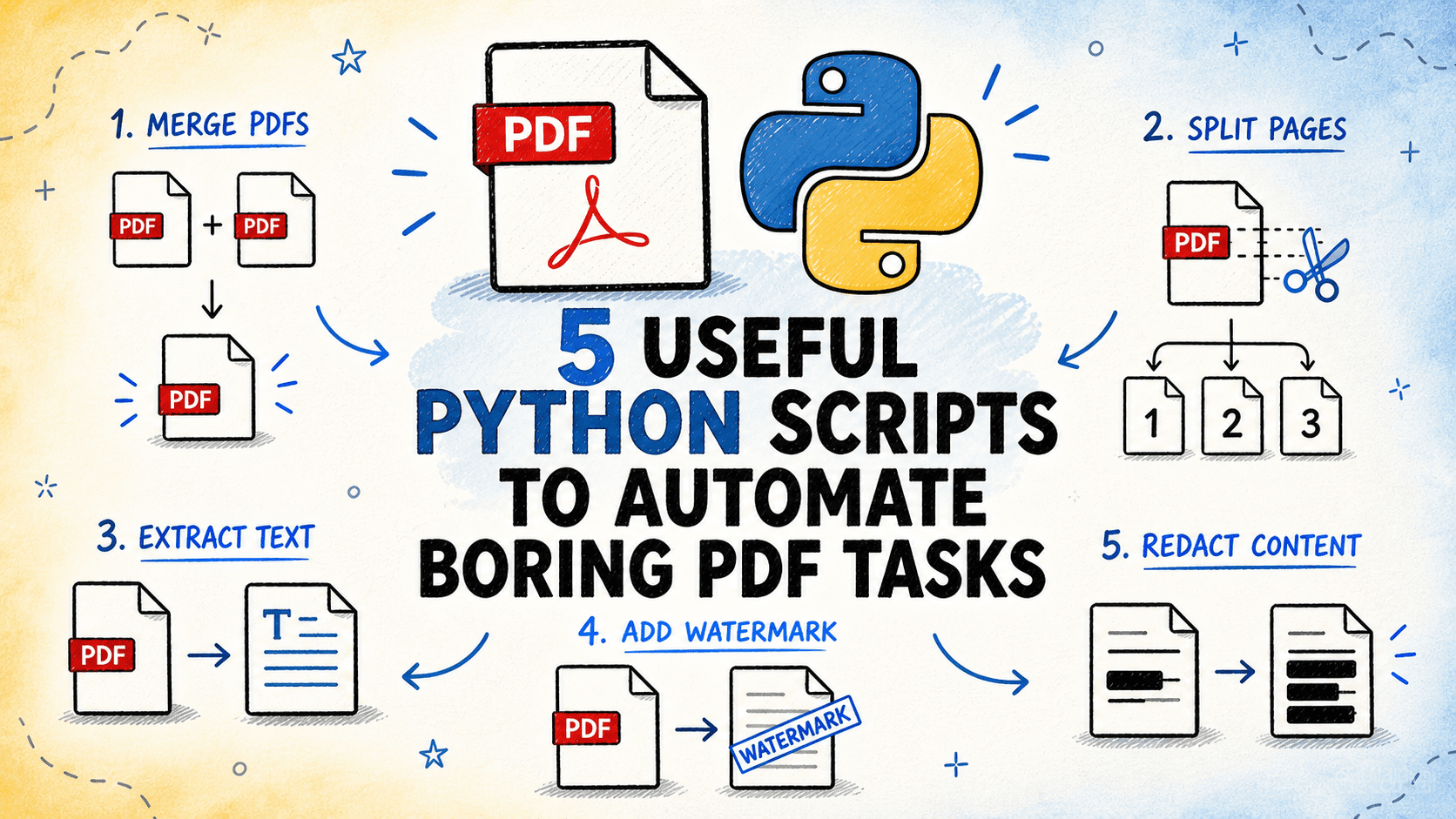
PDF files are widely used in many workflows. You might need to merge reports, split large files, extract text or tables, add watermarks, or redact sensitive content. These are all routine tasks, but handling them manually for multiple files can be slow and error-prone. These five Python scripts automate the process. They run from the command line, support batch processing, and are easy to configure.
You can find all the scripts on GitHub.
# 1. Merging and Splitting PDF Files
// The Pain Point
Combining multiple PDF files into one, or splitting a large PDF into separate files by page range, are among the most common PDF tasks. Both are tedious to do manually, particularly when dealing with many files or large page counts.
// What the Script Does
Merges a folder of PDF files into a single output file in a configurable order, or splits a single PDF into separate files by fixed page ranges, every N pages, or by a list of specific page numbers. Both operations are handled by the same script via a mode flag.
// How It Works
The script uses pypdf for all page-level operations. In merge mode, it reads all PDFs from an input folder, sorts them by filename (or a custom order defined in a text file), and writes them sequentially into a single output PDF. In split mode, it accepts either a page range list, a fixed chunk size, or a list of page numbers to split on. Each split segment is written to a numbered output file. Metadata from the first input file is preserved in merge mode.
⏩ Get the PDF merge & split script
# 2. Extracting Text and Tables from PDFs
// The Pain Point
Getting usable data out of a PDF — whether it’s text from a report or tabular data from a statement — is something that needs to happen before any further processing can occur. Copy-pasting from a PDF viewer is impractical for anything beyond a few pages, and the output is rarely clean.
// What the Script Does
Extracts text and tables from one or more PDF files and writes the results to structured output files. Text is written to plain text or markdown files. Tables are written to CSV or Excel, with one sheet per table found. Supports both text-based PDFs and basic layout-preserving extraction.
// How It Works
The script uses pypdf for basic text extraction and pdfplumber for layout-aware extraction and table detection. For each input file, it runs page by page, extracting text blocks and detecting table regions using pdfplumber’s table finder. Extracted tables are normalized — empty rows removed, headers detected — and written to separate output files. A summary report lists how many pages and tables were found in each file, and flags any pages where extraction produced no output.
⏩ Get the PDF text & table extractor script
# 3. Stamping, Watermarking, and Adding Page Numbers
// The Pain Point
Adding a watermark, a stamp, or page numbers to a batch of PDFs before distributing them is straightforward in concept but slow to do one file at a time through a graphical user interface (GUI). When the batch is large or the requirement is recurring, it needs automating.
// What the Script Does
Applies a text or image stamp to every page of one or more PDF files. Supports diagonal watermarks, header/footer text, page numbers, and image overlays. Position, font size, opacity, and color are all configurable. Processes entire folders in batch.
// How It Works
The script uses pypdf for page manipulation and reportlab to generate the stamp layer. For each input PDF, it creates a single-page stamp PDF in memory using reportlab. It renders text at the configured position, angle, font, and opacity, or places an image at specified coordinates. This stamp page is then merged onto every page of the source PDF using pypdf’s page merging. The result is written to a new output file, leaving the original unchanged. Page numbers are handled as a special case, generating a unique stamp per page.
# 4. Redacting Sensitive Content
// The Pain Point
Before sharing a PDF externally, sensitive content — like names, reference numbers, financial figures, and addresses — often needs removing. Manually drawing black boxes over text in a PDF editor works, but does not actually remove the underlying text in all tools, and is impractical for more than a handful of pages.
// What the Script Does
Scans PDF pages for text matching patterns you define — regex patterns, exact strings, or predefined categories like email addresses and phone numbers — and permanently redacts matching content by replacing it with black rectangles. Outputs a new PDF with the underlying text removed, not just visually obscured.
// How It Works
The script uses pymupdf, which provides both text search with bounding box coordinates and the ability to draw redaction annotations that permanently remove the underlying content when applied. For each page, the script searches for all matches of each configured pattern, marks the bounding rectangles as redaction annotations, then applies them — which removes the text from the page content stream. A report is written listing every redaction made, including page number, matched text (before redaction), and the pattern that triggered it.
⏩ Get the PDF redaction script
# 5. Extracting Metadata and Generating a PDF Inventory
// The Pain Point
When working with a large collection of PDF files, it is often useful to know basic facts about each one — page count, file size, creation date, author, whether it is encrypted, whether it contains text or is a scanned image. Checking each file individually through a viewer is not practical at scale.
// What the Script Does
Scans a folder of PDF files and extracts metadata from each one, including page count, file size, creation and modification dates, author, producer, encryption status, and whether the document appears to contain searchable text or scanned images. Writes everything to a single CSV or Excel inventory file.
// How It Works
The script uses pypdf to read document metadata from the PDF info dictionary and pdfplumber to sample pages for text content. For each file, it attempts to open the PDF and read standard metadata fields. It samples the first few pages to determine whether the file contains extractable text as opposed to scanned image pages. Encrypted files that cannot be opened are flagged rather than skipped silently. The output inventory includes one row per file with all extracted fields, and a summary row at the bottom with totals and averages.
⏩ Get the PDF inventory script
# Wrapping Up
These five Python scripts handle the PDF tasks that usually turn into repetitive manual work: splitting files, extracting content, processing batches, and cleaning up document workflows. Each script is designed to work safely on single files or entire folders while generating new outputs instead of modifying the originals.
Start with a small batch, verify the output, then scale to larger folders once everything looks right. Most of the setup only involves installing the listed dependencies and adjusting the config section for your file paths and settings.
Bala Priya C is a developer and technical writer from India. She likes working at the intersection of math, programming, data science, and content creation. Her areas of interest and expertise include DevOps, data science, and natural language processing. She enjoys reading, writing, coding, and coffee! Currently, she’s working on learning and sharing her knowledge with the developer community by authoring tutorials, how-to guides, opinion pieces, and more. Bala also creates engaging resource overviews and coding tutorials.
