
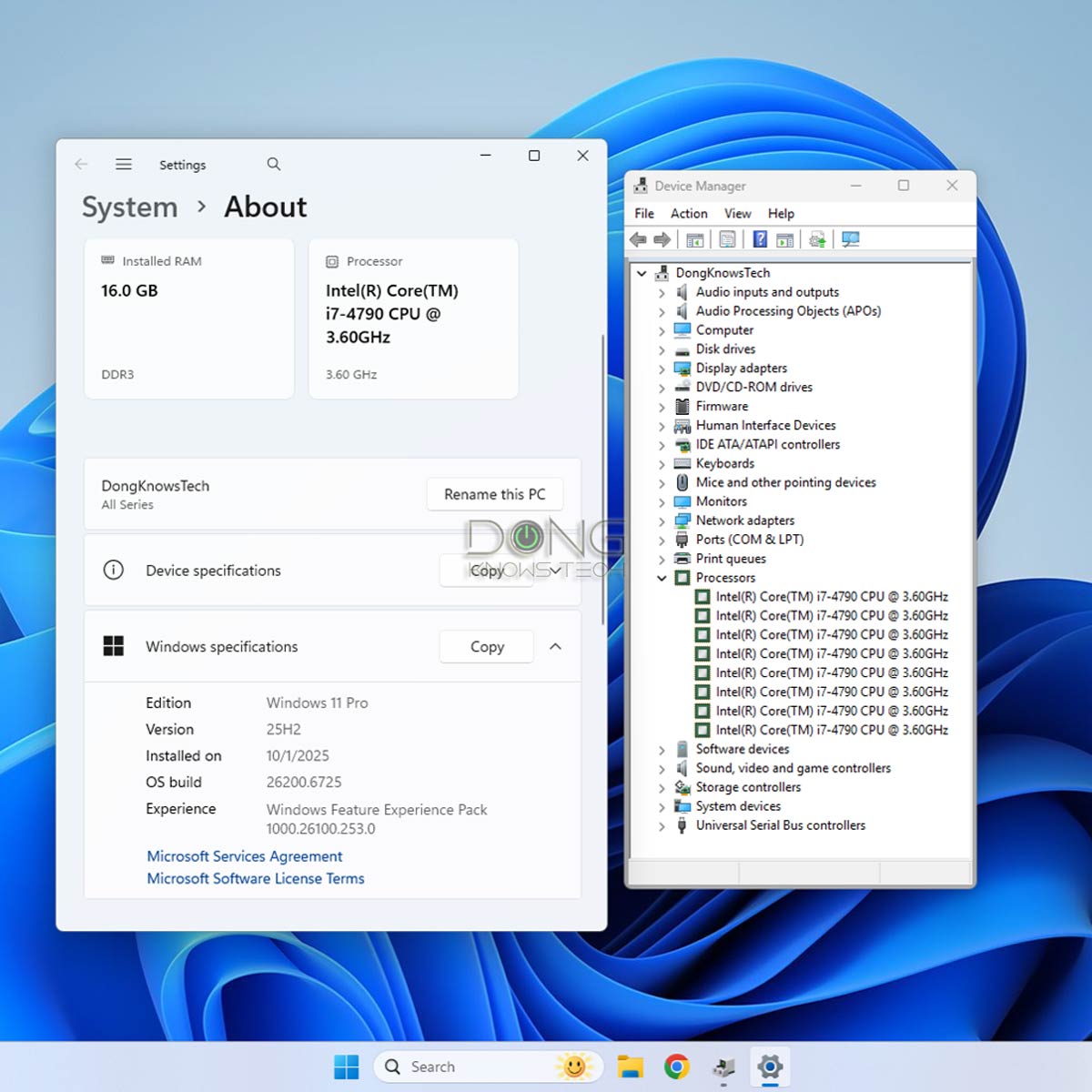

This post will help you upgrade to the latest Windows 11 25H2 (or any previous release) on any PC that’s capable of running Windows 10, including those that do not meet Windows 11’s hardware requirements—without TPM 2.0, powered by an unsupported CPU, or lacking Secure Boot.
There’s no need for a third-party tool, special commands, a USB thumb drive, or finicky registry tweaks if you use the ISO installer files I provide below. I’ll also point you in the right direction to upgrade your computer using an original installer ISO downloaded directly from Microsoft.
Dong’s note: I first published this piece on October 21, 2021, and have updated it multiple times as Windows 11 evolved, with the latest update done on October 3, 2025, to add support for the official release of Windows 11 25H2. As usual, please read the post carefully.

Windows 11 replaces Windows 10 entirely in October 2025—we have no choice.
The biggest controversy about Windows 11 is its ridiculous hardware requirements. Among other things, your computer must support Secure Boot and feature a Trusted Platform Module (TPM) 2.0. Neither is essential to the computer’s day-to-day operation—prior to Windows 11, they were often disabled by default on many machines that had them.
Here’s the truth:
- Windows 11 versions 21H2, 22H2, and 23H2 can run well on any computer that’s capable of running Windows 10 64-bit.
- Windows 11 versions 24H2 and 25H2 indeed require the SSE4.2 instruction called POPCNT. However, this is a common feature supported in all AMD and Intel CPUs released since 2008—that’s the height of Windows Vista if you still remember that gem. (Computers with older CPUs won’t be able to boot into Windows 11 24H2 or later after the upgrade.)
- Installing Windows 11 on your current computer will prolong its life, save you hundreds, if not thousands, of dollars, and help reduce unnecessary e-waste.
There are two reliable methods to upgrade an unqualified computer running Windows 10 to Windows 11 that I’ve used for years.
The first method is via customized ISO files, as shown below. They work the same on unsupported devices as those you download directly from Microsoft on supported hardware.
Note: For an in-place upgrade with software and data intact, the computer must use the same default display language as the one used in these ISOs, which is English (US).
How I create customized Windows 11 ISOs for unsupported computers
Windows 11’s hardware requirements are artificial—they are not necessary.
To remove these requirements:
- Extract a Windows 11 ISO file into a folder and identify the files designed to check the hardware requirements at the beginning of the setup process. These files vary from one release to another.
- Remove these files and replace them with those that don’t enforce the hardware requirements available in previous versions of Windows.
- Rebuild the ISO image.
There’s no straightforward step to complete step #1 above—it often takes me many hours of trial and error to be successful with each Windows 11 version, and the process has become increasingly challenging from one release to the next.
In any case, I intend to make the minimum alteration from the original ISO as technically possible so that the process only changes the files used during the hardware checkup portion. It does not alter the content of any file in the operating system itself and will not affect the actual upgrade/setup process, or how Windows works once installed.
The second method is more organic and suitable for those who want to get the job done using the original ISO from Microsoft or build a fresh image for multiple-computer deployment.
With that, let’s start with the in-place upgrade method. Here are the detailed A-B-C steps
A. Prepare the computer
As a rule, back up your system beforehand. Again, keep the following in mind:
- To upgrade using the ISO provided below without needing to reinstall software, the computer must use English (United States) as its display language. That’s not the case; you need to convert that to English (US) first or use a clean installation.
- Your computer must be 64-bit capable and currently running Windows 10 64-bit or later.
- This is about upgrading from Windows 10 (and later) to (the latest) Windows 11. If your computer still runs Windows 7 or 8, upgrade to Windows 10 64-bit first.
- The walkaround/ISOs provided below only remove Windows 11’s hardware requirements. It doesn’t do anything else and won’t fix any problems, including cryptic error messages you might encounter. In that case, the post linked below should be helpful.
For the upgrade to work, your computer must be in a good, error-free state. Even on supported hardware, many issues can prevent Windows from being upgraded from one release to another. That’s just the nature of the Windows operating system.
B. Download Windows 11 installer ISO
You can use one of the customized Windows 11 installer ISO files below. Each represents a Windows 11 release. The two digits before ‘H’ indicate the release year.
This ISO file will upgrade any computer running Windows 10 to Windows 11 21H2:
- Free download (1): Go here!
- Fast download via Ko-fi page (for those with a monthly recurring donation plan) (2)
- Fast download for subscribers:
to view the download link!
This is the original version of Windows 11. Its official support from Microsoft ends on October 8, 2024.
This ISO file will upgrade any computer running Windows 10 or Windows 11 21H2 to Windows 11 22H2:
- Free download (1): Go here!
- Fast download via Ko-fi page (for those with a monthly recurring donation plan) (2)
- Fast download for subscribers:
to view the download link!
This is the second major release of Windows 11. Its official support from Microsoft ends on October 8, 2024.
This ISO file will upgrade any computer running Windows 10 or Windows 11 (21H2 or 22H2) to Windows 11 23H2:
- Free download (1): Go here!
- Fast download via Ko-fi page (for those with a monthly recurring donation plan) (2)
- Fast download for subscribers:
to view the download link!
This is the third major release of Windows 11. Its official support from Microsoft ends on November 11, 2025.
This ISO file will upgrade any computer with a 2008 or newer CPU running Windows 10 or Windows 11 (21H2, 22H2, or 23H2) to Windows 11 24H2:
- Free download (1): Go here!
- Fast download via Ko-fi page (for those with a monthly recurring donation plan) (2)
- Fast download for subscribers:
to view the download link!
This is the forth major release of Windows 11 and the first Windows that supports Wi-Fi 7’s MLO feature. Its official support from Microsoft ends on October 13, 2026.
This ISO file will upgrade any computer with a 2008 or newer CPU running Windows 10 or Windows 11 (21H2, 22H2, 23H2, or 24H2) to Windows 11 25H2:
- Free download (1): Go here!
- Fast download via Ko-fi page (for those with a monthly recurring donation plan) (2)
- Fast download for subscribers:
to view the download link!
This is the official release of the latest version of Windows 11.
Save the ISO file in a known location, such as the computer’s desktop.
C. Perform the in-place upgrade or clean installation
The in-place upgrade is the same on all computers. Note that you can only upgrade to a newer version in this direction: Windows 10 -> 21H2 -> 22H2 -> 23H2 -> 24H2 -> 25H2—it’s possible to skip the middle release(s). Downgrading will result in the loss of all programs and settings (clean installation).

Open the downloaded ISO image file using Windows Explorer. In most cases, this means double-clicking on the file. However, to be sure, in case the computer has a third-party ISO handler, right-click the file and choose “Open with Windows Explorer.” If you open the ISO file with any third-party software, you’ll likely run into unexpected error messages.
Once mounted, the ISO will appear as an optical (DVD) drive with its content within the window, as shown in the screenshot above. Now, double-click the Setup file to start the upgrade process.
You’ll be presented with a few steps:
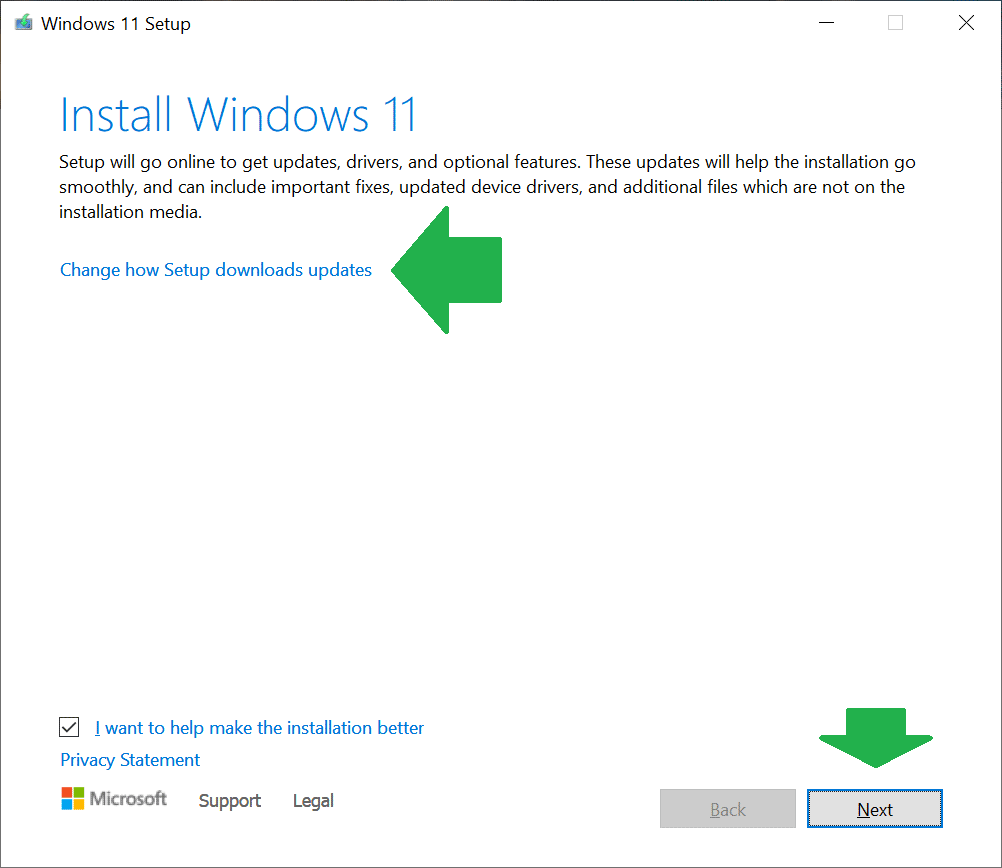
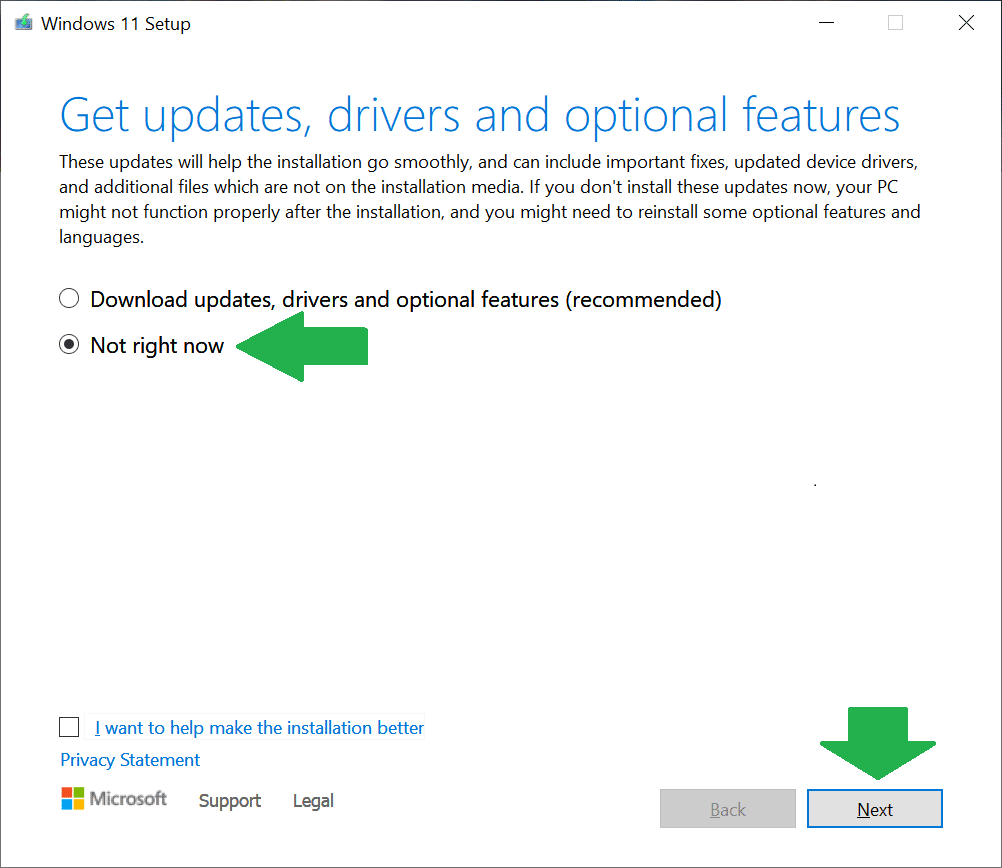
- Important: Change how Setup downloads updates: To be sure, opt not to download the updates, which can be handled via Windows Update later. The updates can take a long time and often include a new tool to reinforce the hardware requirements.
- Accept the license terms: We have no choice.
- Choose what to keep: For an in-place upgrade, choose to keep everything—the default option. The other options, including the one to keep nothing (a.k.a Clean Install), can be applicable when:
- The computer currently has software issues that prevent it from receiving an in-place upgrade, or you just want a “new” computer.
- You want to go back to an older Windows 11 release, such as from version 23H2 to 22H2.
- Your computer currently runs a 32-bit edition of Windows 10 or a non-English version of the OS, and you don’t want to convert it to the 64-bit English version first.
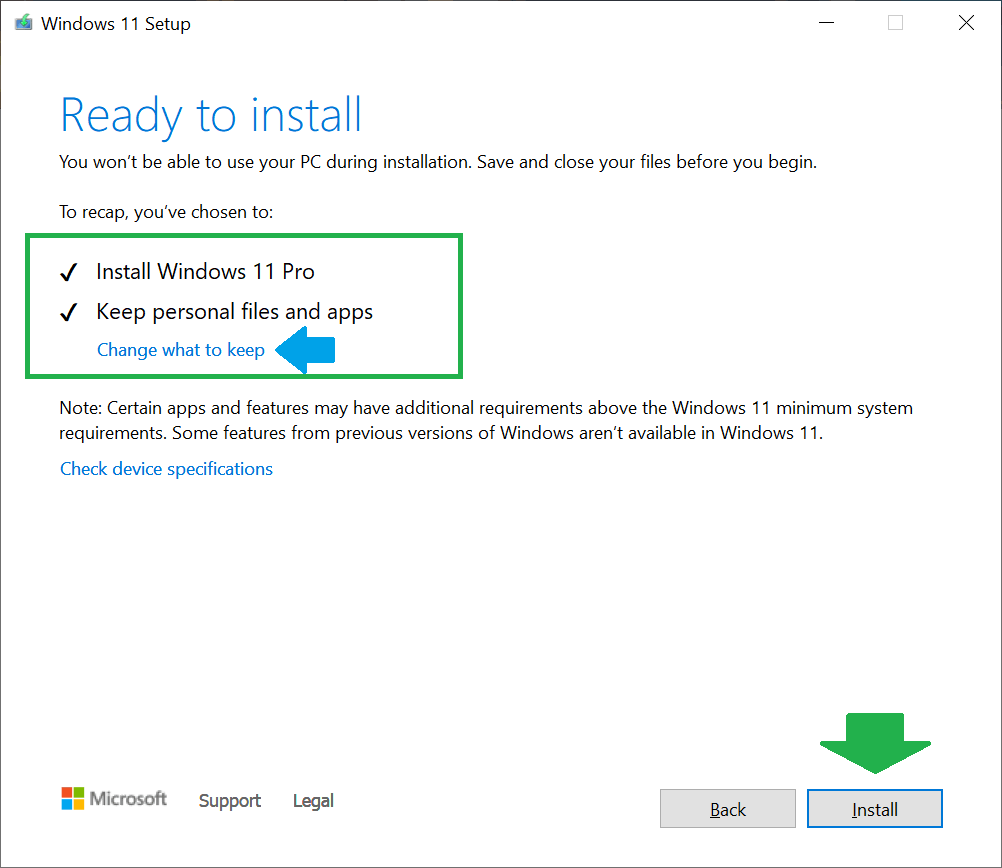
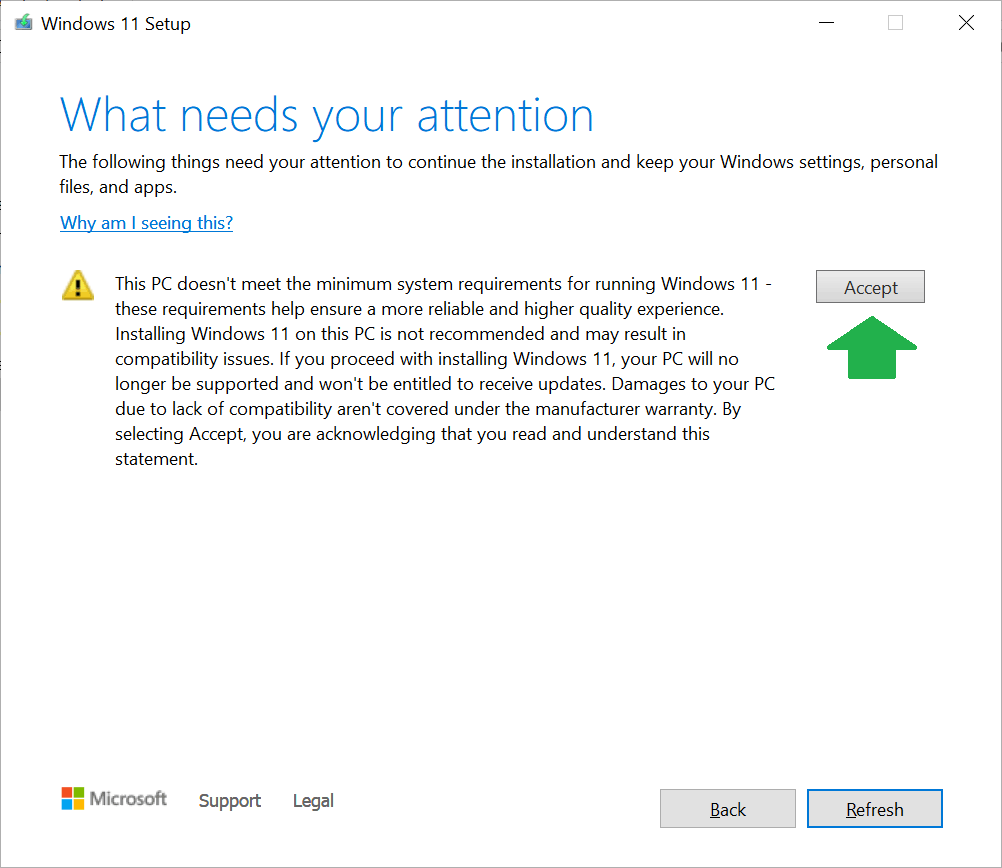
And that’s it. The process will continue like a typical Windows feature upgrade, which will require the computer to restart several times. After about 30 minutes or so, depending on your computer’s speed, you’ll have a “new” computer running the version of Windows 11 you selected.
How to upgrade unqualified hardware to Windows 11 using an original ISO file
It’s possible to upgrade an unsupported computer to any version of Windows 11 using the original ISO files. Generally, the latest version is available to download from Microsoft.
In this case, you need temporarily supported hardware, namely a computer that meets all the requirements of Windows 11. The only condition is that the unsupported computer uses the same boot method and partition type as the supported one. This is likely already the case.
After that, here are the general directions:
- If you want to upgrade a computer running Windows 10 or an older version of Windows 11:
- Move the internal boot drive of the unsupported computer to the supported one. When you boot up, the machine will go through a short process of “getting devices ready,” and you’ll be able to log in. (Since this is temporary, there’s no need to reactivate Windows if prompted.)
- Upgrade the supported computer (running the internal drive of the unsupported one) to the Windows 11 version of your choosing. The process will go through without issues since the hardware meets the requirements.
- Once the upgrade is complete, return the internal drive to the unsupported computer. Mission accomplished.
- You can do a fresh installation if you don’t need to keep existing data. In this case:
- Install the Windows 11 version of your choice on the supported computer.
- Make an image using drive cloning software—I’d recommend Macrium Reflect.
- Restore that image on an internal drive, then use that drive on the unsupported hardware (or any computer that you’d like to have a fresh copy of Windows 11 on)—make sure the hardware itself has a digital Windows 10 or 11 license tied to it, or you’ll have to activate it anew. Mission accomplished.
The result
After the upgrade, you’ll find that Windows is already activated, provided you’re using a legitimate version of Windows that was previously activated. Otherwise, you’ll need to obtain a license and activate it at some point. Existing software, data, and settings will remain unchanged.

Windows 11 will work on old hardware just like it does on newer and qualified hardware. We’ve used it on dozens of unsupported machines for years without any issues.
Once upgraded to a version of Windows 11, you can continue to update the computer with regular security and improvement patches to the latest build of the release. However, you need the tricks mentioned here to upgrade from one annual feature release to another.
The takeaway
Again, a computer that currently runs Windows 10 64-bit can for sure run Windows 11 up to version 23H2. A machine with 2008 or newer hardware will be able to run any version of the OS, including the latest 25H2 release. If you can’t install it the “official” way, the alternatives mentioned above will work.
Of course, you can purchase a new computer, and chances are, it already comes with Windows 11. However, if your hardware is still in good condition, it’s always better for the environment and our wallets not to consume more than necessary.
