

Multi-Link Operation, or MLO, is arguably the most exciting and promising feature of Wi-Fi 7 on paper. In reality, its real-world applications can be complicated.
This post will explain this feature in detail and set the right expectations, including when you can expect MLO from your hardware, and what that actually means in terms of real-world throughput rates. All of this is based on my years of real-world testing and serious use of Wi-Fi 7 hardware.
Unfamiliar with Wi-Fi 7? Check out the primer post on this Wi-Fi standard first.
Dong’s note: I first published this piece on April 18, 2025, and last updated it on April 6, 2026, with the latest information.

Multi-Link Operation: A close look at the first bonded Wi-Fi link
To understand Multi-Link Operation (MLO), we first need to be aware that, up to Wi-Fi 6E, a Wi-Fi connection between two directly connected devices occurs in a single band at a time. Specifically, regardless of the number of bands an access point (or Wi-Fi router) supports—dual-band, tri-band, or even quad-band—a particular client will only use one band at a time to connect.
Multi-Link Operation changes the norm by combining two or more bands into a single wireless link via a bonded SSID, enabling a client supporting this feature to use multiple bands simultaneously. In that sense, MLO to Wi-Fi is like Link Aggregation to wired connections.
That said, MLO is possible as long as the hardware supports multiple bands, which is always the case with Wi-Fi 7: access points are always dual-band, tri-band, or quad-band, and standard clients (receivers) such as the Intel BE200 or Qualcomm NCM865 are always tri-band.
So, the idea of MLO is simple enough. Unfortunately, the devil is always in the details.
Multi-Link Operation and its complex details: STR MLO vs. eMLSR MLO
The first thing to note is that MLO is firmware-based and not a required feature, meaning it may or may not be supported by a particular device. That means:
- Some Wi-Fi 7 devices may not initially have this feature—it can be added via a firmware update.
- When 6GHz is involved, the hardware must comply with local additional regulations, as with Wi-Fi 7’s other significant feature: Automated Frequency Coordination (AFC).
Secondly, with simplification, there are two main MLO operation modes:
- MLSR (Multi-Link Single-Radio) MLO: A multi-link technique allows clients to dynamically switch among all available bands (2.4GHz, 5GHz, and 6GHz). MLSR is often available in the enhanced mode—Enhanced Multi-Link Single Radio (eMLSR)—in which clients listen to all available bands to reduce latency in crowded airspace. In either case, this mode does not increase data rates between connected devices. (e)MLSR requires little energy to operate and is, therefore, widely implemented in clients, including popular internal Wi-Fi 7 adapters and their variants.
- MLMR (Multi-Link Multi-Radio) MLO: A multi-link technique that enables clients to use all available bands, though often the 5GHz and 6GHz bands, simultaneously to deliver higher throughput, lower latency, and improved reliability. As such, this mode is often referred to as STR (Simultaneous Transmit and Receive) MLO and has two sub-modes:
- Asynchronous Multi-Link Multi-Radio (Async MLMR): A client uses multiple bands simultaneously to transmit and receive data, with each operating independently.
- Synchronous Multi-Link Multi-Radio (Sync MLMR): A client uses multiple bands simultaneously to transmit and receive data, with transmissions coordinated and synchronized across the bands.
Thirdly, for MLO to work, at least one of the modes above must be supported by the devices involved, and eMLSR is generally the case for end devices (laptops, smartphones, etc.).
As a result, regardless of the mode used, in practice, MLO generally doesn’t increase bandwidth from the end device’s perspective. The fastest link a typical client (such as a laptop or smartphone) can establish on an MLO SSID is still limited by the speed of the fastest available band at any given time, typically 6GHz or 5GHz.

The point is that, for clients, the safest thing to expect from MLO is the highest probability of connecting to the best band at any given time and under any circumstances, which has been consistently the case in my testing.
Before continuing, though, here’s the breakdown on MLO in real-world use:
- By nature, link bonding is more complicated than single-band connectivity—there are just too many variables.
- MLO only works with Wi-Fi 7 clients that support this feature. (Windows computers must run Windows 11 24H2 or later.) Again, most clients don’t STR MLO to increase data rates, but only eMLSR.
- Wi-Fi 6 and 6E, as well as older clients, will still use a single band at a time when connecting to an MLO network (SSID) and will automatically select any available band in the bonded link.
- An MLO SSID that involves the 6GHz band must use WPA3 and won’t allow any legacy clients to connect. Even when the lower security requirement, WPA2/WPA3, applicable to an MLO SSID spanning the 5GHz and 2.4GHz bands, can still be prohibitive for many legacy clients.
- The reach of the bonded wireless link, its range(*), is limited by the shortest band in the bond (often the 6GHz band).
Multi-Link Operation in real-world usage
In my trial, MLO has proven to be quite fastidious. It’s not as rosy as it’s cracked up to be by hardware vendors. The gist is that this feature is excellent in a wireless mesh system and relatively insignificant, if not a drawback, in serving clients.


Multi-Link Operation on the broadcasting side (access points): A game-changer in wireless mesh backhaul, when available
For those who need to extend their Wi-Fi coverage without running network cables, which is common in most homes, MLO can play a significant role. It helps improve the wireless backhaul link between a Wi-Fi system’s hardware units.
Backhaul vs. fronthaul
When you use multiple Wi-Fi access points—in a mesh Wi-Fi system or a combination of a Wi-Fi router and an extender—there are two types of connections: fronthaul and backhaul.
Fronthaul (or downlink) is the Wi-Fi signals broadcast outward to clients or to local area network (LAN) ports for wired devices. It’s what we generally expect from a Wi-Fi broadcaster.
Backhaul (a.k.a. backbone) or uplink, on the other hand, is the link between a Wi-Fi satellite unit and the network’s primary router, or between satellite units.
This link works behind the scenes to keep the hardware units together as a system. It also determines the ceiling bandwidth (and speed) of all devices connected to the particular Wi-Fi satellite unit.
- Hardware of Wi-Fi 6e, Wi-Fi 6, or Wi-Fi 5 standards always uses one of its bands (2.4GHz, 5GHz, or 6GHz) for the uplink. In this case:
- When a Wi-Fi band handles backhaul and fronthaul simultaneously, only half its bandwidth is available to either end.
- When a Wi-Fi band is used solely for backhauling, often available in tri-band hardware, the link is called a dedicated backhaul.
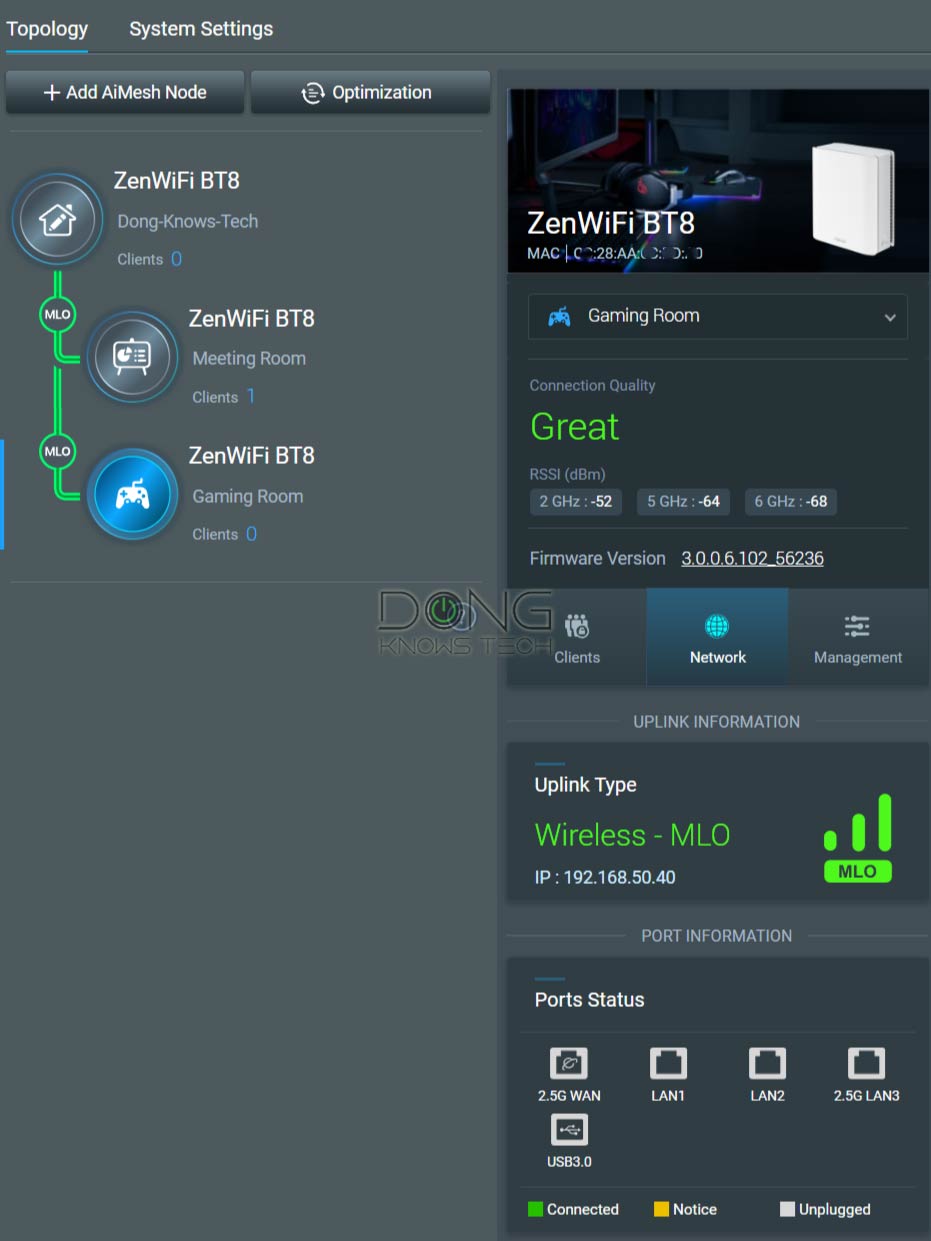
- Most Wi-Fi 7 satellite units can use multiple bands for the backhaul link thanks to the MLO feature.
For the best performance and reliability, network cables are recommended for the uplink or wired backhauling, an advantage of mesh Wi-Fi hardware with network ports. In this case, a Wi-Fi satellite unit can use its entire Wi-Fi bandwidth for the fronthaul.
Using my testing method, I’ve seen sustained MLO backhaul links exceeding 5Gbps at 40 feet with line of sight. On modest-spec hardware, this link can still sustain Gig+ or low multi-Gigabit speeds. It’s worth noting that in a mesh setup, the bandwidth-increasing STR MLO can be a game-changer, and even eMLSR MLO is helpful, as the mesh point can generally use more streams than end-clients.
Still, wireless backhaul is inherently problematic. With a wall between the hardware units, the signal will be significantly reduced. Most importantly, just because you use a Wi-Fi 7 mesh system doesn’t mean MLO is available.
Indeed, for MLO to serve as the backhaul link in a mesh network, all units in the system must use the same Wi-Fi specifications.
As a result, you can expect MLO only when you use the same hardware units (the same model) or units of a purpose-built MLO-enabled mesh pack. If you mix Wi-Fi 7 access points from different tiers, bands, or, oftentimes, even hardware models, MLO is highly unlikely to be available over the backhaul link.
For example, MLO backhaul is unavailable when you use an ASUS GT-BE98 Pro and an ASUS ZenWiFi BQ16 Pro together via AiMesh, even though both share the same Wi-Fi specs. To have MLO, you need multiple units of each, not a mix of the two.
Furthermore, even with supported hardware, you generally need to arrange the units in the star topology, with the satellites placed around the primary router. If you place them in a linear (daisy-chain) arrangement, MLO is not available as backhaul starting at the second hop.
Since the MLO backhaul can be finicky, some vendors, such as Ubiquiti, have opted not to use the feature until they can leverage STR MLO as the backhaul link.
So, MLO can be excellent for a wireless mesh system, but only when it’s available, which is not always the case.
Multi-Link Operation on the receiving end (clients): Comparably unimpressive real-world data rates at the expense of backward compatibility
If you think MLO mesh backhaul is complicated, you’d be disappointed to learn of its impact on end clients if “faster” is what you had in mind.
In my experience, MLO has proven ineffective as the fronthaul. In fact, with it, you trade the sure lack of backward compatibility for (almost) no impact on performance.
Indeed, devices with built-in Wi-Fi 7 adapters, such as the Intel BE200 or Qualcomm NCM865 chips do not benefit from improved data rates over an MLO link due to the lack of STR MLO support.
Specifically, despite the high negotiated speed shown in the bonded link’s status, an MLO-enabled SSID can yield a lower real-world rate than a 6GHz or 5GHz SSID from the same access point. In other words, as mentioned above, an MLO connection can give you a good feeling when checking the link’s status, but it won’t actually improve real-world data rates of any particular application.

As for the “low latency” notion, that’s presumptuous. I’ve been able to meaningfully prove that an MLO performs better in terms of lag than a pure 6GHz or 5GHz connection. Still, considering the airspace can be temperamental, the ability to automatically switch between these two bands never hurts.
As such, on the client front, MLO, eMLSR MLO to be specific, seems more like an enhanced version of the finicky “Smart Connect“, which uses a single SSID across all bands, than a performance upgrade. In fact, to use MLO as the primary SSID, you must either enable Smart Connect or use the same network name (SSID) for the bands you want to be part of the bonded link.
Aside from all that, the use of MLO can be problematic, given the security requirements mentioned above. Using WPA3 (required by the 6GHz band) as the authentication method prevents millions of legacy devices that support only WPA2 or lower from connecting.
Many home-grade routers, such as those in the NETGEAR Orbi or Amazon eero families, do not have enough virtual SSIDs beyond the primary ones, further complicating support for legacy clients.
In any case, keep the following in mind when considering MLO, especially for the fronthaul (clients):
- Turn MLO off to get the most flexible SSID configuration options for each band, including support for legacy clients (Wi-Fi 5 and older).
- Turn MLO on and:
- Use the primary SSID with MLO, but be aware that it may not support legacy devices. Or
- When possible, use the bands’ primary SSID(s) without MLO, and use a virtual SSID with MLO for Wi-Fi 6 and newer clients. Or
- When possible, use the primary SSID with MLO and separate non-MLO virtual SSID(s) with lower requirements for legacy clients.
- If you care about real-world rates, include only the 5GHz and 6GHz in an MLO SSID. Adding the 2.4GHz to the mix generally only makes the connection slower.
The takeaway
The idea of Wi-Fi 7’s Multi-Link Operation is great, but its real-world application is nuanced and varies by hardware and your clients.
It’s safe to say that when MLO is available in a mesh system, it greatly improves the wireless backhaul links. However, just because you use a Wi-Fi 7 mesh system doesn’t mean MLO backhaul is a given—among other things, you generally must use hardware of the same specs (same models) and arrange them in the star topology.
The point is that Multi-Link Operation has proven to be more of an aspirational feature than a sure real-world benefit. If you have it, it’s great, but your feelings might get seriously hurt if you assume it will be there just because you have a shiny Wi-Fi 7 router or mesh system.
