
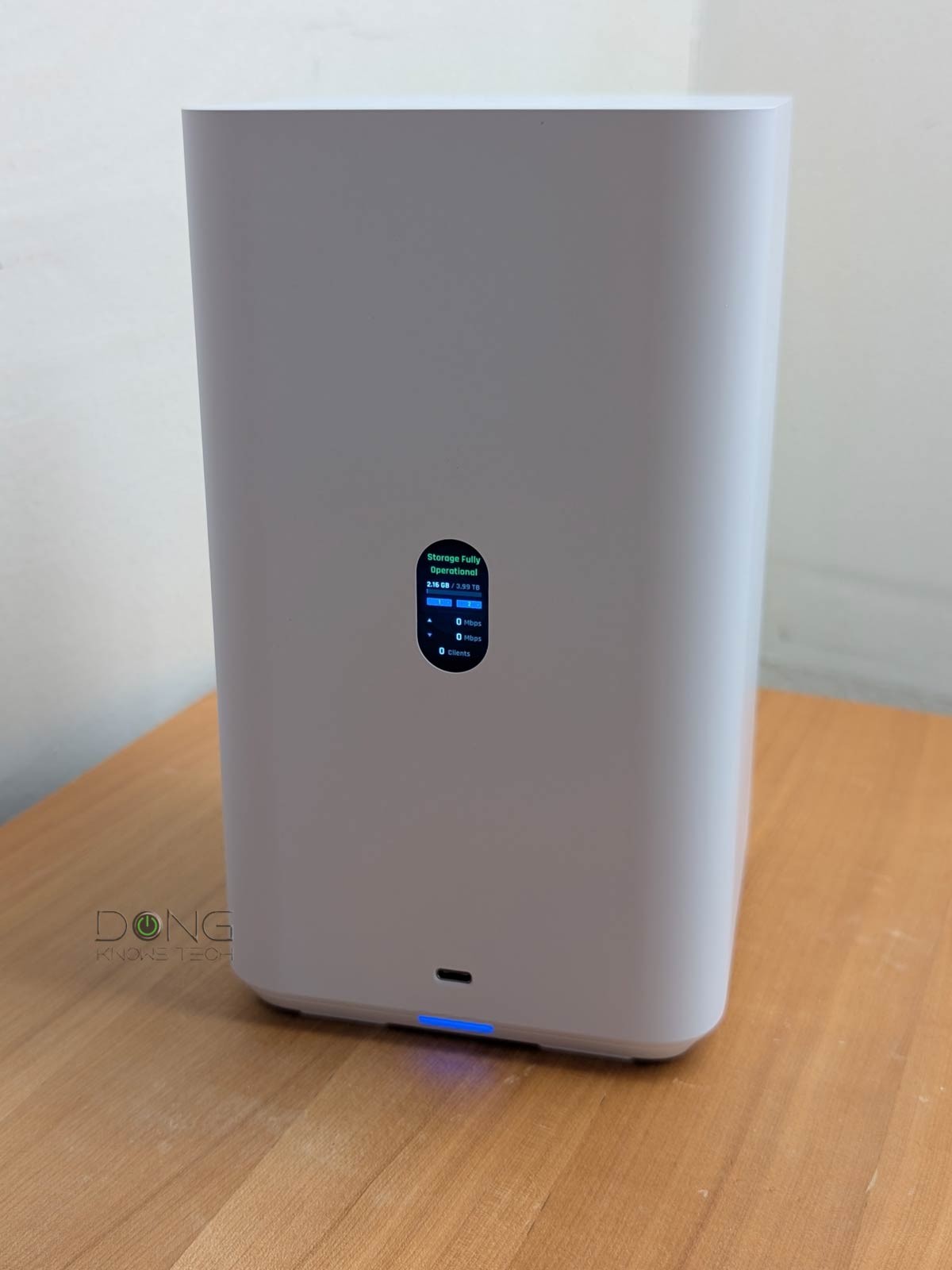

The UNAS 2, specifically the white version model UNAS-2-W, is the first server available from Ubiquiti’s recently announced Next-Gen UniFi Storage lineup, which includes three additional servers set to arrive later in the year.
The UNAS 2 is also the most basic among the four. Still, it can be an excellent network-attached storage (NAS) machine for what it’s designed to do. And “what it’s designed to do” is the key consideration for those who’ve used conventional NAS servers.
Here’s the bottom line: If you’re looking for a frill-free network storage device, the UNAS 2 is an excellent buy that’s worth every penny of its friendly $199 price tag (diskless). The fact that it’s PoE-powered alone makes network-based storage possible for the first time in many homes.
On the other hand, if you want more than “storage”, such as entertainment (media streaming), Torrent PC-less downloads, virtual machines, etc., this is not the correct server to purchase.

Ubiquiti UNAS 2: A single-app UniFi console with a storage-only approach
The UNAS 2, like all other UNAS models, is part of Ubiquiti’s UniFi ecosystem—the “U” in the model name stands for “UniFi”. As such, it’s powered by the UniFi OS, a proprietary Linux-based operating system, on which many other applications can run.
That’s the general case for all traditional UniFi consoles (a.k.a. gateways), which can host up to half a dozen or so of Ubiquiti’s traditional apps.
Tip
Powered by UniFi OS, all UniFi Cloud Gateways (a type of UniFi console) share the same basic features and settings. However, their capacities, specifically the number, breadth, and depth of UniFi applications they can handle simultaneously, vary depending on the hardware specifications.
Main applications in the UniFi Application Suite include:
- Network: This application enables the hardware to function as an advanced router and, therefore, qualifies it as a “Cloud Gateway”. This app handles all network-related aspects, including security, firewall, access points, Wi-Fi system management, and much more. On a UniFi Cloud Gateway, the Network app is the default and can’t be uninstalled.
- Protect: The support for IP cameras as an advanced surveillance system, including a built-in UniFi Network Video Recorder (UNVR) of a UniFi console. Protect is the default app of a standalone UNVR.
- Talk: A locally hosted Voice-over-IP system.
- Access: A “platform designed for Access Control Systems”—per Ubiquiti. Examples include door-related security IoT devices, such as doorbells, key fobs, locks, etc.
- Connect: Application that manages digital signage and EV Stations
- InnerSpace: A visualization tool that allows users to map out their UniFi network by uploading floor plans, drawing walls, etc., for the deployment of UniFi devices.
Each of these applications is a world in itself, with various in-depth customizations and different types of UniFi devices.
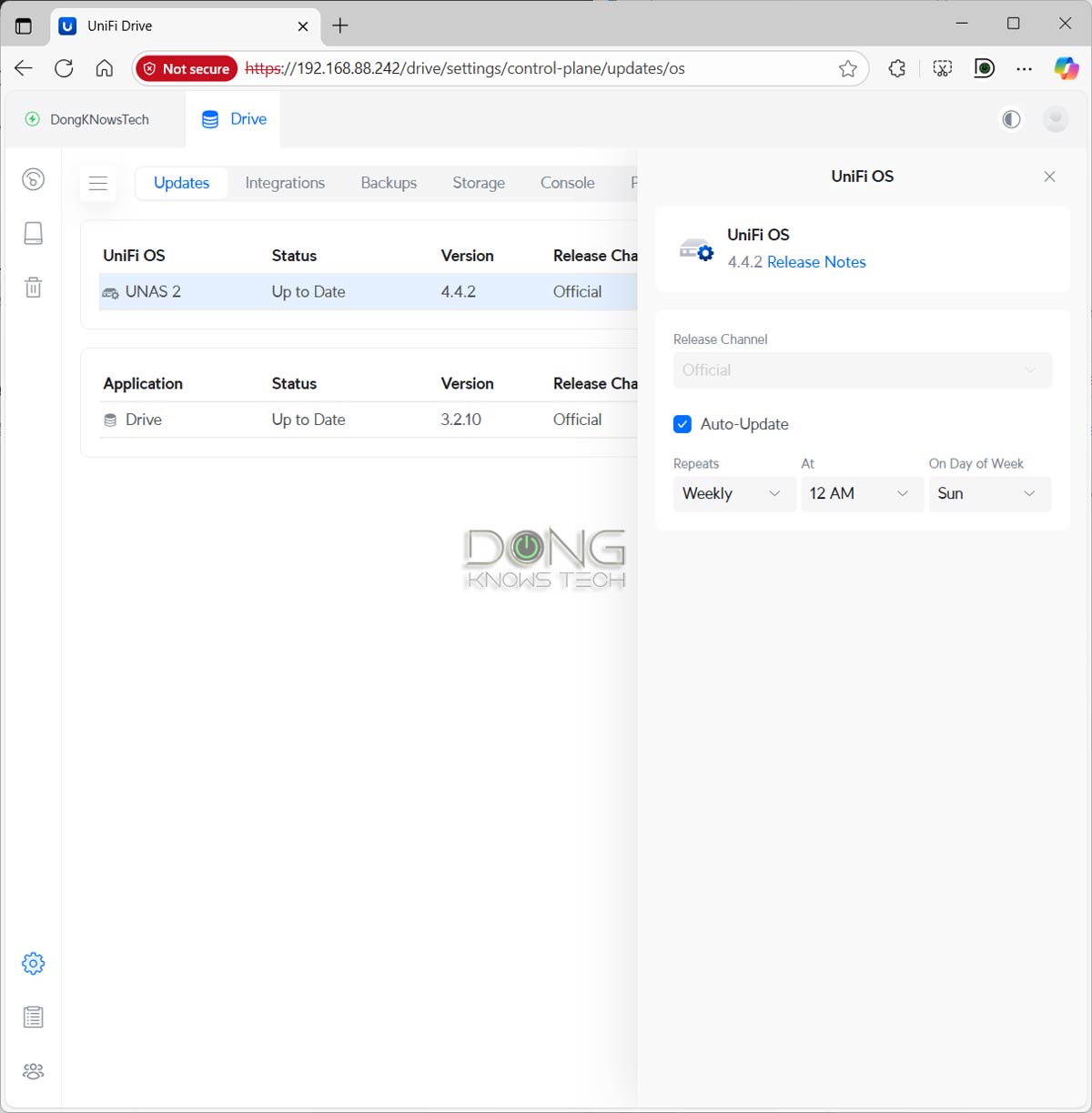
That said, a UNAS server is a single-app UniFi console. While also powered by the UniFi OS, it runs only one application, the UniFi Drive. This app, currently at version 3.x, determines how the hardware functions as a network-attached storage (NAS) server.
As a result, all UNAS servers are the same in terms of features, settings, setup process, and ongoing management, differing only in their hardware capacity, such as the number of drive bays (and hence the RAID options), connection grade, and support for additional types of storage devices.
On this front, the UNAS 2 is the most basic model in Ubiquiti’s UniFi Storage NAS family, which currently consists of four other NAS servers, including the original UNAS Pro, which debuted together with the first production version of UniFi Drive in October 2024. That’s to say, UniFi Storage is still very young.
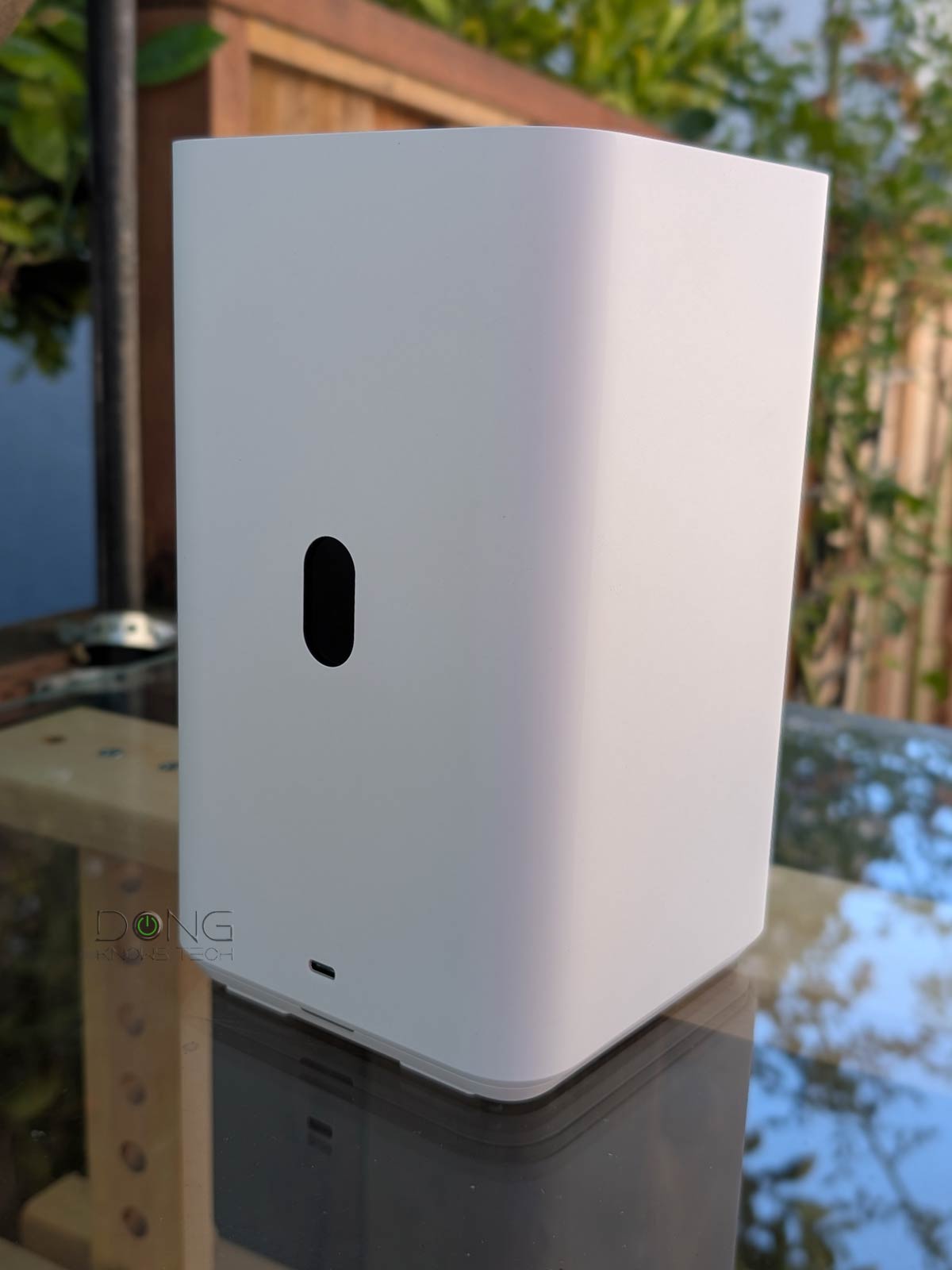

The table below compares the UNAS 2 hardware specifications with those of the upcoming UNAS 4, which is scheduled for release later in 2025. The two are almost identical, except that the latter literally doubles the former in terms of physical size and storage capacity.
Ubiquiti UNAS 2 vs. UNAS 4: Hardware specifications
 |
|
|
|---|---|---|
| Model | UNAS 2 | UNAS 4 |
| CPU | Quad-Core ARM Cortex-A55 at 1.7 GHz | |
| Memory | 4 GB | |
| Display | 1.47″ color LCM | |
| Dimensions | 135 x 129 x 223.7 mm (5.3 x 5.1 x 8.8″) |
246 x 129 x 224.5 mm (9.7 x 5.1 x 8.8″) |
| Weight | 1.3 kg (2.85 lb) | 2.6 kg (5.7 lb) |
| Color Options | Back or White | |
| Storage Capacity | 2x 3.5″ drive bays (3.5″ HDD only) |
4x 3.5″ drive bays (supporting all SATA drives) 2x M.2 NVMe bays |
| Network Port | 1x 2.5 GbE RJ45 Multi-Gig PoE++ | 1x 2.5 GbE RJ45 Multi-Gig PoE+++ |
| Expansion Port | 1x USB-C (USB 3.2 Gen 1) | |
| Power Redundancy | No | |
| Design | Desktop | |
| Max. Power Budget for Drives | 52W (4.5W max for USB-C) |
80W (4.5W max for USB-C) |
| Max. Power Consumption | 60W | 90W |
| Power Method | PoE++ | PoE+++ |
| Power Supply | 60W PoE++ injector (Included) |
90W PoE+++ injector (Included) |
| Ambient Operating Temperature | -5 to 40° C (23 to 104° F) | |
| Ambient Operating Humidity | 10 to 90% noncondensing | |
| Warranty | 2 years | |
| US Launch Price (Compare at UI store!) |
$199 | $379 |

Ubiquiti UNAS 2: A basic PoE-powered UNAS server
Out of the box, the UNAS 2 is a compact rectangular box with a small non-touch screen on the front that shows the server’s various helpful real-time information. Below that, there’s a USB-C port to host extra storage or accessories, such as a network adapter (not included).
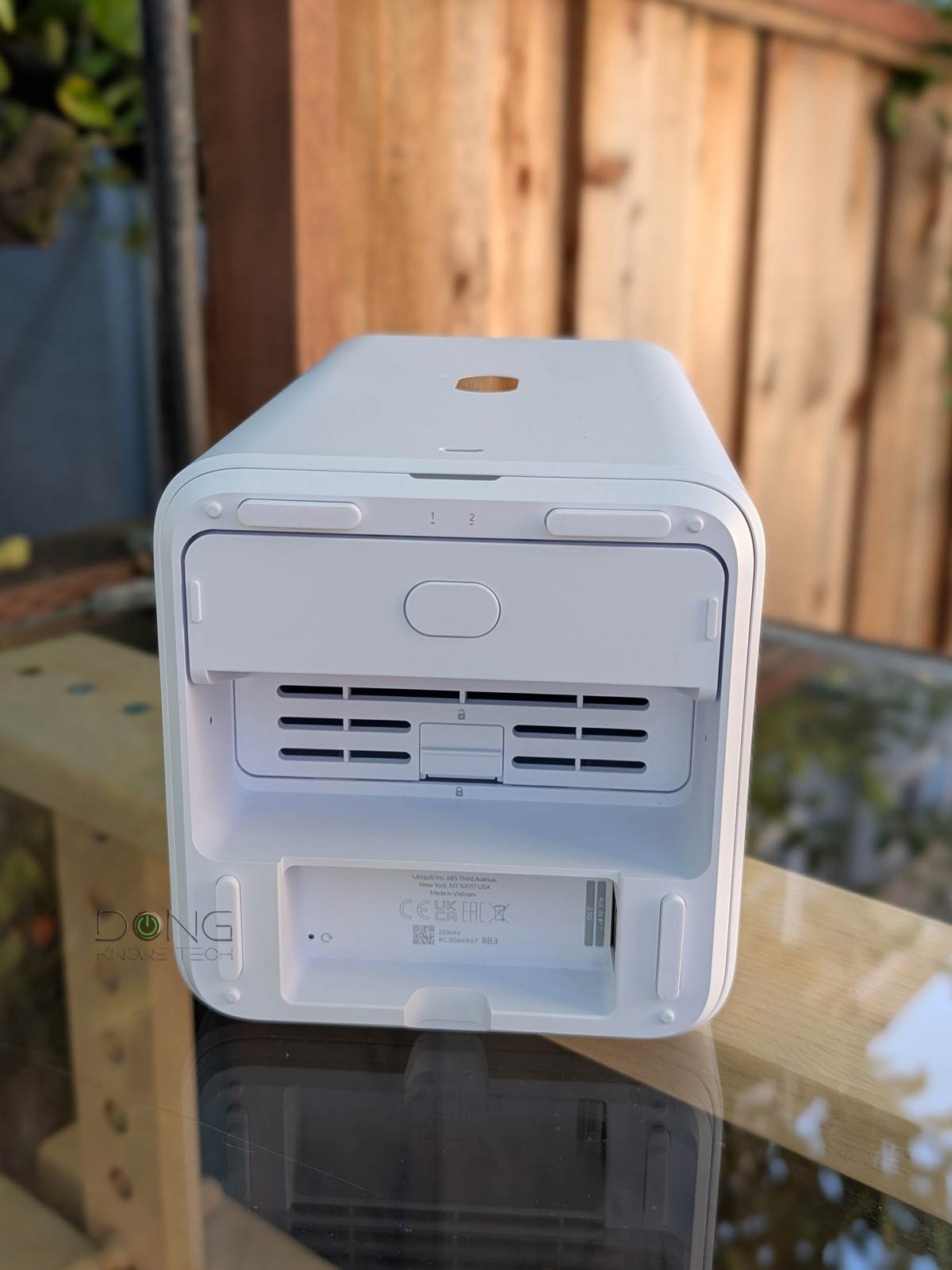
On the back, there’s a single 2.5Gbps PoE++ port. This port is the only connection point for the server to both the network and power—the UNAS 2 is the first PoE-powered NAS server I’ve run into. That alone is super-exciting. The server itself includes a PoE++ injector, but you can use it with any PoE switch (or injector) that can deliver up to 60W of power per port.
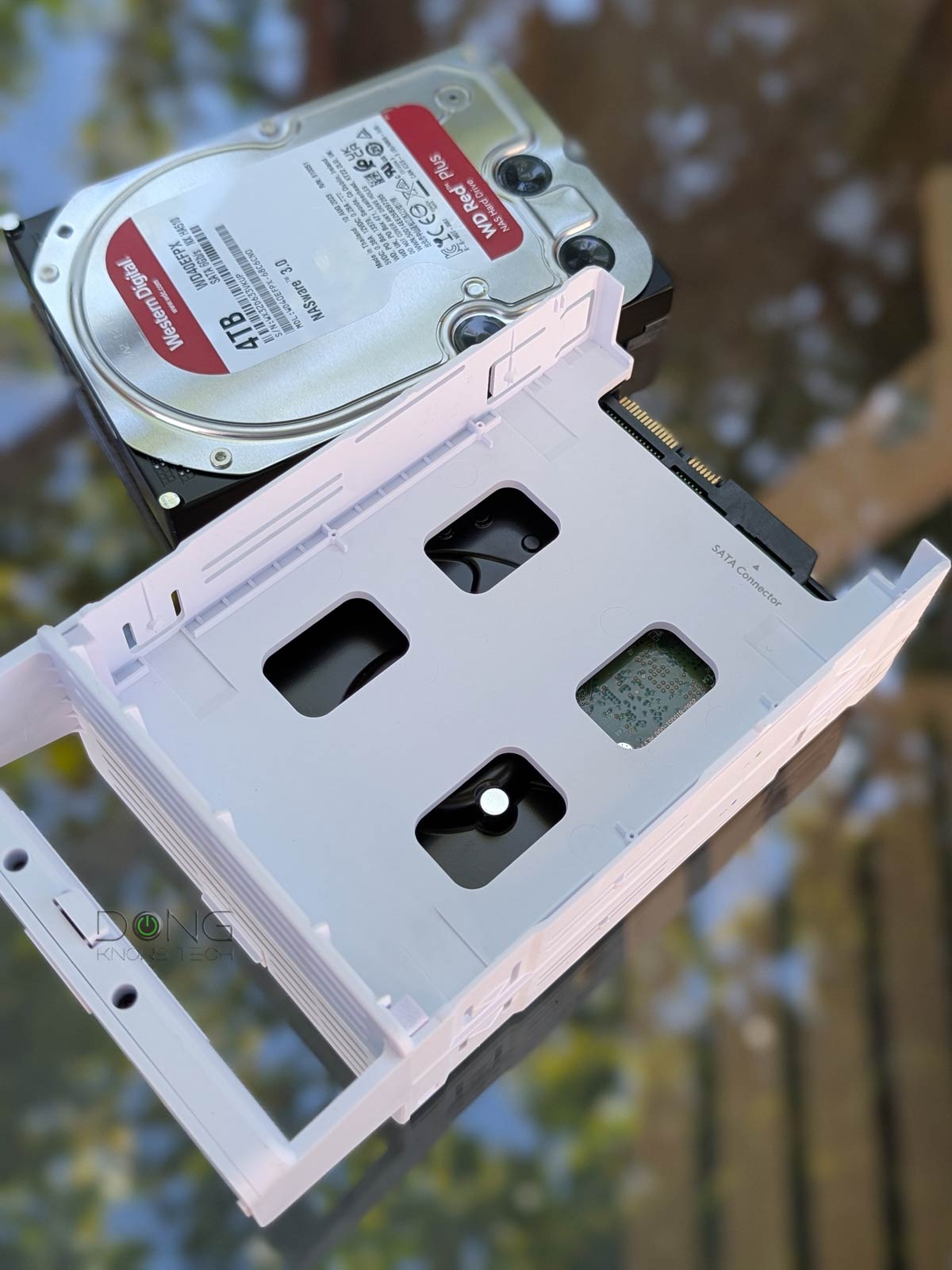
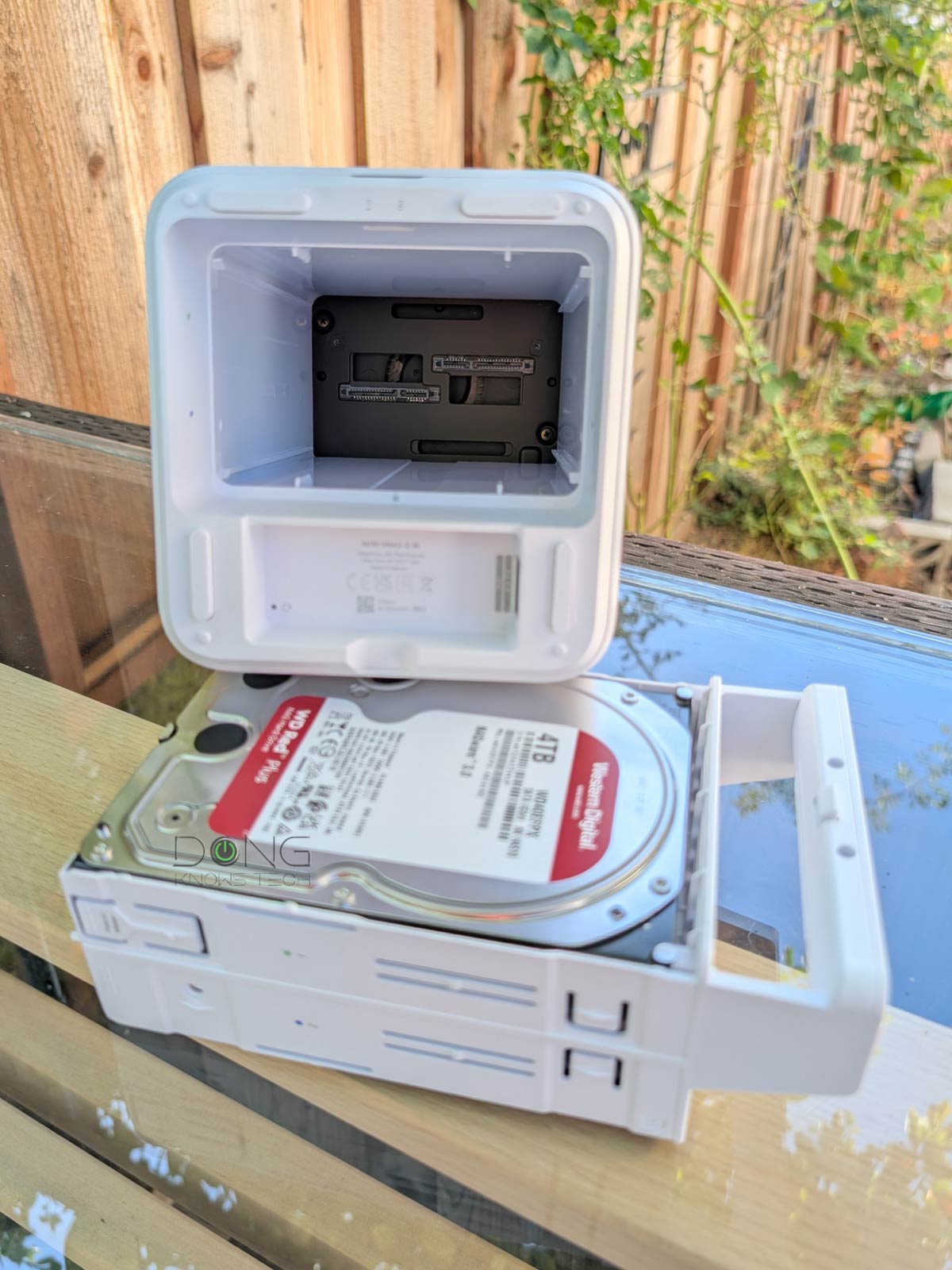
What’s not so exciting, however, is the fact that the server comes with a dual-bay tray, accessible from its underside. At first glance, this tray seems practical enough. You can quickly snap two 3.5-inch hard drives (HDDs) onto it without needing any tools.
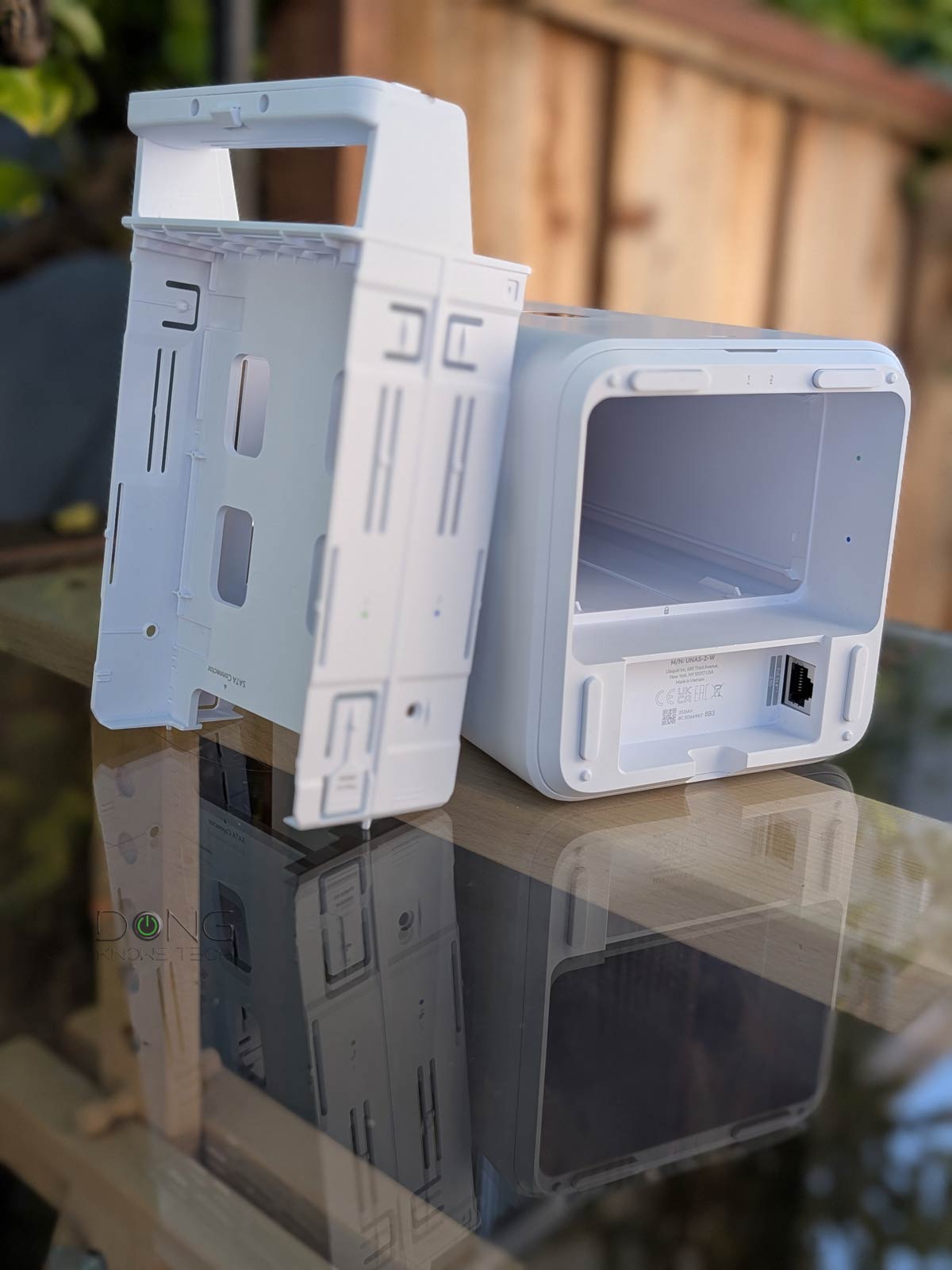
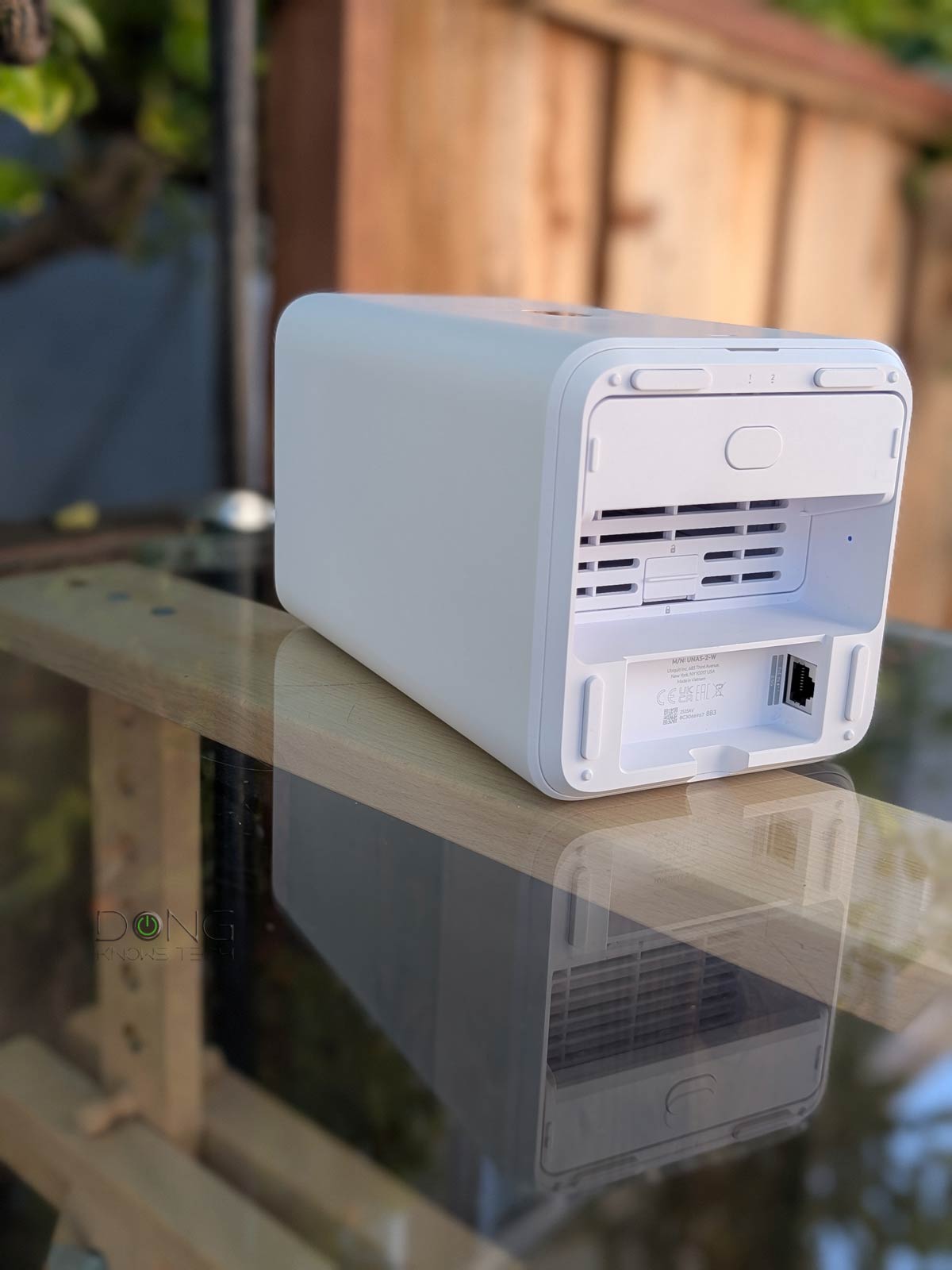
Unfortunately, this tray can only host 3.5-inch HDDs. It does not offer an option for mounting 2.5-inch drives—so, no SSD storage. Additionally, to install or change a drive, you’ll need to pull the tray, hence both drives, out of the server entirely. In other words, these drives are not hotswappable—you need to take the server out of service for storage servicing.
Simple setup process, UI account semi-required
The UNAS 2 shares the same setup process as all UNAS servers, which is simple:
- Install the drives into the tray and assemble the tray to the server. A process that takes only a few seconds.
- Connect the server to the existing network via the included PoE adapter, or you can plug it directly into a PoE++ port of a switch, such as the Zyxel XS1930-12HP or Ubiquiti’s own Pro XG 8 PoE, which I used for the testing.
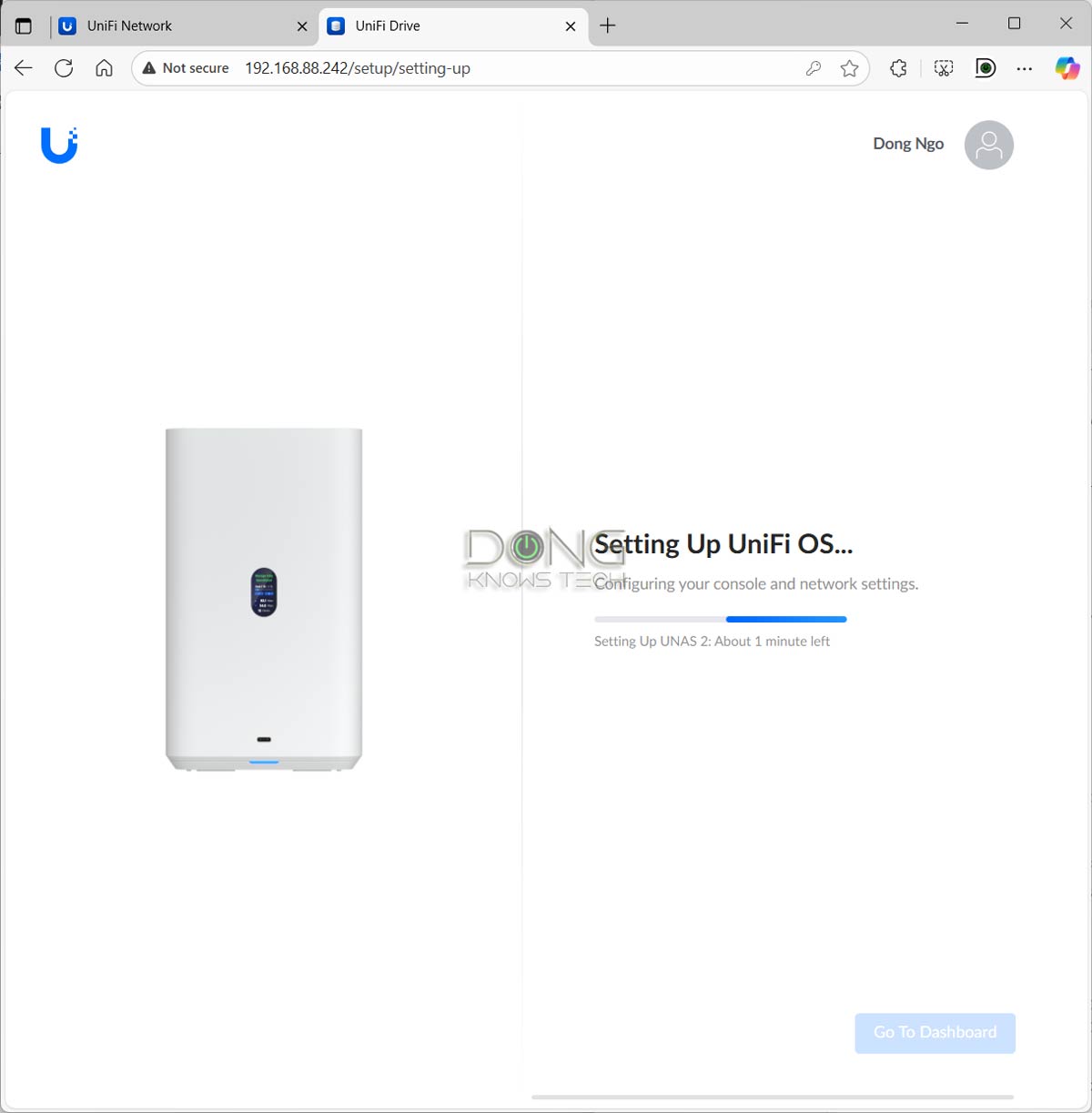
- Proceed with the initial setup process:
- Via a web user interface: From a connected computer, point a browser to the server’s IP address (given out by the router). This is my preferred method.
- Via the UniFi mobile app: Run the app on your phone, stand next to the server, and the app will detect the server almost instantly, just like any other UniFi device.
And that’s it. You’ll be greeted with a few self-explanatory steps. After a few minutes of installing the UniFi OS and updating the UniFi Drive app, the server will be ready. Subsequently, when you log in to the server’s interface, you’ll work with the UniFi Drive Dashboard to configure the server to your liking.
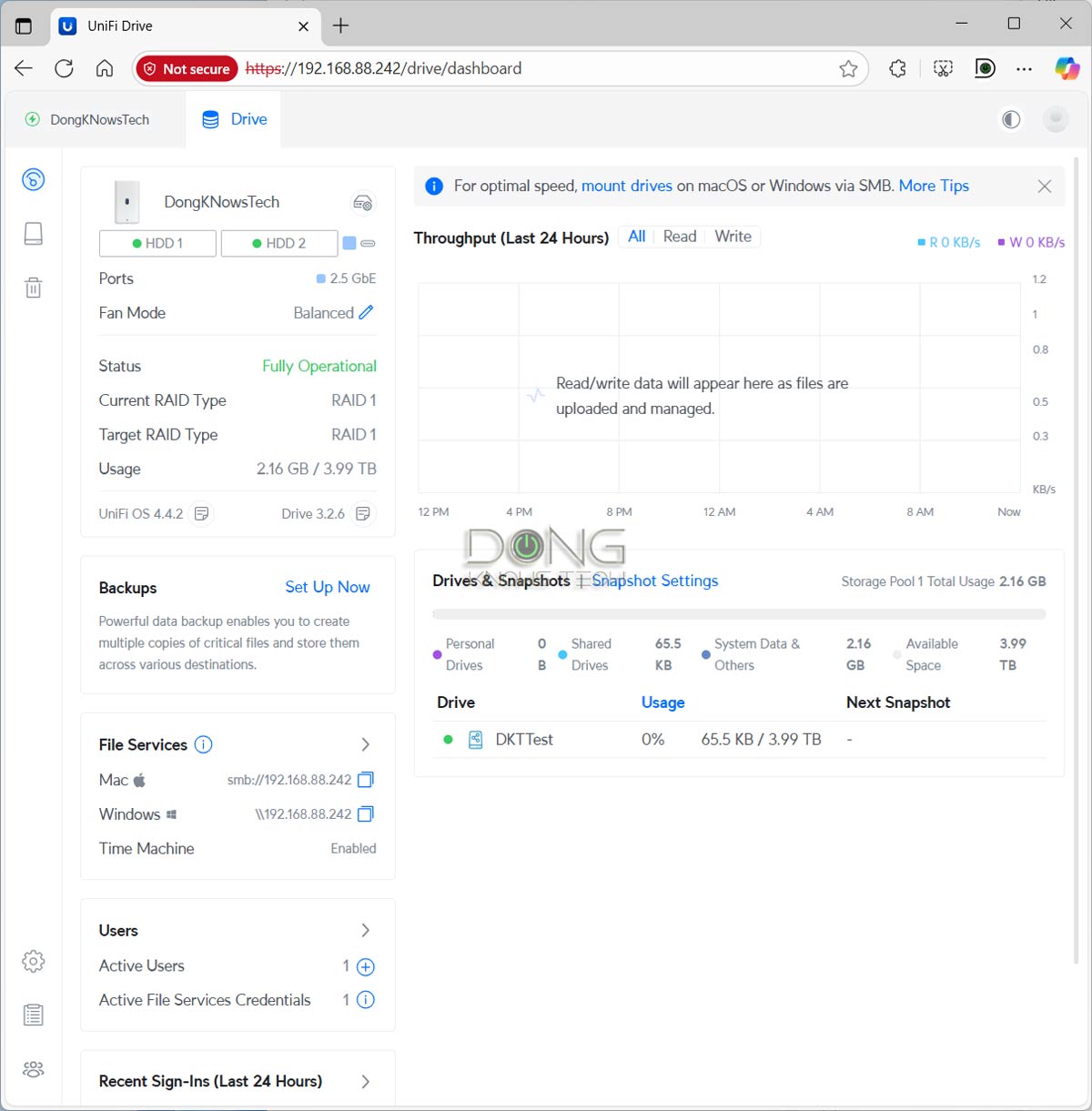
It’s worth noting that, like other UniFi hardware, you can use a UNAS server without tying it to a Ubiquiti account, referred to as a “UI account”. However, doing so will make using the server much more convenient, especially when you want to share access to a shared folder with a remote party.
Ubiquiti and your privacy
Generally, Ubiquiti insists on a vendor-connected login account during the initial hardware setup process. However, that’s not a requirement, and logging in with a vendor translates to privacy risks.
UI account and UniFi hardware

Here’s the link to the US networking company’s privacy policy.
Online privacy and security are a matter of degree. Different companies handle their users’ data differently.
If you choose to use the server without a UI account, it will still nag you to enter an email address for the admin account before it can function correctly. Additionally, when you want to share access with a third party, you will also need to provide their email address, which will receive an invitation email and must be accepted via UniFi Identity before they can be added to the server. Ultimately, you’ll need to use Unibiquit’s services in one way or another.
That said, in my experience, it’s best to use a UNAS server by tying it to a UI account. That’s when you can expect everything to work as intended.
No integration with an existing UniFi console
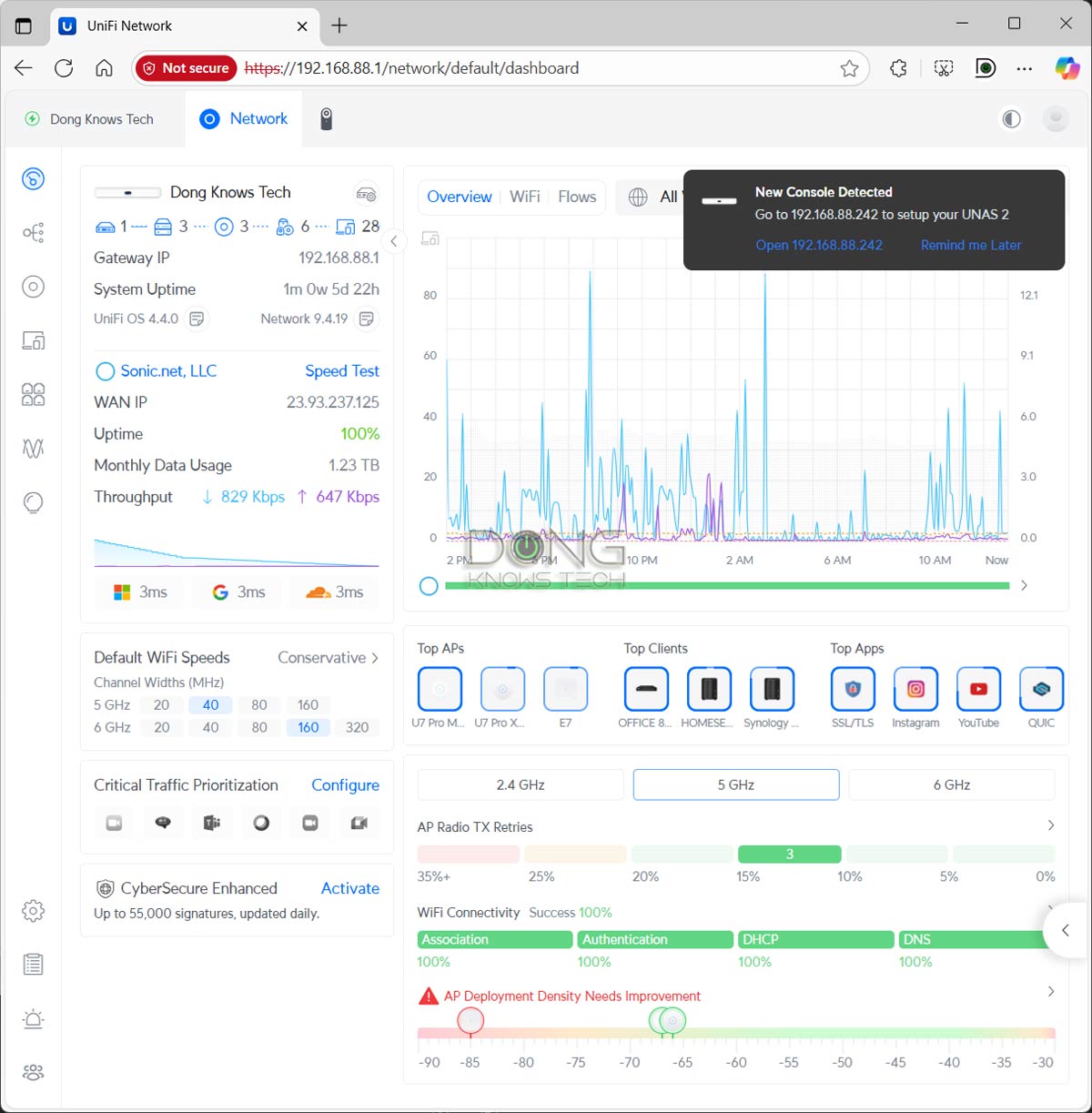
The UNAS 2, like any UNAS server, works independently from any existing UniFi console. For example, in my case, my UCG-Fiber recognized it when it’s plugged in, just like any UniFi device, such as an access point. But that was the only extent to which the two “know” each other. When I click on the notification, it launches a new browser tab for me to set up the server separately.
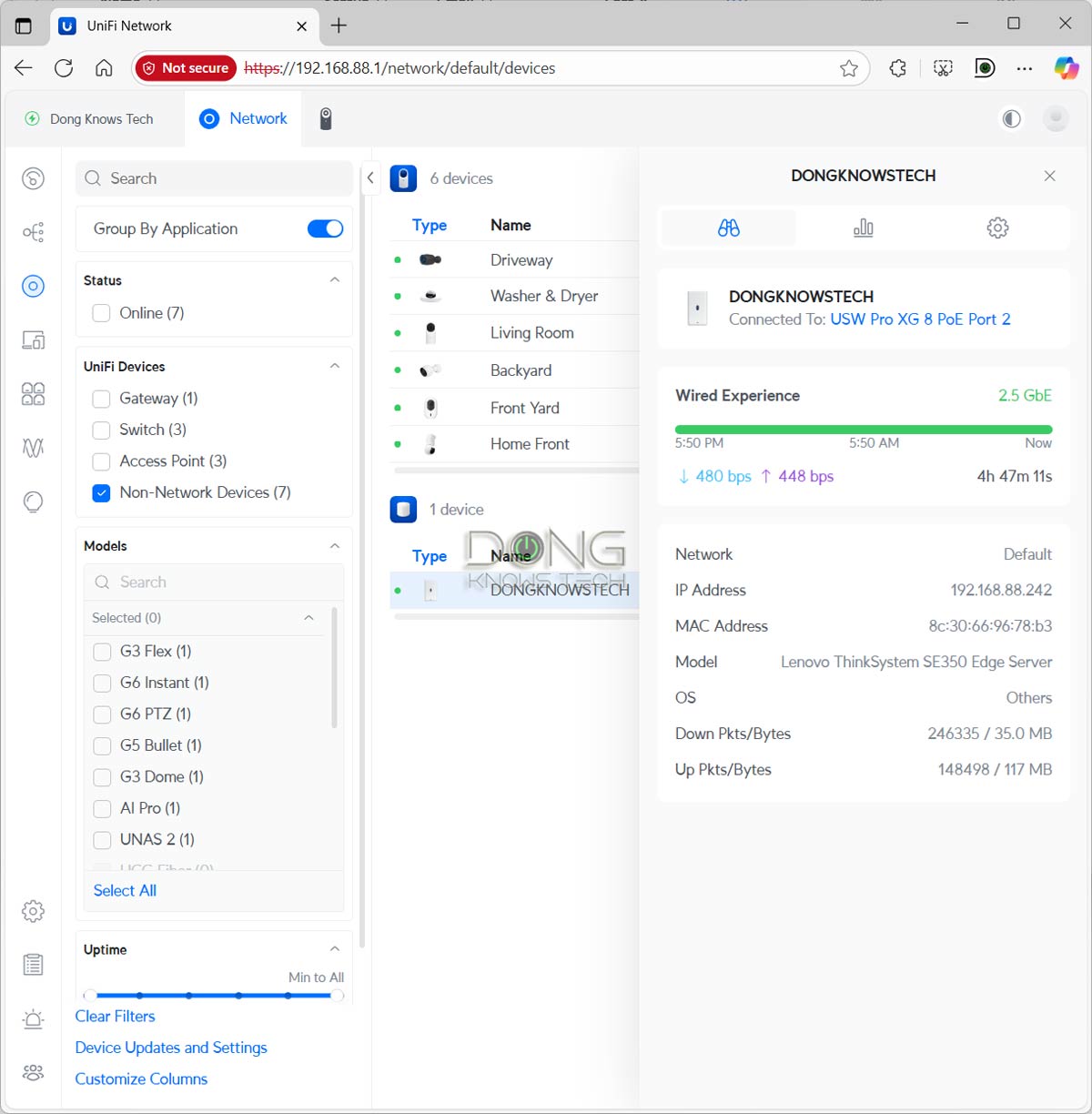
After the setup process, the UNAS 2 appears as a Non-Network device on the list of my UCG-Fiber, but it operates entirely as a standalone server without sharing any features with my existing UniFi console, simply because the UniFi Drive app is not part of the console.
Specifically, you can’t use its storage for the Protect app, nor does it share the existing users’ account with the UCG-Fiber, unless you use the same UI account for both. In this case, the two share the same UI profile but still function as two separate consoles.
In other words, no matter what network you have, whether it is powered by a UniFi console or a third-party router, the UNAS 2 will function the same. There are no benefits to obtaining a UNAS server if you’re already part of the UniFi ecosystem.
Pure network-attached storage with limited RAID options
When I started testing the UNAS 2, I asked Ubiquiti common questions about whether it supports popular third-party apps, such as Plex Media Server, or if it supports third-party apps at all. I received this statement:
“UniFi Drive is a Network Attached Storage solution, designed to provide a simplified file management/sharing/backup system with a familiar UniFi user experience, directly tied into UniFi core functions. We’re always looking for ways to improve, but with this being our first foray into the NAS space, we wanted to focus on the core NAS offering.“
In case it wasn’t clear enough, Ubiquiti’s NAS servers, the UNAS 2 included, are, at least for the time being, all about network-based “storage” and not much else. With that in mind, I found UniFi Drive to be both robust and limited. It excels in its limited capabilities, but falls short when compared to other all-purpose NAS servers.
The first thing to note about the UNAS 2 is that you can’t use the two hard drives in any form except RAID 1. There’s no option to use them in RAID 0 or even two separate volumes. You can use the server with one drive, but when you add a second drive, it’ll be automatically added to the volume as RAID 1 redundancy.
What if you use two HDDs of different capacities, you might wonder? The total storage capacity of your RAID 1 volume will be that of the drive with the lower capacity.
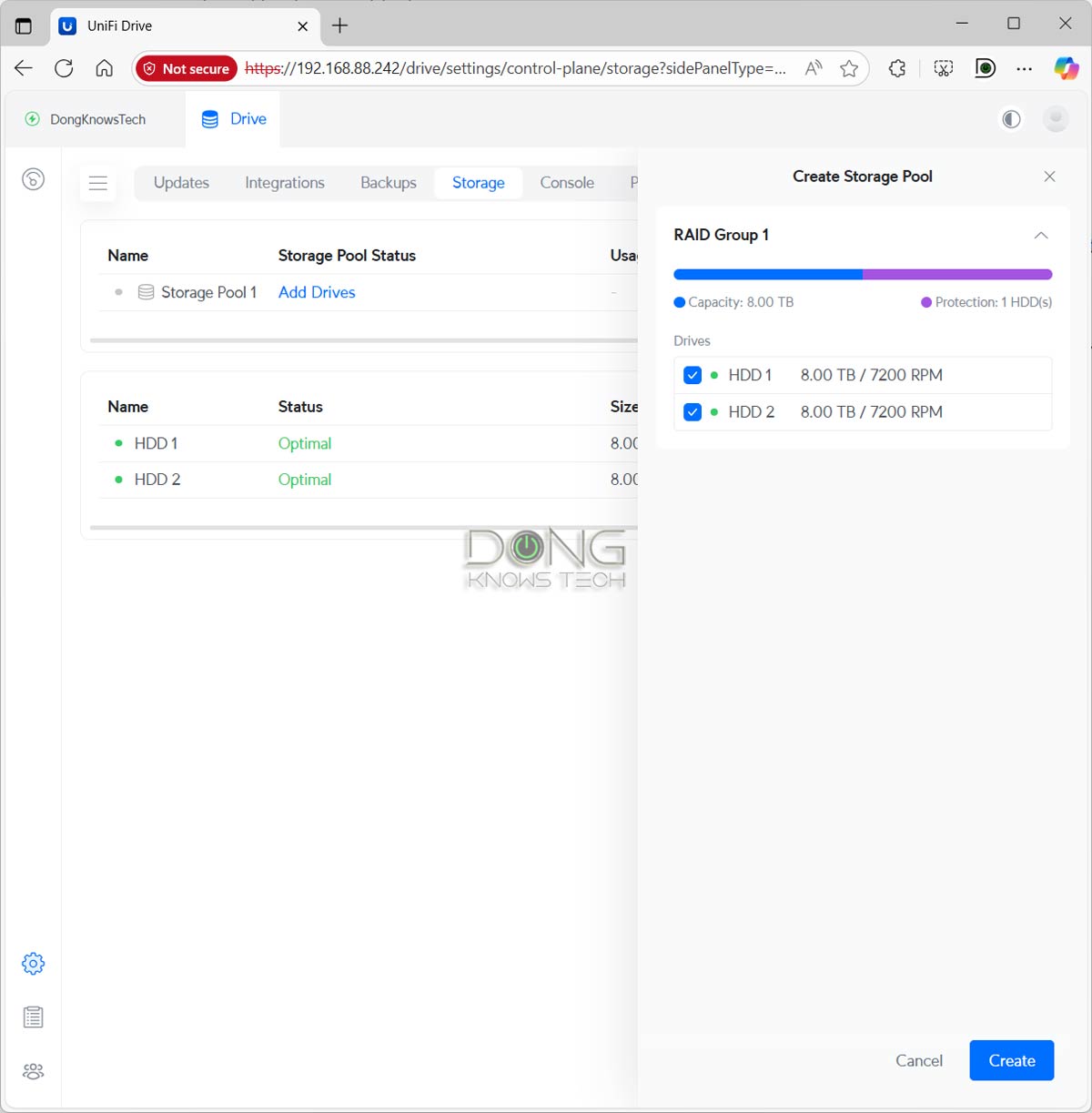
You can use the USB-C port to add an external drive to the server. In this case, it can support drives formatted in FAT32, exFAT, NTFS, and EXT4 file systems. However, this add-on storage is only available as shared drives—you can’t use it as the backup destination. Also, keep in mind that UniFi Drive has a strict naming convention. If you name your external drive with a space—i.e., “Dong Ngo” vs. “DongNgo”—you’ll need to remove the space before you can use the drive at all.
So, on the storage front, the UNAS 2 is extremely limited.
Other than that, the server has standard account management—you can create multiple users account with different levels of access to different shared folders (called “Shared Drives”). These shared drives are accessible to the local network via SMB or other popular protocols, just like any server.
You can also share access to the shared drives with a remote party via share links. In this case, the party can access the shared drive via UniFi Identity using the mobile app, desktop app, or web-based UI, which is similar to Google Drive in terms of user interface.
Additionally, here are what UniFi Drive and, therefore, the UNAS 2 server can do:
- Snapshot: You can store up to 256 versions for each shared drive, taking snapshots as often as once a day to keep the data safe against unexpected alterations. This feature is similar to Synology’s Snapshot and Replication, but less robust in terms of frequency and the number of snapshots that can be taken.
- Backup: The system can back up data of shared drives to another UNAS server, a standard SMB server, or a cloud service, such as Google Drive or OneDrive. Again, the highest frequency at which you can schedule backups is once a day.
- The support for Time Machine backup: You add File Services & Time Machine Credentials to a user account, allowing them to use the shared drives on the UNAS for Time Machine backup on their Mac when it’s connected to the same network.
- Directory services, such as Active Directory or LDAP, integration: You can link UNAS 2 with an AD/LDAP server and let the domain controller server handle the access to the shared drives seamlessly.
And that’s it, there’s literally nothing else you can expect from the UNAS 2. Standard stuff, often found in other NAS solutions, such as PC-less file downloads or media streaming support, is not present. There’s no support for IP cameras either, but that’s generally taken care of by the Protect app, integrated within traditional UniFi consoles or available as standalone UNVR devices, such as the UNVR Instant.
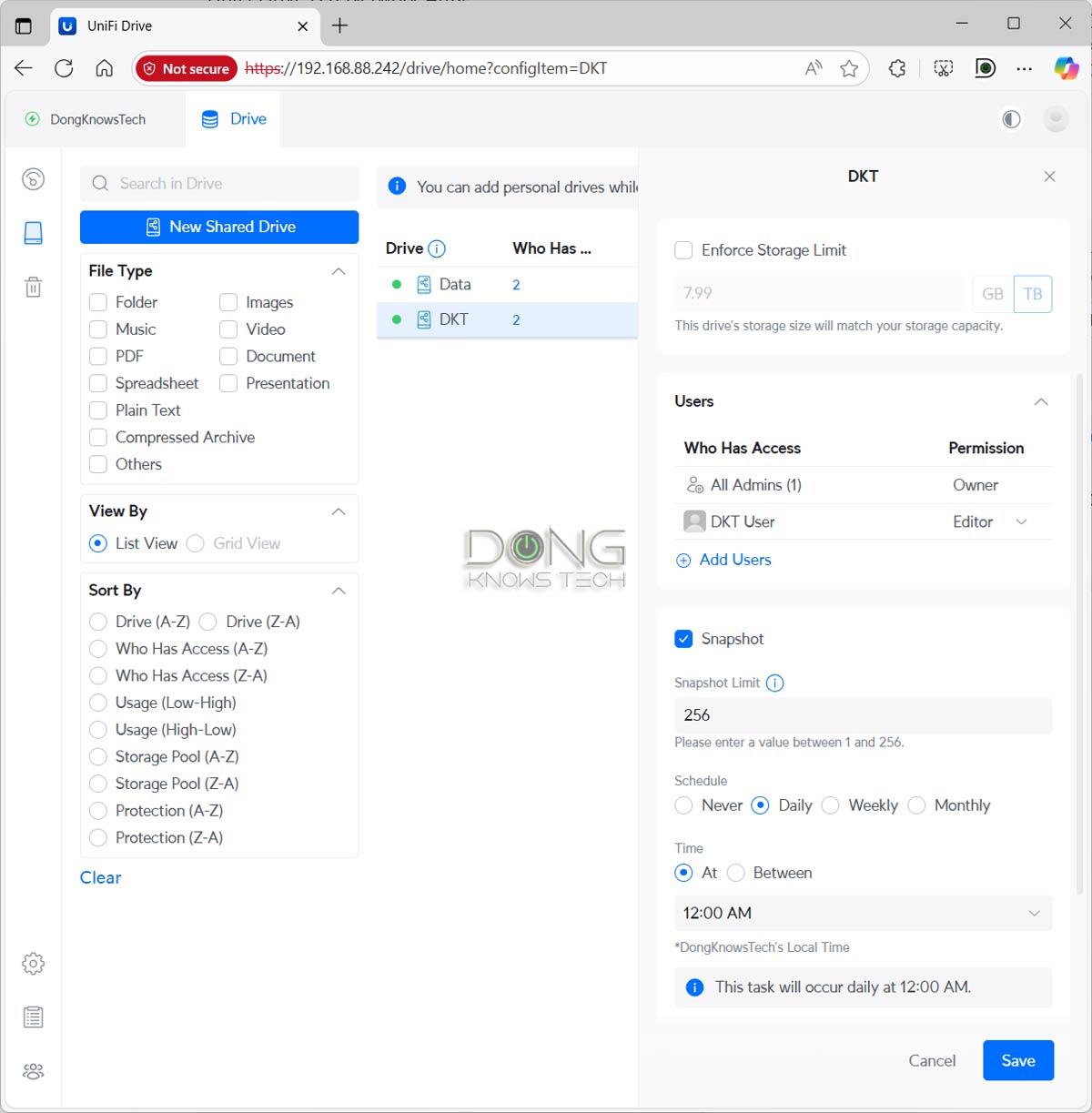
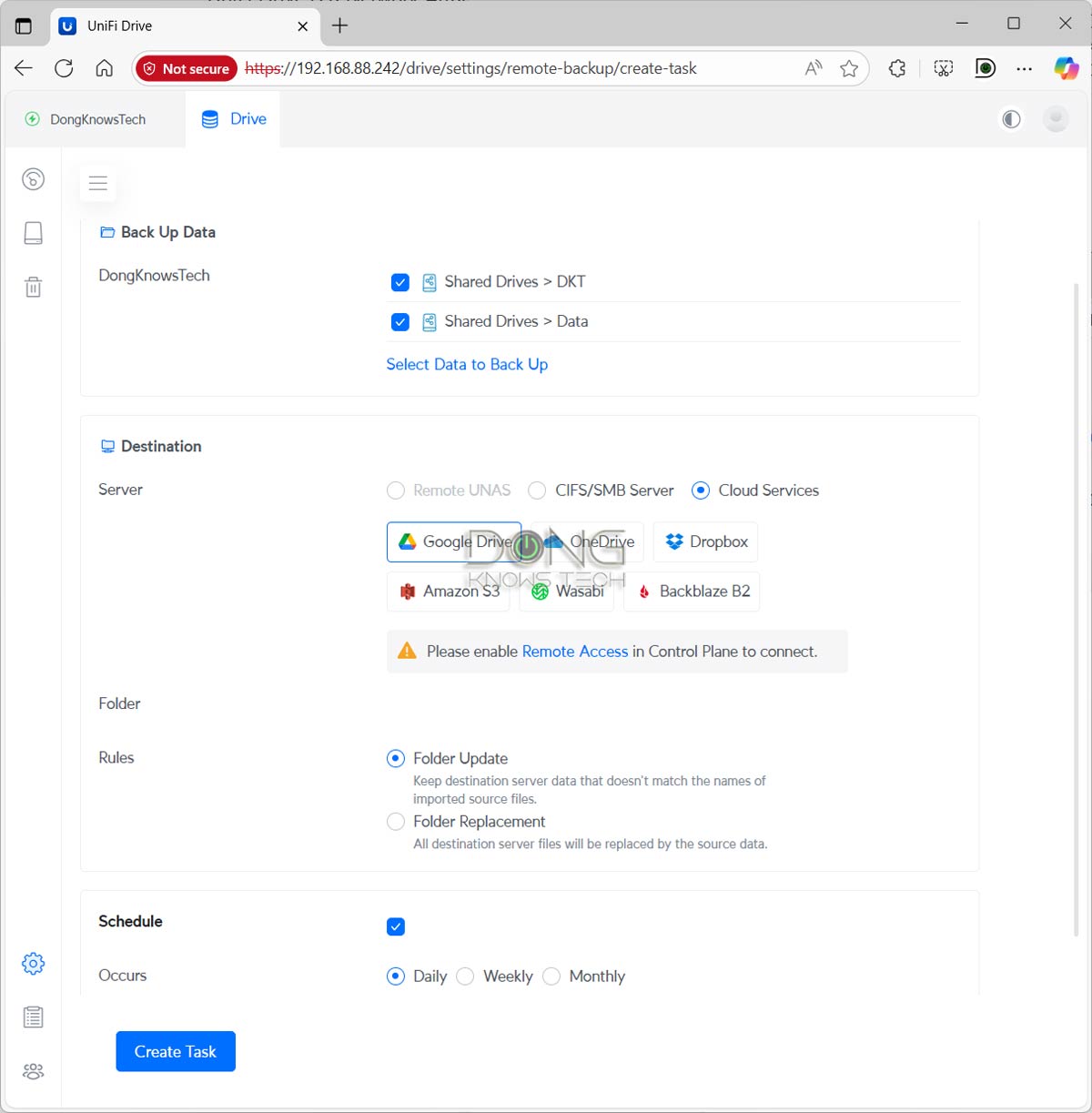
That said, the UNAS 2, as well as other UNAS servers, is a pure network-attached storage solution. It’ll give you everything you might want in terms of handling storage for a network, but not the applications that can further manipulate the data into particular services often found in other all-purpose NAS servers.
Ubiquiti UNAS 2: Reliable and fast performance for the specs
Considering the UNAS 2 features only RAID 1 and has a 2.5Gbps port, I didn’t expect much from its real-world performance during the week-long trial. But the server performed well overall.
For one, it proved reliable, working as intended without any hiccups. It’s also relatively quiet, with the internal fan producing a subdued humming noise that is detectable only in a quiet room. The server also remained cool to the touch even during long and heavy operations.
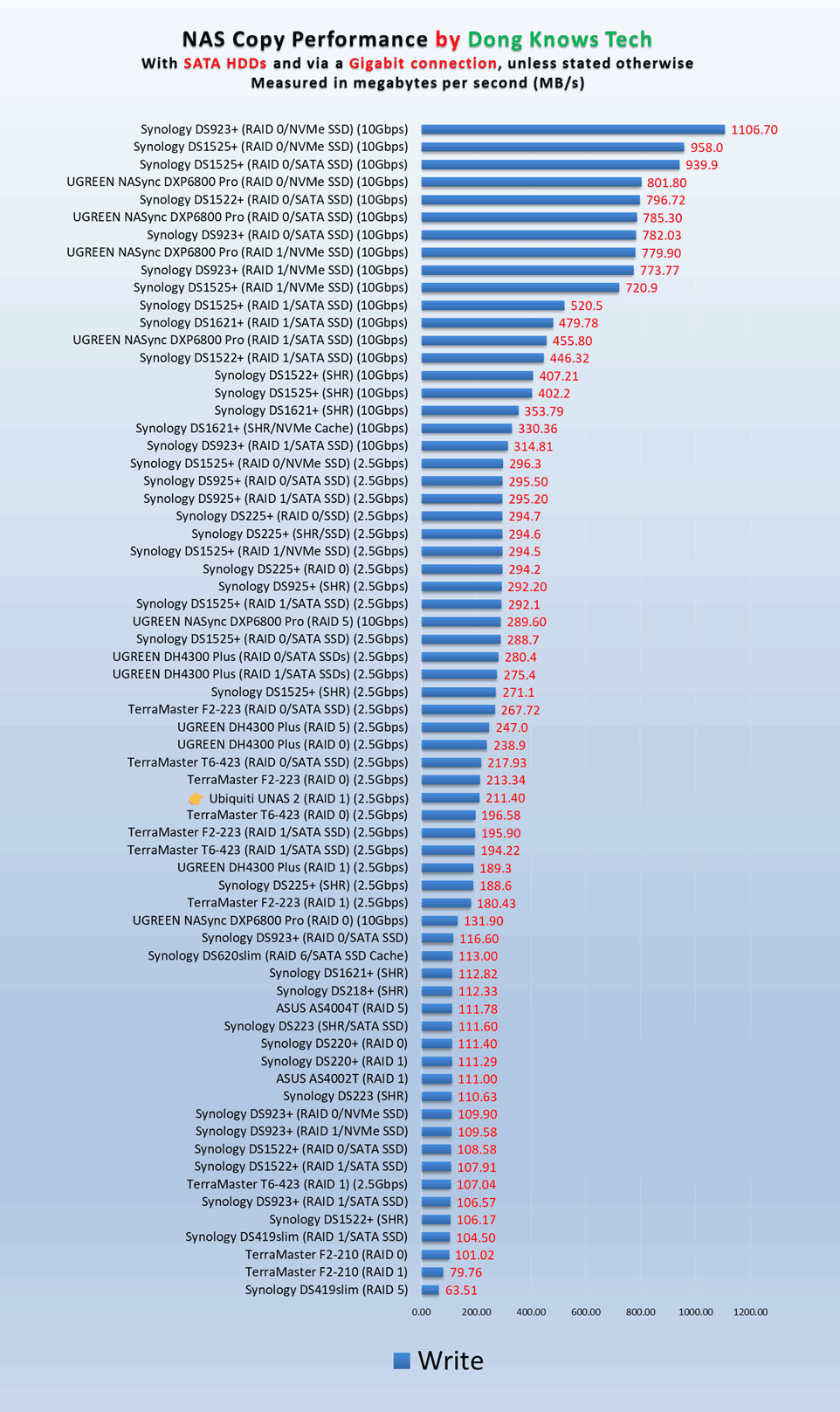
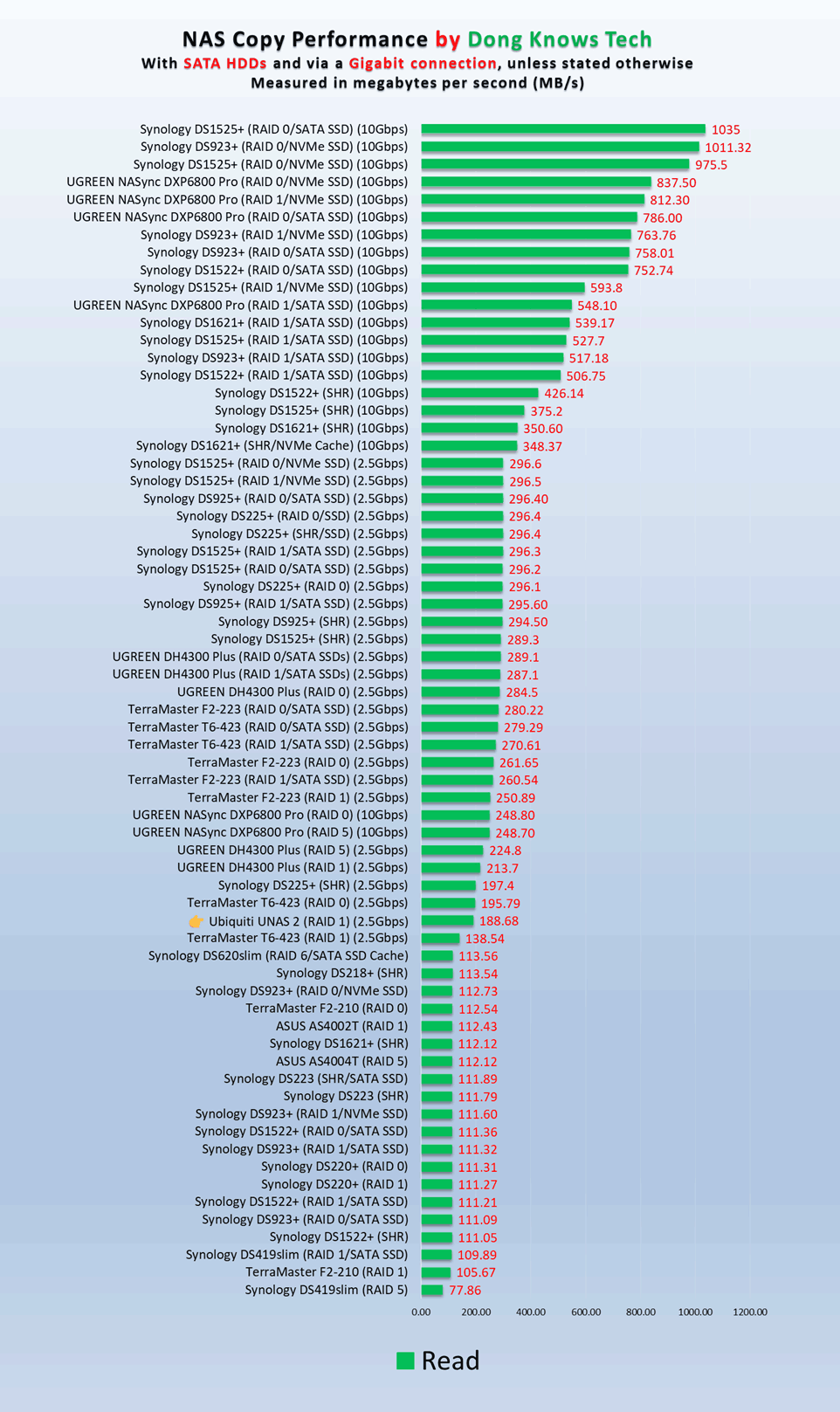
In terms of real-world performance, I first tested the UNAS 2 with two 4TB WD Red Plus (5400RPM) NAS hard drives and then two 8TB Seagate IronWolf NAS hard drives (7200 RPM), and it delivered similar real-world rates in both cases, averaging around 200MB/s, which is within what you can expect from a RAID 1 setup via a 2.5 Gbps wired connection.
Unfortunately, as mentioned above, there was no way to test it with other storage options, such as RAID 0 or solid-state drives. However, chances are you’d want to use two hard drives in RAID 1 anyway. That’s the most sensible way to use a 2-bay NAS server.
Overall, I was pleased with the UNAS 2’s performance. For a sub-$200 server, there’s nothing out there that can beat it.
Pros
Practical, compact design with PoE-powered and 2.5Gbps port, affordable
Responsive UniFi Drive app that offers standard user management and all storage-related functions, including built-in support for shadow copies (snapshot) and Domain/LDAP
Runs cool and relatively quiet
Cons
No advanced NAS-based applications commonly found in other NAS servers, such as data sync, media streaming, PC-less downloads, or virtual machines
No 2.5-inch drive or NVMe SSD support, with RAID 1 being the only storage option for the internal drives
Zero upgradability, most functions have limited configurability, a UI account is required for advanced features
Conclusion
The UNAS 2, as a network-attached storage server, is a niche device, precisely because it’s a pure NAS device. There’s nothing else to it except all things network-storage-related. In other words, it’s not an all-in-one server like other NAS servers, such as those from Synology or UGREEN, are or attempt to be.
And if that’s what you’re looking for, it’s an excellent deal, whether or not you’re familiar with the UniFi ecosystem. Consider one today!
