
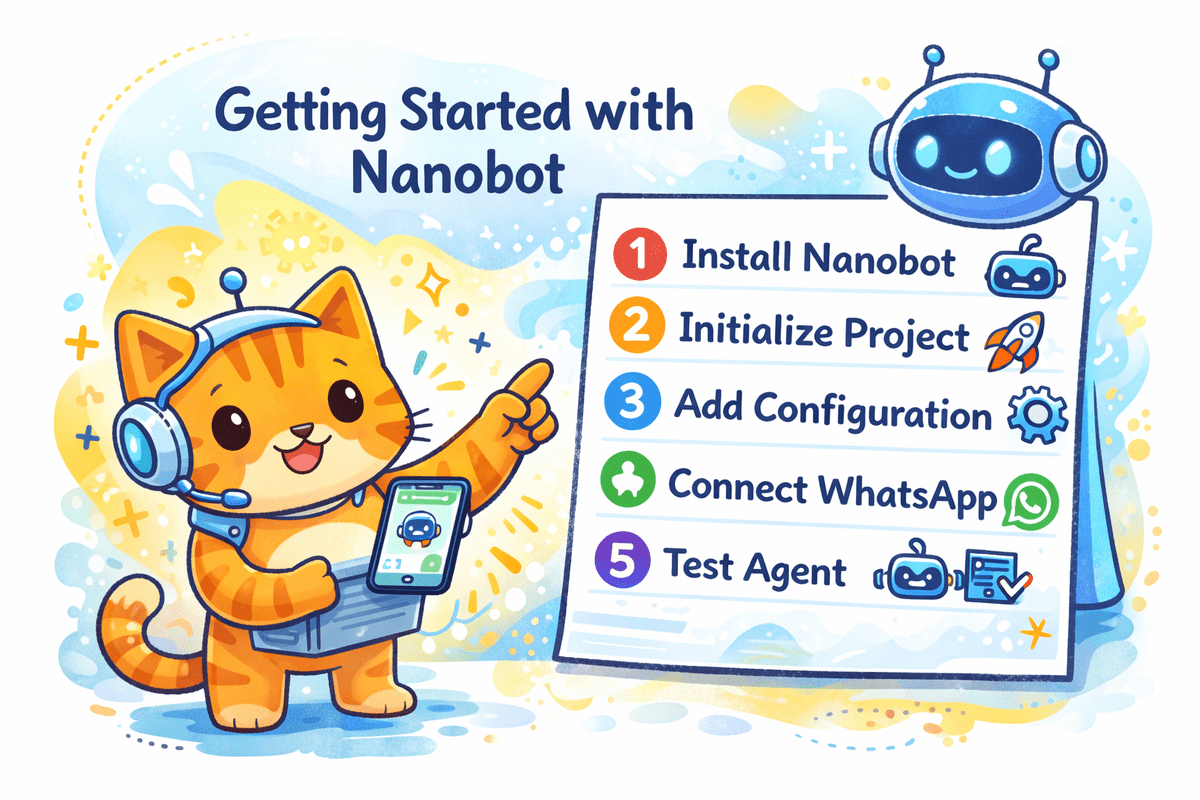

Image by Author
# Introduction
I was looking for an alternative to OpenClaw, not because it is not useful, but because it can feel too heavy and bloated for simple everyday use. I wanted something lightweight, easy to set up, and simple to connect to WhatsApp without going through too many complicated steps. That is when I came across Nanobot on GitHub, and I also noticed that many people were starting to talk about it on YouTube.
In this tutorial, we will explore the Nanobot architecture and how it works. Then, in six simple steps, we will go through the installation, setup, and process of connecting it to WhatsApp so you can start using it as a 24/7 artificial intelligence (AI) agent for a wide range of tasks.
# Using Nanobot For Your First AI Agent
Nanobot is an excellent choice for a first AI agent because it keeps the overall setup simple while still supporting the features that matter in real-world usage. It can connect to messaging platforms such as WhatsApp, Telegram, Slack, Discord, Feishu, QQ, and email, while also working with a wide range of model providers and model context protocol (MCP) tool servers. This provides beginners with a clear way to understand how an agent is structured without starting with a system that feels overly complex.

Architecture of Nanobot | Image from HKUDS/nanobot
It also stands out as an alternative to OpenClaw because it offers practical integrations and everyday usability from the start. Alongside messaging channels, it supports tool calling, web search, scheduled tasks, voice transcription, real-time progress streaming, and multiple provider options, which makes it easier to turn it into a useful personal assistant instead of just a demo project.
# Step 1: Installing uv
First, install uv, which Nanobot uses to manage the Python environment and dependencies. Then, confirm it was installed correctly by checking the version.
curl -LsSf https://astral.sh/uv/install.sh | sh
Check the installation:
Output:
uv 0.10.9 (f675560f3 2026-03-06)
# Step 2: Installing Nanobot
Once uv is installed, use it to install the Nanobot package. This will add the Nanobot command line interface (CLI) so it can be launched directly from the terminal.
uv tool install nanobot-ai
# Step 3: Initializing Your Nanobot Project
Next, run the onboarding command to initialize Nanobot.
This creates the basic local setup, including the default configuration directory at ~/.nanobot and the workspace Nanobot uses to store its files. After this step, Nanobot is ready for provider, model, and channel configuration.
# Step 4: Adding Your Nanobot Configuration
Navigate to your ~/.nanobot/config.json file, then copy and paste the configuration below. Before saving, replace the placeholder values with your own OpenAI API key, model, and WhatsApp number.
{
 "providers": {
   "openai": {
     "apiKey": "sk-REPLACE_ME"
   }
 },
 "agents": {
   "defaults": {
     "model": "openai/gpt-5.3-codex",
     "provider": "openai"
   }
 },
 "channels": {
   "whatsapp": {
     "enabled": true,
     "allowFrom": ["1234567890"]
   }
 }
}
Before you save, edit:
apiKeywith your real OpenAI API keymodelif you want to use a different modelallowFromwith your own WhatsApp number
One important note — recent Nanobot issues show that WhatsApp allowFrom formatting can be slightly inconsistent in practice, and some users report it works better without the “+” sign depending on their specific setup.
# Step 5: Connecting Nanobot To WhatsApp
Before starting the WhatsApp login flow, ensure that Node.js and npm are installed on your machine, since the WhatsApp bridge runs through a Node-based process.
First, start the login flow in one terminal:
nanobot channels login whatsapp
This will generate a QR code that you need to scan from WhatsApp → Settings → Linked Devices on your phone. Once the device is linked, open a second terminal and start the Nanobot gateway:
This is the process that keeps the channel running so Nanobot can receive and respond to WhatsApp messages.
# Step 6: Testing Your AI Agent On WhatsApp
To test the agent, you will need a second phone. This second phone number should already be added to the allowFrom list in your configuration file. When you send a message to the first phone number connected to Nanobot, it should reply through WhatsApp.
In this example, the prompt asks what is happening in the world. Nanobot then processes the request, performs a web search if tools are enabled, and returns a detailed snapshot based on the latest information.
While the gateway terminal is running, you can observe the full agent workflow in real time. This includes receiving the message, calling tools, generating the response, and sending the reply back, which makes it easier to confirm that everything is functioning correctly.
# Final Thoughts
Setting up Nanobot showed me that building a personal AI agent does not have to be overly complicated, though it was not entirely friction-free. I appreciated how quickly I could transition from a terminal setup to a working WhatsApp-connected agent that provides useful responses in practice.
However, I did encounter a few minor hurdles. On Windows, if Node.js or npm was already installed in a certain configuration, the Python script sometimes failed to detect npm correctly in the terminal, which made the initial setup slightly confusing. Additionally, the lack of extensive WhatsApp documentation meant it was not immediately obvious that the interface works by messaging the connected device directly rather than through a separate bot chat interface.
Despite these minor issues, Nanobot remains a strong starting point for anyone looking to build their first AI agent. It provides a core agent experience without the overhead of heavier alternatives. Once the setup is operational, its value becomes immediately apparent, bridging the gap between simple terminal commands and a truly helpful personal assistant.
Abid Ali Awan (@1abidaliawan) is a certified data scientist professional who loves building machine learning models. Currently, he is focusing on content creation and writing technical blogs on machine learning and data science technologies. Abid holds a Master’s degree in technology management and a bachelor’s degree in telecommunication engineering. His vision is to build an AI product using a graph neural network for students struggling with mental illness.
