


Ubiquiti’s new UniFi AirWire (U-AirWire) is both exciting and disappointing.
On the one hand, it’s the first Wi-Fi 7 USB “adapter” with super-fast Wi-Fi uplink thanks to support for STR MLO. On the other hand, it’s impractical to use due to the bulky design, high power requirements, and, most significantly, the fact that it only works within the UniFi ecosystem.
Here’s the bottom line: If you already have a robust UniFi Wi-Fi 7 network and now really want to connect a computer via top wireless speed—and I mean that to be a big if— the AirWire is the media bridge you’ve been waiting for, albeit at a hefty price of $199.
In most cases, though, a standard Wi-Fi 7 adapter, such as the Netgear A9000, or even the UniFi Express 7 (UX7) in the mesh mode, is a much better option.
Pros
Fast Wi-Fi uplink, STR MLO support
Plug-and-play, up to 5Gbps USB connection
Flexible high-range uplink antenna with optional auxiliary USB PD power input, USB-C cable included
Cons
Uplink requires a Wi-Fi 7-enabled UniFi network, no 2.4GHz band
Auxiliary power and an updated driver (not included) are required for top performance
No 10Gbps USB or Thunderbolt support

Ubiquiti AirWire: A Niche Wi-Fi 7 adapter for hardcore UniFi enthusiasts
If you think of new AirWire as another typical USB Wi-Fi 7 adapter, like the NETGEAR A9000, you’re not entirely wrong—Ubiquiti calls it a “WiFi 7 client adapter” after all. However, you’ll be in for a surprise.
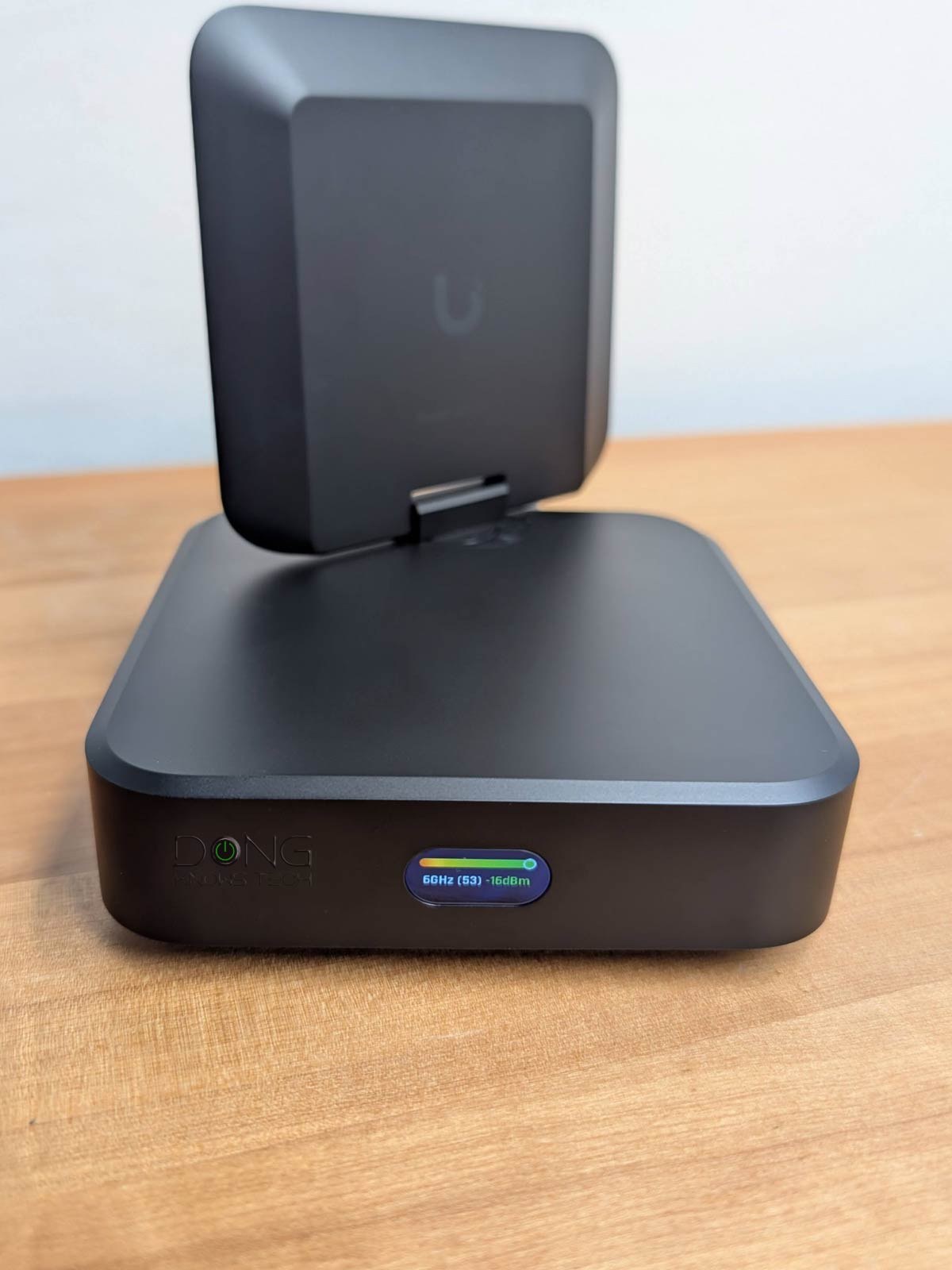
Out of the box, the AirWire is huge. It literally has the same physical size as the UX7, which is a Wi-Fi 7 “router”.
On top, it comes with a large, non-detachable antenna that you can swivel around half a sphere to get the best reception. This is a directional antenna that can offer exceptional uplink range. On the front, it has a little screen that, among other things, shows its backhaul link in real time during operation.
And right then, you’ll realize that this is no typical USB Wi-Fi adapter. In fact, it’s anything but typical, and we’ll address that soon. But first, the table below compares the AirWire’s hardware specifications with those of the NETGEAR A9000 and the Intel BE200 internal adapter.
Hardware specifications: Ubiquiti AirWire vs. Intel BE200 vs. NETGEAR A9000
 |
 |
 |
|
|---|---|---|---|
| Name | Ubiquiti AirWire | Intel BE200 Wi-Fi 7 Adapter | NETGEAR A9000 Nighthawk WiFi 7 USB 3.0 Adapter |
| Model | U-AirWire | BE200 | Nighthawk A9000 |
| Dimensions |
4.6 x 4.6 x 1.7 in (117 x 117 x 42.5 mm) | M.2 2230 (22 x 30 x 2.4 mm), M.2 1216 (12 x 16 x 1.7 mm) |
Adapter: 3.66 x 1.24 x 0.57 in (93.0 x 31.4 x 14.45 mm) Cradle: 2.49 x 1.76 x 1.39 in (63.14 x 44.67 x 35.19 mm) |
| Weight | 1.2 lb (537 g) | 0.15 g | Adapter: 0.99 oz (28 g) Cradle: 3.17 oz (90 g) |
| Wi-Fi Bandwidth (theoretical) |
Dual-band BE10000 | Tri-band BE9500 | Tri-band BE6500 |
| 2.4GHz Band (channel width) |
None | 2×2 BE: Up to 688Mbps (20/40MHz) |
|
| 5GHz Band (channel width) |
2×2 BE: Up to 4.3Gbps (20/40/80/240MHz) |
2×2 BE: Up to 2.9Gbps (20/40/80/160MHz) |
|
| 6GHz Band (channel width) |
2×2 BE: Up to 5.8Gbps (20/40/80/160/320MHz) |
2×2 BE: Up to 2.9Gbps (20/40/80/160MHz) |
|
| MLO Support | Yes (STR MLO) |
Yes (eMLSR MLO) |
|
| Best Theoretical Wi-Fi Speed | 5Gbps (USB 3.2 Gen 1) |
5763Mbps (6GHz) |
2882Mbps (6GHz) |
| Security Support | WPA2, WPA3 | WPA, WPA2, WPA3 | |
| Bluetooth | None | 5.4 | None |
| Interface | USB-C port, USB 3.2. Gen 1 (5Gbps) |
M.2 | USB-A port USB 3.2. Gen 1 (5Gbps) USB 2.0 (reduced performance) |
| Hardware Required | USB-C port | M.2 slot, PCIe adapter |
USB-A port |
| Platform Support | Windows, MAC | Win 11: 2.4GHz, 5Ghz, 6GHz (with Wi-Fi 7 features) Win 10: 2.4GHz, 5GHz |
|
| Firmware/Driver Version (used for testing) |
UniFi firmware: 8.5.19 RealTek Windows Driver: 11.19.602.2025 |
Intel Windows Driver: 23.60.1.2 | NETGEAR Intel Windows Driver: 20.1.6 |
| US Launch Price (Check street prices!) |
$199 | $20-$60 | $99.99 |


Bulky design for a reason
As shown, the AirWire is gigantic compared with other Wi-Fi 7 adapters, and it’s big for a reason.
It’s the first on the market to feature STR MLO for its uplink, offering a truly fast wireless connection to an existing Wi-Fi 7 network. All other Wi-Fi 7 adapters feature eMLSR MLO, which offers no bandwidth improvement.
Tip
- MLSR (Multi-Link Single-Radio) MLO: A multi-link technique allows clients to dynamically switch among all available bands (2.4GHz, 5GHz, and 6GHz). MLSR is often available in the enhanced mode—Enhanced Multi-Link Single Radio (eMLSR)—in which clients listen to all available bands to reduce latency in crowded airspace. In either case, this mode does not increase data rates between connected devices. (e)MLSR requires little energy to operate and is, therefore, widely implemented in clients, including popular internal Wi-Fi 7 adapters and their variants.
- STR (Simultaneous Transmit and Receive) MLO: A multi-link technique that enables clients to use all available bands, though often the 5GHz and 6GHz bands, simultaneously to deliver higher throughput, lower latency, and improved reliability. As such, this mode is often referred to as MLMR (Multi-Link Multi-Radio) MLO and has two sub-modes:
- Asynchronous Multi-Link Multi-Radio (Async MLMR): A client uses multiple bands simultaneously to transmit and receive data, with each operating independently.
- Synchronous Multi-Link Multi-Radio (Sync MLMR): A client uses multiple bands simultaneously to transmit and receive data, with transmissions coordinated and synchronized across the bands.
Still, the AirWire uses a USB connection, via its USB-C port and an included USB-C cable, to connect to a host computer. Like most adapters, this port serves as both the data connection and the power draw.
So, despite the large physical size, the idea of the AirWire is as simple as any USB Wi-Fi adapter: Connect it to a computer via a USB-C port, and it’ll power on and be ready to work. However, getting it connected to an existing Wi-Fi network is where things start to get complicated.
A UniFi-only adapter
Unlike other standard Wi-Fi 7 adapters, the AirWire doesn’t just connect to any existing Wi-Fi network, but only those hosted by a UniFi Cloud Gateway using UniFi Access points.


While that’s disappointing, it makes sense if you don’t think of the AirWire as a “typical Wi-Fi adapter”. Rather, it’s a “mesh” unit, like the UDB Switch, and meshing is generally proprietary. For example, you can’t mesh a TP-Link access point with a NETGEAR one.
In the case of the AirWire, it’s a proprietary Wi-Fi media bridge unit that uses USB-C (and not a network port) to connect a wired computer to an existing network.
In that sense, it’s basically the same as the UDB Switch, but it can connect only a single wired device to the network instead of eight. And as such, you can treat the AirWire the same as the UDBV Switch or any UniFi device—that’s if you use it in the Standard mode.
AirWire in Standard mode: Simple plug-and-play
The AirWire has two operating modes, Standard and Enhanced.
The former, which is the default, is simple: once the adapter is connected to a computer’s USB-C port and powered on, it’ll be recognized by the network’s UniFi Cloud Gateway, just like any other UniFi device. Now you can “adopt” in with a single tap (in the UniFi mobile app) or by clicking (in the gateway’s web-based user interface).
And that’s it! It’ll automatically connect to an existing UniFi access point (standalone or integrated within a gateway) on the 5GHz or 6GHz band, allowing its host computer to join the network.
There are a couple of things to note about this Standard mode, however:
- The AirWire doesn’t support MLO and only uses up to 160MHz channel width on the 6GHz (and not the high-bandwidth 320MHz of Wi-Fi 7) for uplink.
- Its USB-C connection is limited to 2.5Gbps.
However, the main appeal of the AirWire lies in its performance, enabled by STR MLO and a 5Gbps USB connection. And that brings us to its Enhanced mode.


The power-hungry and demanding enhanced mode
In my experience, for the AirWire to work in enhanced mode, a few conditions must be met.
The first is that I needed to use a separate 20W (or higher) USB PD power adapter to power it via the AUX port. That allows the adapter to use its main USB-C port solely for data, so it can offer the 5Gbps maximum speed.
On the power front, it’s important to note that even if you’re willing to use two USB-C ports on a host computer with the AirWire, the enhanced mode remains elusive. That’s because generally, all USB ports on a computer can deliver no more than 15W—a Thunderbolt port can deliver more power, but only to a Thunderbolt device, which the AirWire is not—and the AirWire doesn’t use both of its USB-C ports for power. When the AUX port is used, the main port will automatically work only for data.
The second thing to note is that while the AirWire is plug-and-play as a USB network adapter, it requires the latest software driver to operate at 5Gbps.
During my trial, once plugged into a Windows 11 computer, it was recognized as a “Realtek USB Ethernet Controller” which connects at 2.5Gbps. I had to download the latest driver from Realtek and install it on the computer before it was recognized, as a “Realtek USB 5GbE Ethernet Controller” with a 5Gbps negotiated connection speed.
Finally, for the AirWire’s uplink to connect using STR MLO, this feature must be available and enabled on the network’s UniFi Cloud Gateway. If not, the adapter will connect to either the 6GHz or 5GHz band, but not both simultaneously.
The point here is that the desirable enhanced mode of the AirWire renders it impractical. The fact that you have to use a separate power adapter alone defeats its plug-and-play notion and will clutter your workspace.
If there’s any consolation, it’s that the AirWire can switch between Standard and Enhanced modes automatically, without needing to restart or even disconnect.

Ubiquiti AirWire: Excellent performance for a USB adapter
Two things to keep in mind about the AirWire’s current performance:
- As a USB adapter, the AirWire’s performance is limited by the USB connection to the host computer. As a result, it can’t be compared to an internal Wi-Fi 7 adapter, such as the Intel BE200, because a USB has significant overhead compared to PCIe.
- The AirWire doesn’t allow manual band selection or customization. It’ll automatically connect to the 5GHz or 6GHz band, or to an STR MLO link if available.
Note that STR MLO wasn’t available to UniFi access points in the US during my trial—it’s slated to be added via firmware updates by May 2026, and I might test that with the AirWire then.

With the above caveats, I tested the AirWire for about 10 days for this review and was happy with its performance and functionality. Thanks to the swivelable antenna, the adapter demonstrated excellent uplink range, delivering impressive performance over extended distances.
Another thing to note is that the adapter can switch between Enhanced mode and Standard mode—via its AUX power port—without restarting, though its USB-based network connection does do a quick reconnection to switch between 2.5Gbps and 5Gbps speeds. And that’s a good thing, considering the adapter can take around a minute to start up.
Other than that, the AirWire was completely silent during my trial—it seems to have no internal fan. Additionally, it remained quite cool. It became warm to the touch but never hot enough to cause concerns
Conclusion
If you think of the Ubiquiti AirWire as a typical Wi-Fi 7 USB adapter, you’ll be disappointed by its requirements and limited compatibility with only the UniFi ecosystem.
As a niche device, though, it can be an excellent adapter designed specifically to take advantage of Ubiquit’s embrace of Wi-Fi 7’s STR MLO feature. In the end, it boils down to whether you can stomach the $199 price tag, which is the cost of the UX7 and can work in the mesh mode to host up to two wired clients.
If picking between the two proved too daunting a task, one of the standard Wi-Fi 7 adapters below will make life much easier for you.
